
Tracking domain setup: one hostname per sender
Tracking domain setup in Inspiremail: pick a t. hostname for each verified identity, let your DNS account add the CNAME and wait for the certificate.
· Last updated · 5 min read · By Reda El Kasraoui
TL;DR: open Integrations › Tracking domains, keep the suggested t. hostname for a verified sending identity (or type your own subdomain) and click Set up. If the domain's DNS is in a connected Cloudflare DNS, Route 53, Name.com or Namecheap account, Inspiremail adds the CNAME itself; otherwise copy the one record it shows. Once DNS resolves and the certificate is issued, the status turns Active and Deploy can use that sender.
A tracking domain is the hostname your tracked links, open pixel and unsubscribe pages run on, such as t.news.example.com. A CNAME record is the DNS entry that points that hostname at Inspiremail.
If you want the background first (why a shared click domain hurts, how link reputation works), read custom tracking domains explained. This guide is the hands-on part.
Before you start
- A verified identity. The page lists only identities your provider has verified: SES identities, and the domains and senders of your SendGrid, Mailgun, Postmark, SparkPost or Brevo accounts. Connect the provider first if the list is empty (see the Amazon SES or SendGrid guides).
- A domain you own. Mailbox domains such as gmail.com and provider-managed domains are refused, because you can't publish DNS there.
- Optional, but it saves time: a connected DNS account for the zone. The DNS automation guide covers all four.
Step 1: choose the hostname
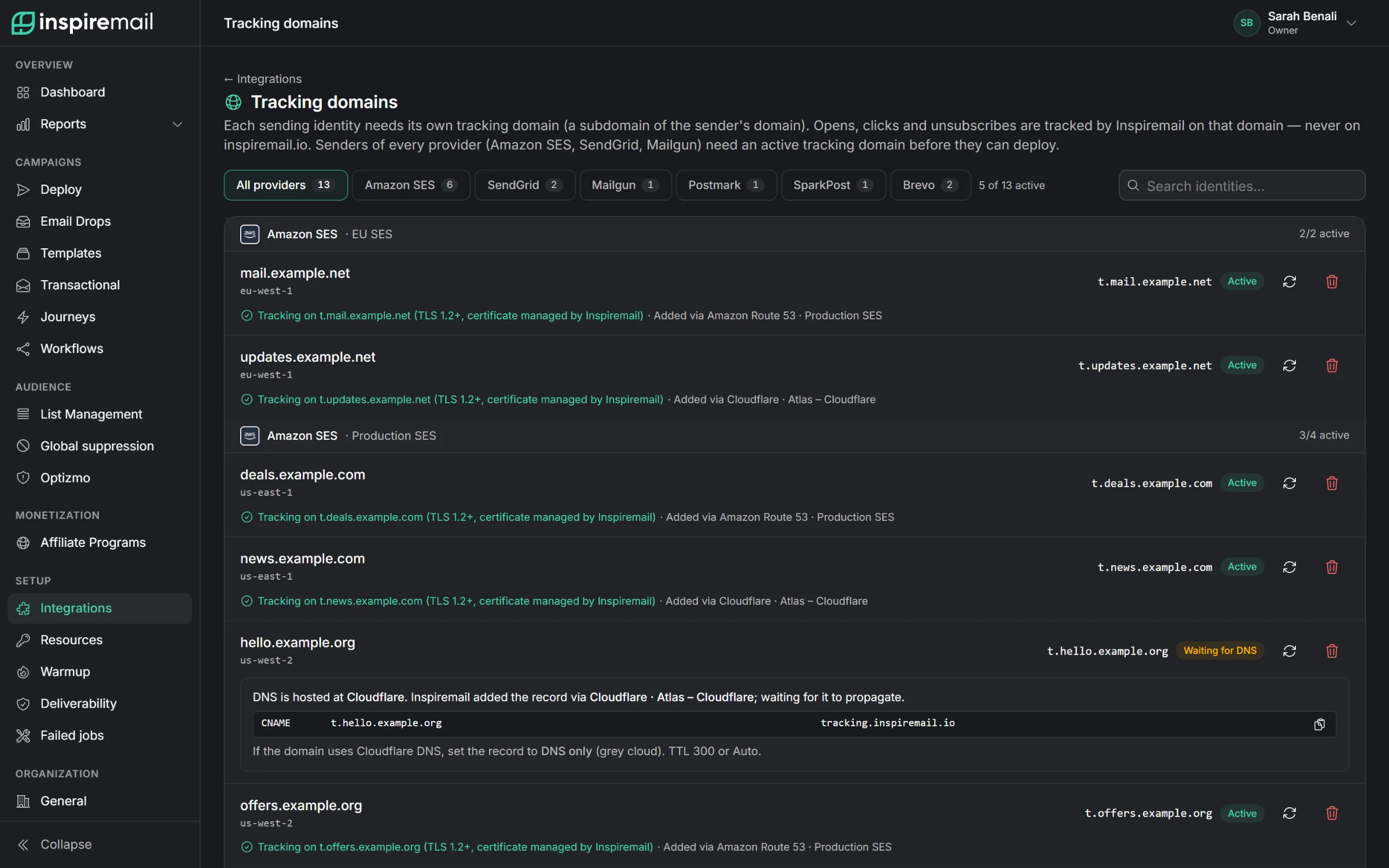
Integrations › Tracking domains (fictitious demo data). Identities are grouped by provider account; active ones show how the record was added.
- Open Integrations › Tracking domains. Use the provider filter or the search box if you have many identities.
- Find the identity. The hostname field is prefilled with
t.plus the identity's domain, for examplet.news.example.com. - Keep it or type another subdomain of the same domain (
links.,go.,click.). It must sit under the identity's domain, and each hostname can only be used once. - Click Set up.
Keep it short and boring. Recipients see the hostname when they hover over a link, and t.yourbrand.com reads as yours. A random string doesn't, and neither does a hostname on a domain they have never received mail from.
Step 2: the DNS record
What happens next depends on where the domain's DNS lives. Inspiremail looks up the name servers and checks every connected DNS account for the zone.
- The zone is in a connected account. The CNAME is created through that account and the row says, for example, "Added via Amazon Route 53 · Production SES". If two connected accounts hold the same zone, you're asked which one to use.
- The zone is somewhere else. The row shows "Waiting for DNS" with the exact record and a copy button. Add it at your DNS host, then click the refresh icon.
- A record already exists at that hostname. Nothing is overwritten. You get a message saying the host already has a record; remove it yourself or choose another hostname.
- Domain Connect. For DNS hosts that support it, a Connect with DNS provider button opens the host's own consent screen instead of copying anything.
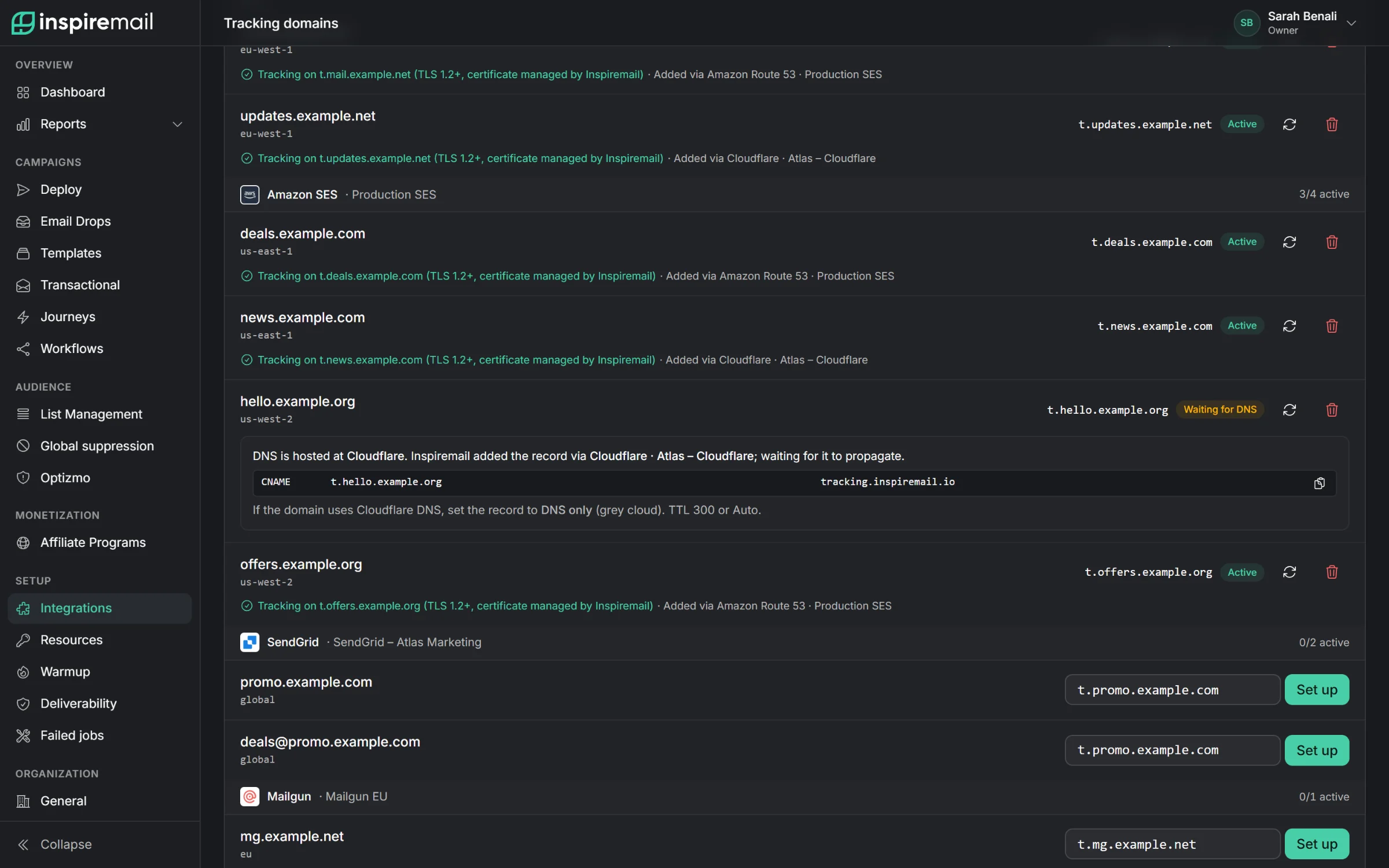
A hostname waiting for DNS. The panel says where the zone is hosted and which record it expects.
Step 3: certificate and Active
Once the CNAME resolves, Inspiremail requests a TLS certificate for the hostname and renews it from then on. The status moves from Waiting for DNS to Issuing certificate to Active, and the row reads "Tracking on t.… (TLS 1.2+, certificate managed by Inspiremail)". It usually follows shortly after DNS propagates. The refresh icon re-checks on demand.
You don't upload certificates, set renewal reminders or host anything. Images in your templates are served from the same hostname too, so a message doesn't load assets from a domain the recipient has never seen.
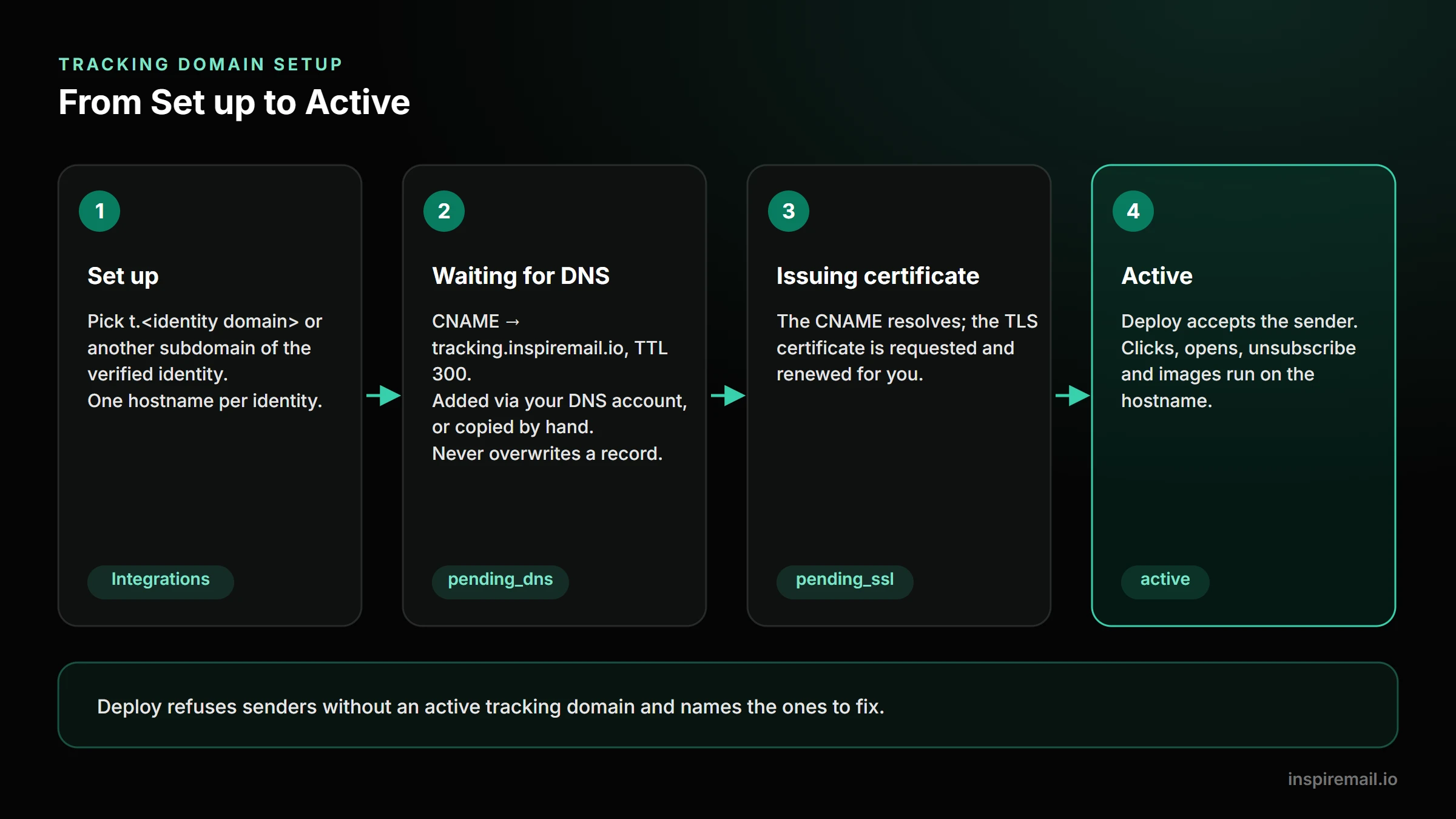 Set up, Waiting for DNS, Issuing certificate, Active. Deploy only accepts senders in the last stage.
What changes on Deploy
- Only senders with an active tracking domain can send. If you pick one without, Deploy stops with "Set up an active tracking domain for: …" and lists the identities, so you can fix them before the drop starts.
- Every link is rewritten to the sender's hostname: clicks, the open pixel, the unsubscribe link, the preference center and the one-click List-Unsubscribe header.
- Rotation keeps them matched. When a drop rotates across several identities, each message carries the tracking hostname of the identity that sent it, so the From domain and the link domain always agree.
Troubleshooting
- "The tracking domain must be a subdomain of …": the hostname isn't under the identity's domain. For
news.example.com, uset.news.example.com, or verifyexample.comas its own identity. - "This identity already has a tracking domain": each identity gets one. Delete the old row first if you want to change it.
- Stuck on Waiting for DNS: look the record up with
dig CNAME t.news.example.com. A proxied (orange cloud) record in your Cloudflare zone is the usual culprit. - "No connected AWS account hosts the Route 53 zone": the zone lives in an AWS account you haven't connected. Connect it, or add the record by hand.
- An identity is missing: it isn't verified at the provider yet. Verify it, then refresh the provider account's identities.
How we checked this guide
We tested each step in a demo organization with fictitious data on 22 November 2026 and compared it with the provider documentation linked above, and with NIST SP 800-177 Rev. 1, Trustworthy Email for the background on DNS and TLS. Screens, button labels, limits and error messages are taken from the product as it works today. If something here no longer matches what you see, contact us and we'll correct it, as our editorial policy describes. Read more about us.
Related guides
After this, run the SPF, DKIM and DMARC check and give new identities a warmup plan. Feature overview: tracking domains. Background on the record itself: RFC 1034 defines how a CNAME aliases one name to another, the Cloudflare DNS docs explain proxied and DNS-only records, and AWS documents working with Route 53 records.
Frequently asked questions
Why does Inspiremail refuse to send without a tracking domain?
Clicks, opens, unsubscribe and preference links all run on the sender's own tracking hostname. Without one, links would have to point at a shared domain, so Deploy blocks senders that have no active tracking domain and tells you which ones.
What CNAME record do I need?
One CNAME from your tracking hostname, for example t.news.example.com, to tracking.inspiremail.io with a TTL of 300 seconds. If the zone is hosted on Cloudflare, set the record to DNS only.
Can Inspiremail add the record for me?
Yes, when the zone is in a connected Cloudflare DNS, Route 53, Name.com or Namecheap account. Inspiremail looks the hostname up first and never overwrites an existing record. Otherwise it shows the record to copy.
Who manages the certificate?
Inspiremail requests and renews it once the CNAME resolves. The hostname shows Issuing certificate until it is ready, then Active. Connections use TLS 1.2 at minimum.
Can I use one tracking domain for several senders?
No. Each verified identity gets its own hostname under its own domain, so one sender's reputation never rides on another's links.
- tracking domain setup
- tracking domain
- cname
- click tracking
- integration guide