
Warmup plan setup: cap a new sender day by day
Warmup plan setup in Inspiremail: pick a sender, a 14, 30 or 45-day ramp or your own schedule, and let every drop respect the day's cap automatically.
· 6 min read · By Reda El Kasraoui
TL;DR: open Setup › Warmup and click New plan. Choose the sender (a whole sending account or region, or a single identity), a ramp (Fast 14 days, Standard 30 days, Conservative 45 days or a custom list of daily caps), the daily volume you want to reach and a start date. Click Create plan. From then on every drop, journey and workflow that sends through that sender respects the day's cap over a rolling 24 hours, and resumes by itself when there's room again.
A warmup plan is a daily sending cap that rises on a schedule, so a new domain, IP or account builds reputation gradually. A route is a whole sending account or SES region, as opposed to a single identity such as one domain. The daily cap is the number of emails a sender may send in a rolling 24 hours on a given day of the plan.
Why ramp at all, and how fast, is covered in email warmup schedules and sender rotation. This guide is the screen.
Before you start
- The sender exists. Connect the provider and verify the identity first: Amazon SES, Mailgun or any other built-in provider.
- You know the target. "Daily volume to reach" is what the sender should handle at the end of the ramp, not your whole list. Be honest about it; a higher target only makes the curve steeper.
- Your list is clean. A ramp spreads volume out. It doesn't fix a list full of old addresses, so suppression and bounce handling still matter most. Nor does it change the rules: every message still needs the opt-out and postal address the FTC's CAN-SPAM guide describes.
Step 1: create the plan
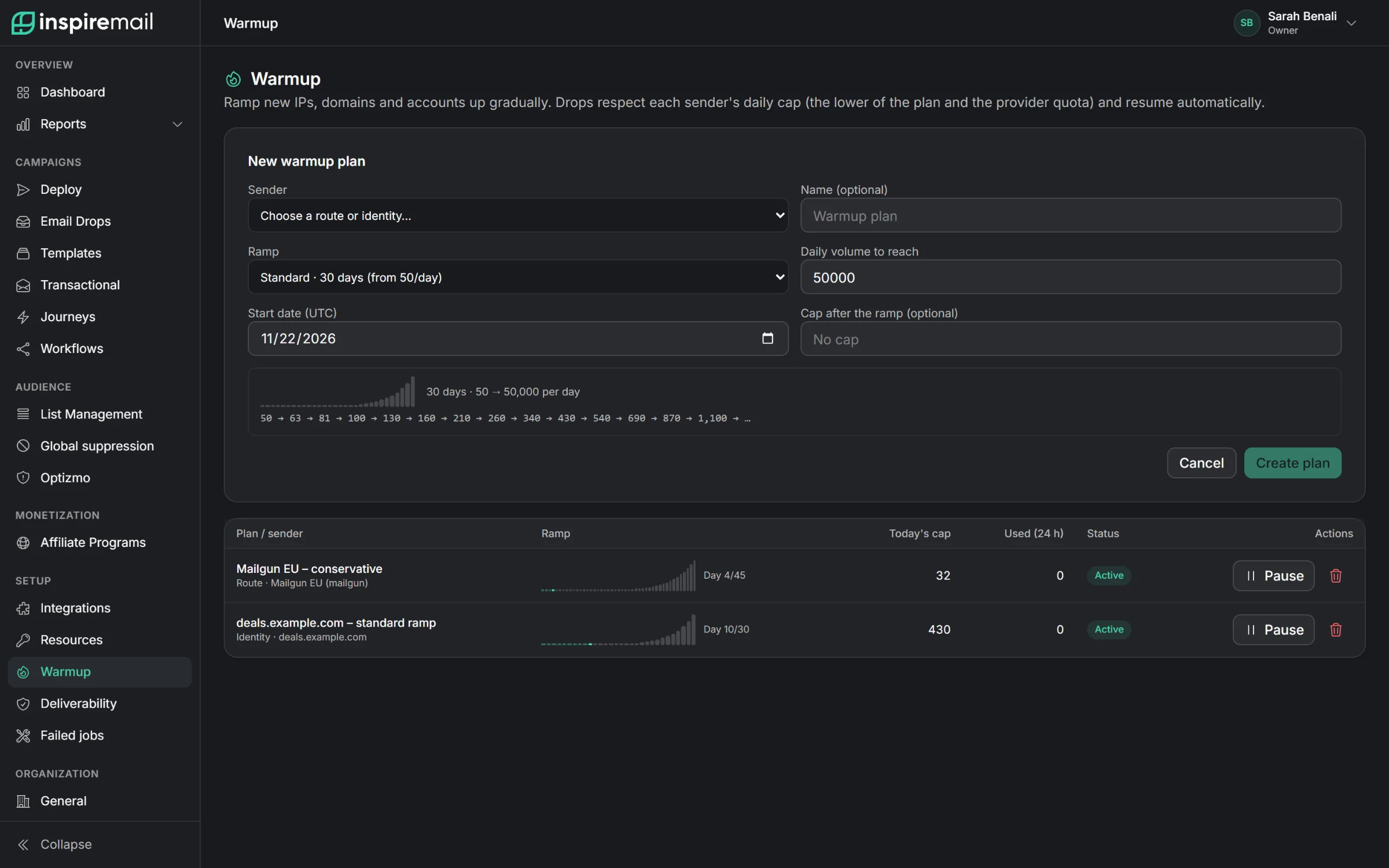
Setup › Warmup with the form open (fictitious demo data). The preview under the form is the real schedule the plan will enforce.
- Open Setup › Warmup and click New plan.
- Sender: pick a route (an SES region of an AWS account, or a provider account such as "Mailgun EU") or one identity (
deals.example.com). - Ramp: Fast · 14 days (from 200 a day), Standard · 30 days (from 50), Conservative · 45 days (from 20), or Custom.
- Daily volume to reach: the last day's cap. The preview shows each day's number as you type.
- Start date (UTC). Day 1 is that date. A plan can start in the future; until then the sender is already held to day 1's cap.
- Optional: a Name, and a Cap after the ramp if you want a ceiling once the schedule ends.
- Click Create plan.
Custom schedules take a list of daily caps, one number per day, separated by commas, spaces or arrows (50, 100, 200, 400), up to 120 days. Each day's cap can be anywhere from 1 to 10 million.
How the ramp is built
The presets grow by the same factor every day, from the starting volume to your target. With a 50,000 target, Standard runs 50 → 63 → 81 → 100 → 130 → 160 and so on, rounded to two significant figures so the numbers stay readable, and reaches 50,000 on day 30. Most of the volume lands in the last third of the ramp, which is the point: the early days are where mailbox providers form their first opinion, so that's where you send the least.
Which preset? Fast suits a domain you've used before or an established account with a new identity on it. Standard is the sensible default for a new domain. Conservative is for a fresh dedicated IP or a list you haven't mailed in a long time.
| Preset | Length | Day 1 | Good fit |
|---|---|---|---|
| Fast | 14 days | 200 | A domain or account with some sending history |
| Standard | 30 days | 50 | A new domain on an established provider account |
| Conservative | 45 days | 20 | A fresh dedicated IP or a list you haven't mailed in months |
| Custom | 1 to 120 days | your choice | Matching a provider's own warmup advice |
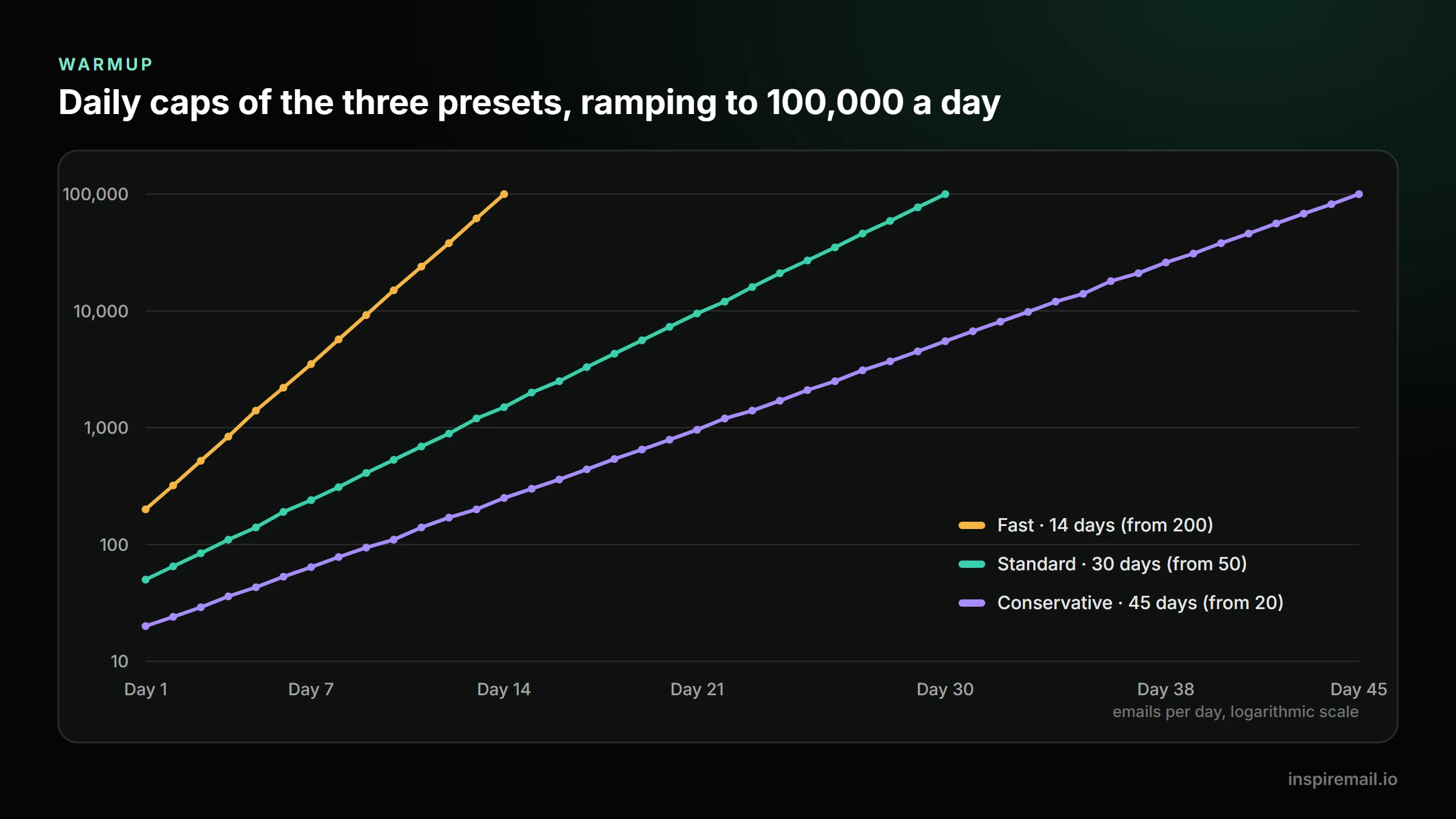 The three presets, computed with the same ramp math the platform uses. Most of the volume arrives in the last third.
Amazon recommends the same shape for dedicated IPs: start small and increase daily while you watch bounces and complaints, rather than jumping to full volume.
Step 2: watch it run
Each plan in the table shows a small chart of the ramp, the current day ("Day 10/30"), Today's cap, how much it has Used (24 h) and its status. That's enough to see at a glance whether a drop will fit today or spill into tomorrow.
When a drop hits the cap, the messages over it aren't failed or dropped. They wait, and the live monitor shows "Warmup cap reached for … sending resumes automatically". The window is a rolling 24 hours, not midnight-to-midnight, so a drop that started at 3 pm continues around 3 pm the next day rather than all at once at midnight.
Pause, edit, finish
- Pause lifts the cap without losing the plan. Resume picks up at the calendar day the schedule has reached, because days count from the start date. Paused for a week or more? Delete the plan and create a new one starting today, so the ramp doesn't jump ahead.
- Delete removes the plan; the sender is no longer capped.
- When the ramp ends, the cap after the ramp applies if you set one. Otherwise the plan stops limiting the sender.
One more safety net: if Inspiremail can't confirm the day's remaining volume for a plan, the messages are held and retried shortly instead of being sent uncapped.
Why it's easier than a spreadsheet
Most teams warm up with a spreadsheet and a reminder to split the list by hand each morning. Here the cap sits on the sender itself. Every drop, journey and workflow that uses it counts toward the same 24-hour budget, so two people deploying on the same day can't double the volume by accident. You set it once and look at the table now and then.
How we checked this guide
We tested each step in a demo organization with fictitious data on 22 November 2026 and compared it with the provider documentation linked above. Screens, button labels, limits and error messages are taken from the product as it works today. If something here no longer matches what you see, contact us and we'll correct it, as our editorial policy describes. Read more about us.
Related guides
Spread volume across several identities with sending pools and rotation, and make sure each new domain passes the SPF, DKIM and DMARC check. Mailbox providers explain their own expectations: Google's sender guidelines, Yahoo's sender best practices Amazon's notes on warming up dedicated IPs, Microsoft's Outlook.com sender policies and the Spamhaus FAQ on marketing email. Feature overview: multi-provider sending.
Frequently asked questions
What is the difference between a route plan and an identity plan?
A route plan caps a whole sending account or SES region, whatever identity sends through it. An identity plan caps one domain or address, across every drop that uses it. Use route plans for a new account or dedicated IP, identity plans for a new domain.
What happens when the day's cap is reached during a drop?
The messages over the cap wait. The live monitor shows that the warmup cap was reached and the drop resumes automatically when the rolling 24-hour window has room again. Nothing is dropped or counted as failed.
Does the warmup cap replace my provider's sending quota?
No. Both apply, and the lower one wins. A plan at 5,000 a day on an SES region limited to 2,000 still sends 2,000.
Can I pause a warmup plan?
Yes. Pause lifts the cap without deleting the plan, and Resume continues at the current calendar day of the schedule, since days count from the start date. After a long pause, create a new plan instead.
What happens when the ramp ends?
If you set a cap after the ramp, it stays in force. If you leave it empty, the plan stops capping and only your provider's quota applies.
- warmup plan setup
- warmup
- domain warmup
- sending limits
- integration guide