
DNS automation: Cloudflare, Route 53, Name.com, Namecheap
Connect Cloudflare DNS, Route 53, Name.com or Namecheap: Inspiremail then adds tracking and DKIM records as automatic DNS records and never overwrites yours.
· Last updated · 5 min read · By Reda El Kasraoui
TL;DR: open Integrations › Domain registrars & DNS and connect the account that hosts your zones: a Cloudflare DNS API token with Zone › DNS › Edit, a Name.com username and API token, or a Namecheap username and API key with Inspiremail's IP whitelisted. Route 53 needs nothing extra: it works through your connected AWS accounts. From then on, tracking domain CNAMEs and missing authentication records are created for you, and existing records are never changed.
A DNS zone is the set of records for a domain held by one DNS provider, such as Cloudflare, Route 53, Name.com or Namecheap. An API token is the scoped credential that lets Inspiremail add records to that zone.
Each provider here could fill a short guide on its own, but the Inspiremail side is the same for all four, so they're together. Pick your section.
What gets automated
- Tracking domains. When you click Set up on a tracking domain, the CNAME to
tracking.inspiremail.iois created in the right zone. - Missing authentication records. On Setup › Deliverability, a missing record shows Add automatically. See the email authentication check.
- Amazon SES identity records. The DKIM and MAIL FROM records an SES identity needs can be published from the identity's DNS panel.
How the right account is found
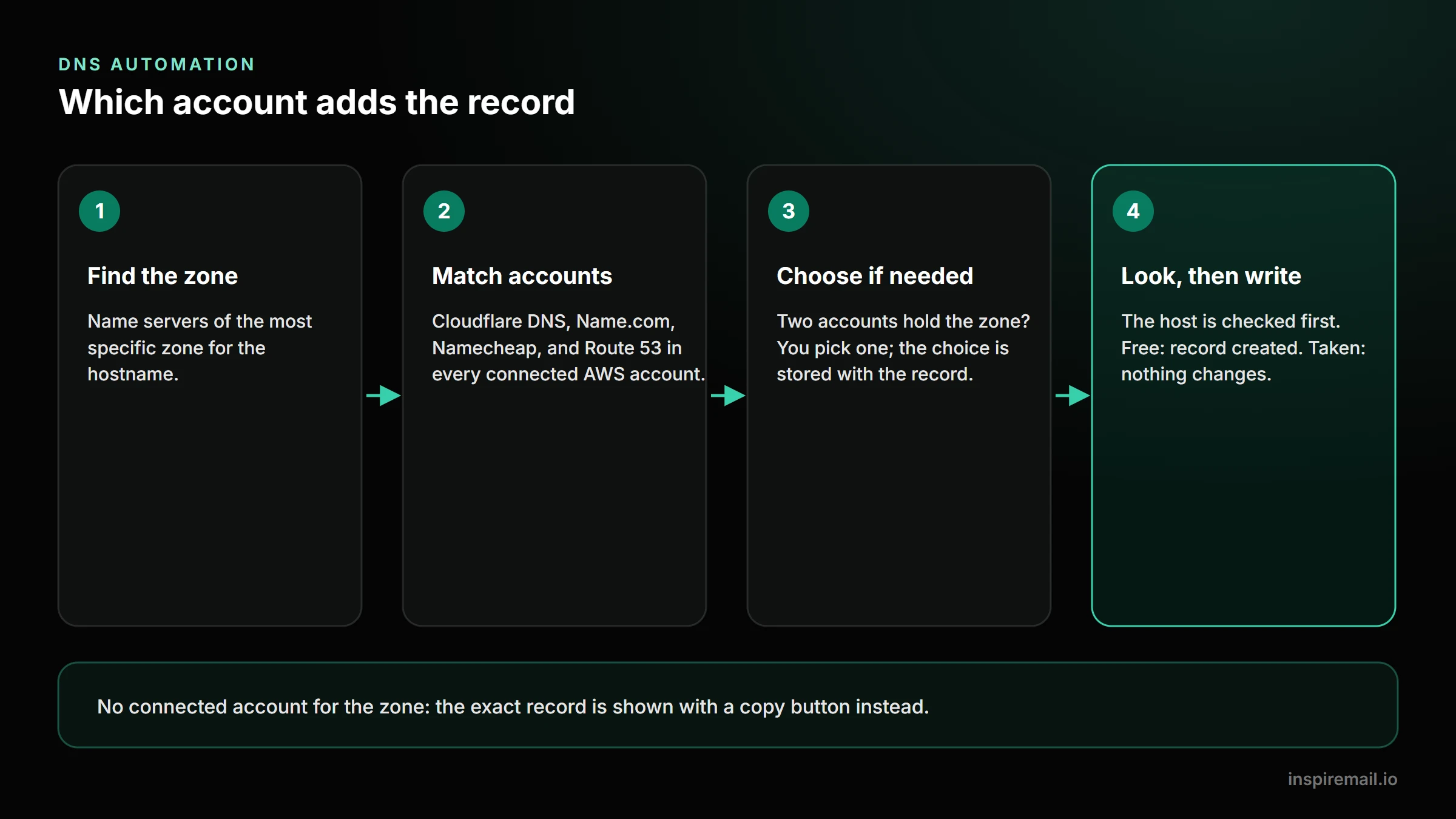 The same lookup runs for tracking domains, Deliverability fixes and SES identity records.
You don't tell Inspiremail where a domain lives. It reads the domain's name servers, then searches every connected account for the zone, keeping the most specific match (a zone for news.example.com wins over example.com). Several AWS accounts are all searched. If two accounts hold the same zone you pick one, and the choice is stored with the change: the tracking domain row says, for example, "Added via Amazon Route 53 · Production SES".
Cloudflare DNS
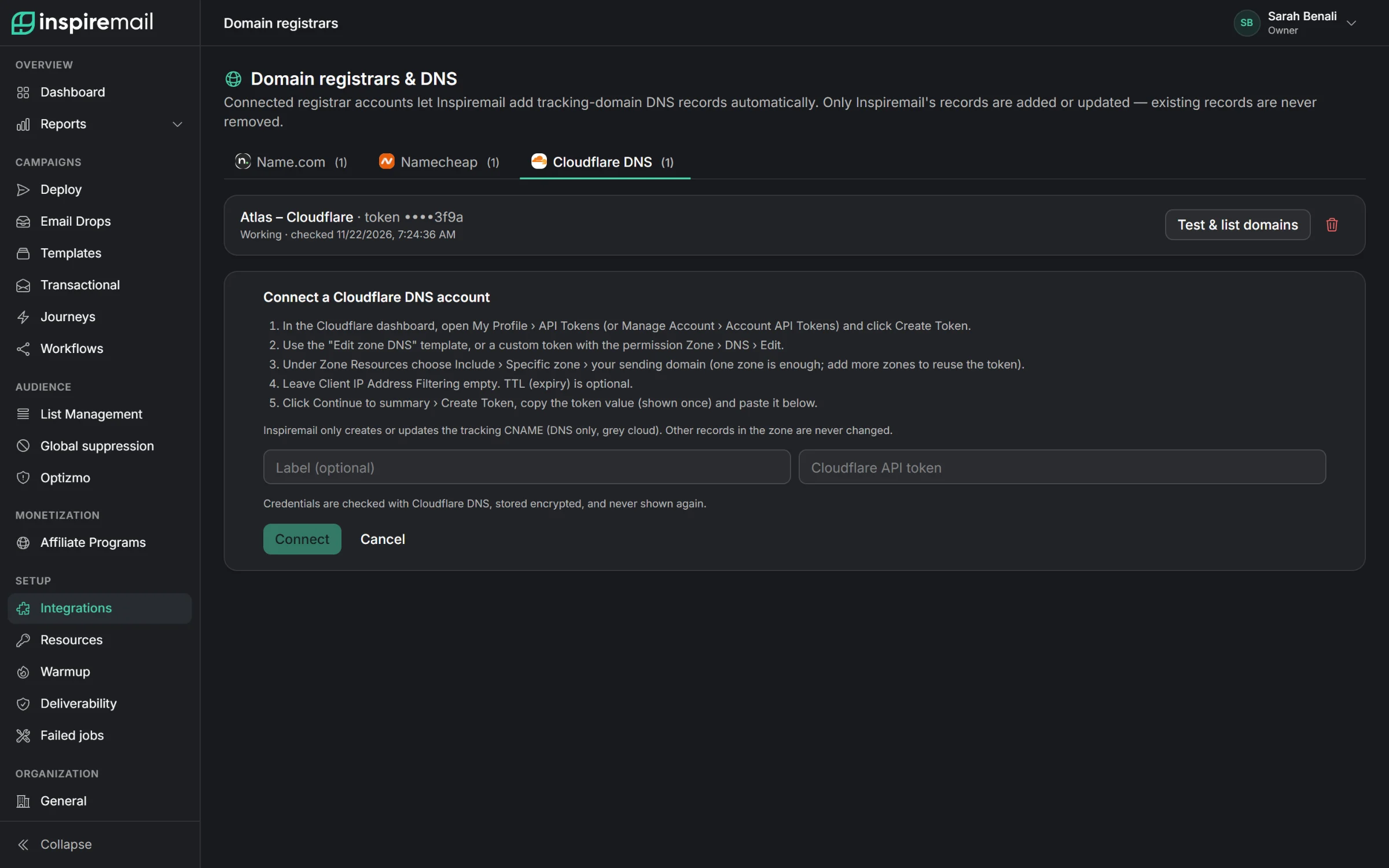
The Cloudflare DNS tab with one connected token (fictitious demo data). The steps are printed next to the field.
- In your Cloudflare account open My Profile › API Tokens (or Manage Account › Account API Tokens) and click Create Token.
- Use the Edit zone DNS template, or a custom token with Zone › DNS › Edit.
- Under Zone Resources choose Include › Specific zone and your sending domain. Add more zones if you want one token for several.
- Create the token and copy it (it is shown only once).
- In Inspiremail, open the Cloudflare DNS tab, optionally add a Label, paste the token and click Connect.
Tracking CNAMEs are created as DNS only (grey cloud), which they need to be; the Cloudflare DNS docs explain the difference between proxied and DNS-only records. The guide to creating Cloudflare API tokens shows the same screens. The token is stored encrypted and never shown again; Test & list domains confirms it still works.
Amazon Route 53
Nothing to connect if the zone is in an AWS account you already use for SES. Add two actions to that account's IAM policy:
route53:ListHostedZonesByNameroute53:ChangeResourceRecordSets
The zone is then found in whichever connected AWS account holds it, and records are created with a create-only change, so an existing record makes the change fail instead of replacing it. The Amazon SES setup guide has the full policy, and AWS's Route 53 API permissions reference lists both actions.
Name.com
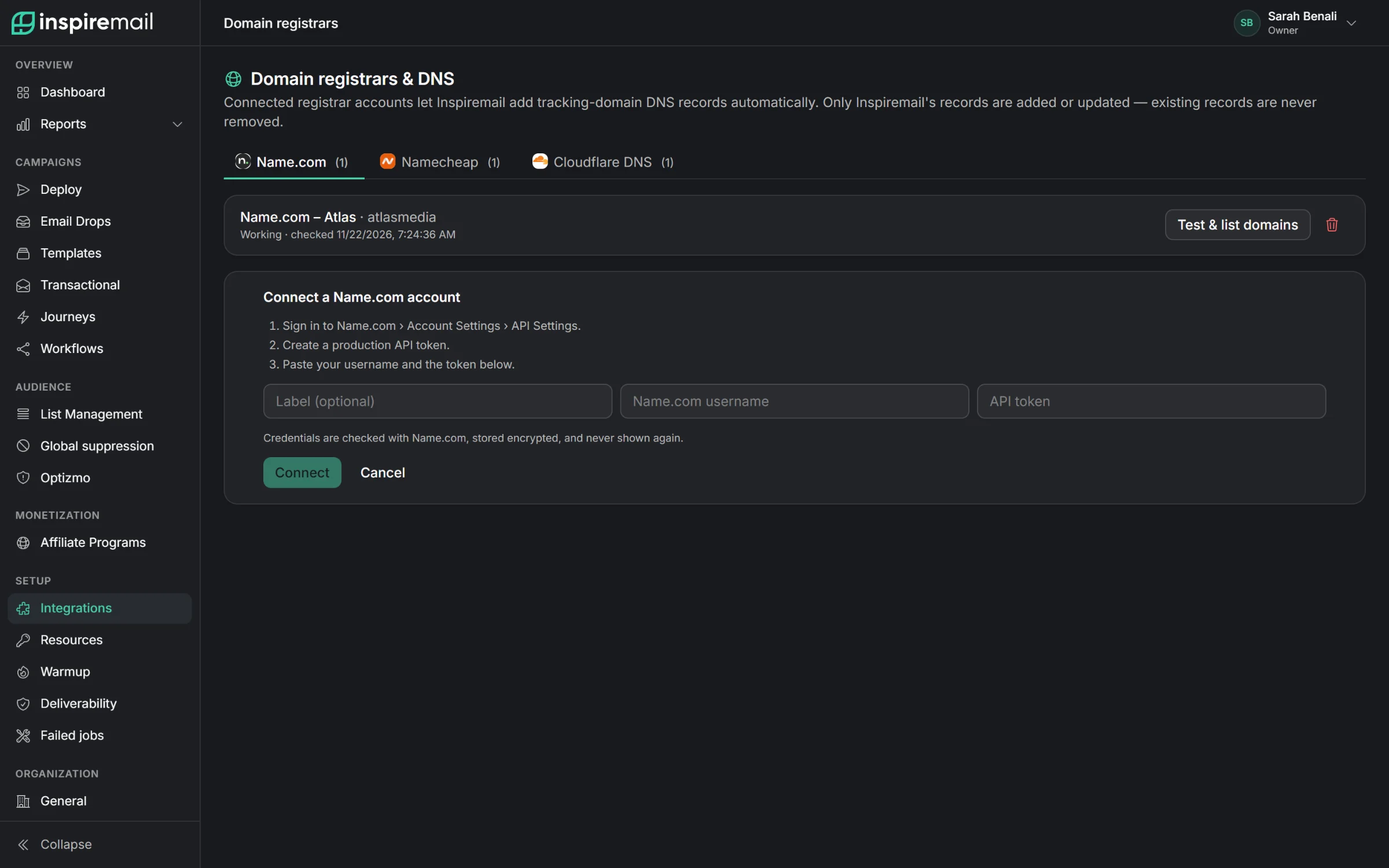
Connecting Name.com: a username and a production API token.
- Sign in to Name.com and open Account Settings › API Settings.
- Create a production API token (not the test environment one).
- In Inspiremail, open the Name.com tab, enter your Name.com username and the API token, and click Test & list domains.
Namecheap
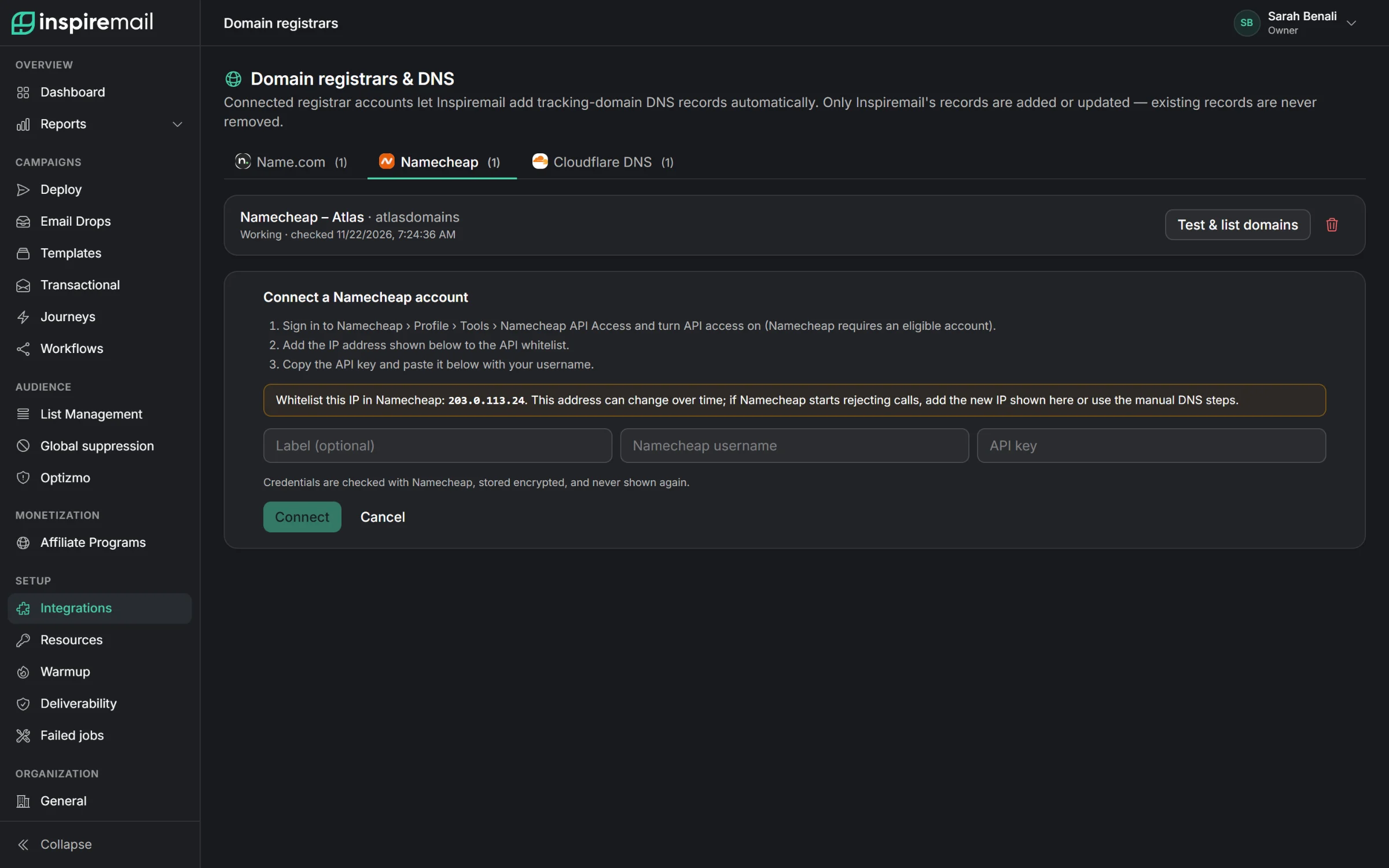
Namecheap needs one more step: whitelisting the address shown in the panel.
- Sign in to Namecheap and open Profile › Tools › Namecheap API Access. Turn API access on. Namecheap only allows this for eligible accounts.
- Add the IP address shown in the Inspiremail panel to the API whitelist.
- Copy the API key and paste it in Inspiremail with your Namecheap username, then click Test & list domains.
Namecheap's API replaces a domain's whole host list on every change. Inspiremail reads the current list first and writes it back with the new record added, keeping your mail settings, so other records stay exactly as they were.
Disconnecting an account
Disconnecting removes the stored credentials. Records already created stay in place, and the confirmation dialog lists which tracking domains and recent fixes used that account, so you know what you'd be updating by hand from then on.
Troubleshooting
- "The domain uses Cloudflare DNS: paste a Cloudflare API token … or add the CNAME manually": no connected token covers that zone. Edit the Cloudflare API token to include the zone, or create one for it.
- "No connected AWS account hosts the Route 53 zone": the hosted zone lives in an AWS account you haven't connected, or the IAM user lacks the two Route 53 actions.
- Namecheap calls fail right after connecting: the IP address isn't on the API whitelist yet, or API access isn't enabled for the account.
- A record "already exists": something else sits at that host. Inspiremail won't touch it. Remove it yourself, or pick another tracking hostname.
- You're asked to choose an account: two connected accounts hold the same zone, often an old token and a new one. Pick one, then disconnect the account you no longer use.
Why connect a DNS account at all
You can always copy records by hand; every screen shows them. Connecting takes a few minutes once and then saves a trip to the DNS console for every new identity, plus the typos that come with it. Because nothing is ever overwritten, it's safe to connect the account that holds your main domain.
How we checked this guide
We tested each step in a demo organization with fictitious data on 22 November 2026 and compared it with the provider documentation linked above, and with NIST SP 800-177 Rev. 1, Trustworthy Email for the background on DNS. Screens, button labels, limits and error messages are taken from the product as it works today. If something here no longer matches what you see, contact us and we'll correct it, as our editorial policy describes. Read more about us.
Related guides
The integration pages for Cloudflare DNS, Name.com and Namecheap.
Frequently asked questions
Which records does Inspiremail add automatically?
The CNAME of each tracking domain, and missing authentication records from the Deliverability page (for example a DMARC record or the MAIL FROM records of an Amazon SES identity) when you click Add automatically.
Can Inspiremail delete or overwrite my DNS records?
No. It looks the host up first and only creates a record when nothing is there. If a different record already exists at that name, nothing is written and you are told which record is in the way.
Which Cloudflare API token permission is needed?
Zone › DNS › Edit, limited to the zones you send from. The Edit zone DNS template in your Cloudflare account gives exactly that.
Do I need to connect Route 53 separately?
No. Route 53 works through the AWS accounts you already connected for Amazon SES, as long as the IAM user may call route53:ListHostedZonesByName and route53:ChangeResourceRecordSets.
What if two connected accounts hold the same zone?
Inspiremail asks which one to use and remembers the choice with the record, so the tracking domain row shows which account added it.
Why does Namecheap need an IP address?
Namecheap only accepts API calls from whitelisted IP addresses and only enables API access on eligible accounts. The connect panel shows the address to add.
- automatic DNS records
- cloudflare dns
- route 53
- namecheap
- name.com