
Amazon SES setup: connect AWS to Inspiremail
Amazon SES setup with Inspiremail: create a least-privilege IAM key, connect the AWS account, and let regions, identities and bounce tracking sync themselves.
· Last updated · 5 min read · By Reda El Kasraoui
TL;DR: to set up Amazon SES in Inspiremail, create an IAM user with the least-privilege policy shown in the connect dialog, paste its access key under Integrations › Amazon SES › Connect AWS account, and wait for the first sync. Inspiremail finds every SES region with its quota and verified identities, enables the production regions and sets up bounce and complaint tracking through SNS for you. Add a tracking domain per identity and the senders show up on Deploy.
The whole thing takes about ten minutes, most of it in the AWS console. What follows is the exact order, what each permission is for, and what to do when AWS says no.
What you need before you start
- An AWS account with SES out of the sandbox in at least one region. New accounts start in the sandbox (200 messages a day, verified recipients only); AWS explains how to request production access.
- At least one verified identity, ideally a domain with Easy DKIM. You can create identities in the SES console or from Inspiremail once the account is connected.
- Permission to create an IAM user and access key. AWS's page on managing access keys covers the console steps.
- An Inspiremail role with integrations.manage (Owner or Organization Manager).
Step 1: create the IAM user in AWS
- In Inspiremail open Integrations › Amazon SES › Connect AWS account and expand Required IAM policy (least privilege). Copy the JSON.
- In the AWS IAM console create a user (for example
inspiremail), attach a new policy with that JSON, and create an access key for it. - Copy the access key ID and the secret access key. AWS shows the secret once.
The policy has three statements, and it's worth knowing why each one is there:
| Statement | Actions | Why |
|---|---|---|
InspiremailSes | Read the account, list / get / create identities, MAIL FROM and feedback attributes, send email, configuration set and event destinations, identity notification topics | Sending, identity sync and event tracking |
InspiremailSnsEvents | Create, configure, subscribe and delete one topic | Limited to the inspiremail-ses-events topic |
InspiremailTrackingDnsOptional | route53:ListHostedZonesByName, route53:ChangeResourceRecordSets | Only if you want tracking-domain CNAMEs added in Route 53 |
If your DNS isn't in Route 53, you can drop the third statement. If you used an older version of the policy, update it: the dialog says so when new actions were added.
Step 2: connect the account in Inspiremail
- Back in the dialog, give the account a Display name ("Production SES", "EU SES"), paste the Access key ID and the Secret access key, and click Connect.
- Inspiremail validates the key with AWS, then starts the first sync. The progress shows regions first, then event tracking.
- Open the account to see its regions, quotas and identities.
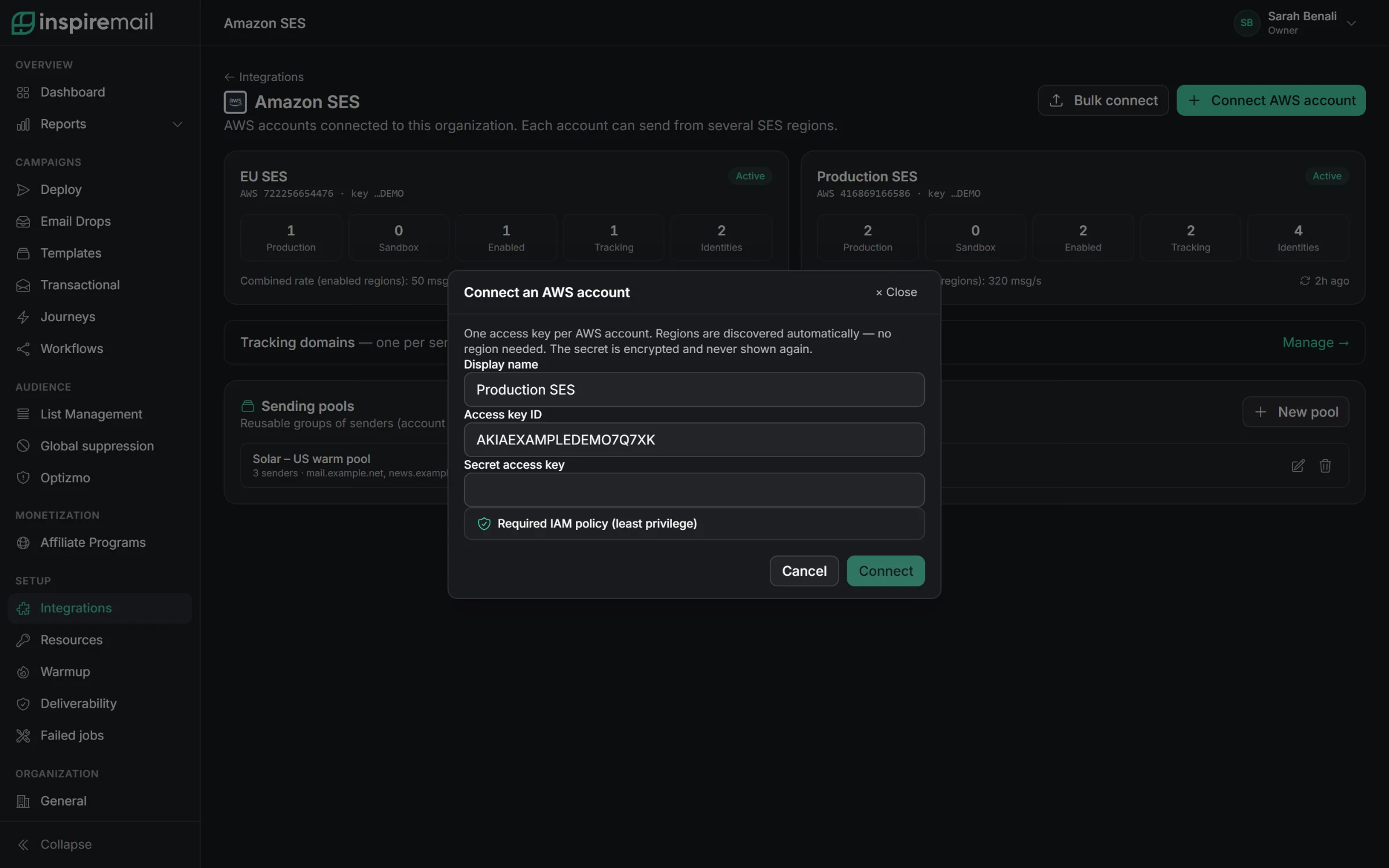
The Connect dialog (fictitious demo values). The IAM policy box holds the JSON to copy into AWS.
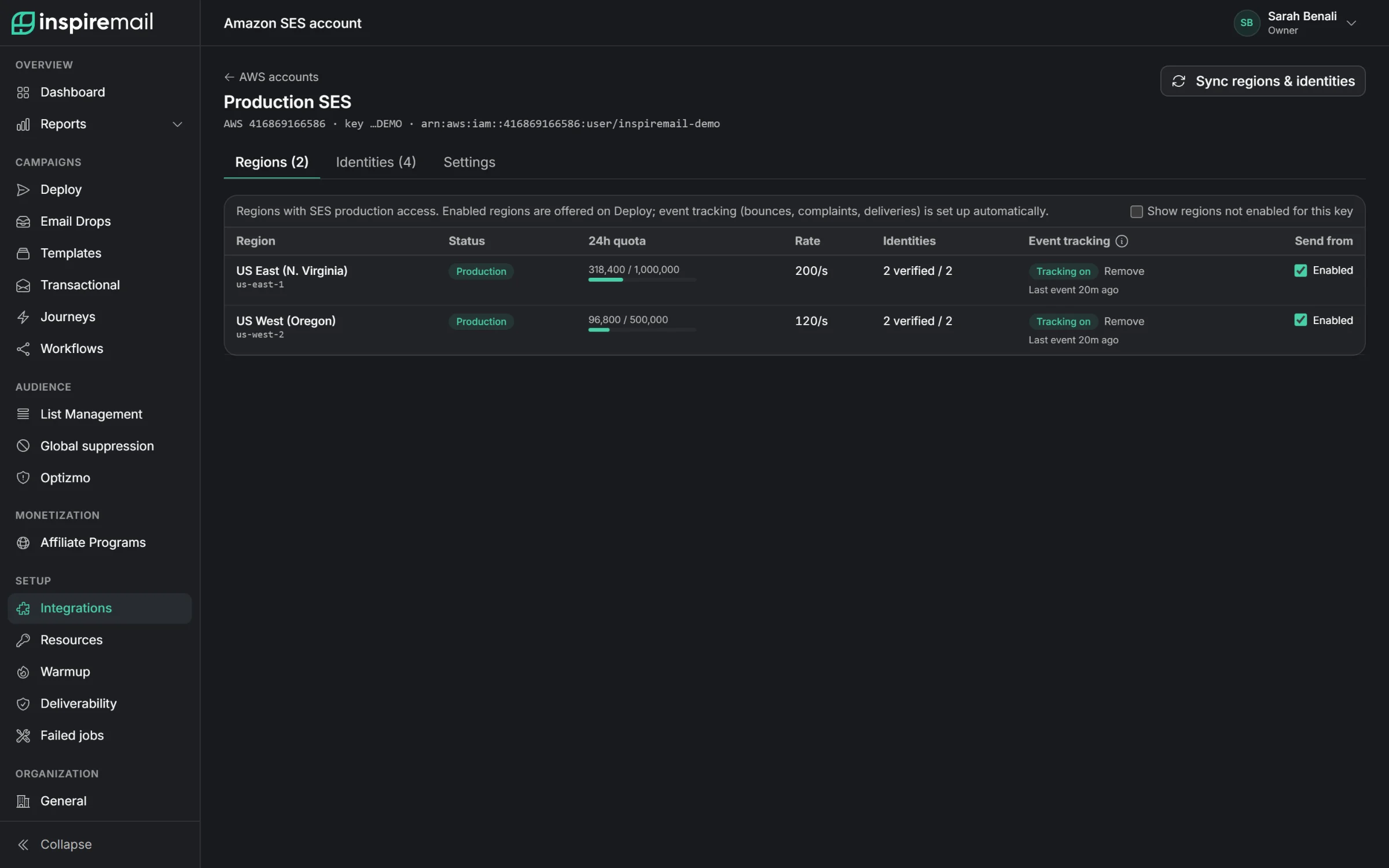
After the first sync: each production region with its quota, send rate, verified identities and event tracking status.
What Inspiremail sets up for you
This is the part that usually eats an afternoon when done by hand.
- Regions. Every commercial SES region is checked. Regions with production access are enabled on the first sync; sandbox regions stay off.
- Quotas. Each region's maximum send rate and 24-hour quota are read and used to pace drops.
- Identities. Verified domains and addresses are listed per region. You can add a domain (the DKIM records are shown, and can be added automatically when the zone is in a connected DNS account) or an email address (AWS sends the verification link).
- Bounce and complaint tracking. For every enabled region, Inspiremail creates the
inspiremail-eventsconfiguration set, the SNS topic and the HTTPS subscription. Hard bounces and complaints go straight to your organization-wide suppression list. AWS's own guide to SNS notifications shows what that saves you. - Custom MAIL FROM. Per domain identity you can set a custom MAIL FROM subdomain, so SPF aligns with your From domain for DMARC.
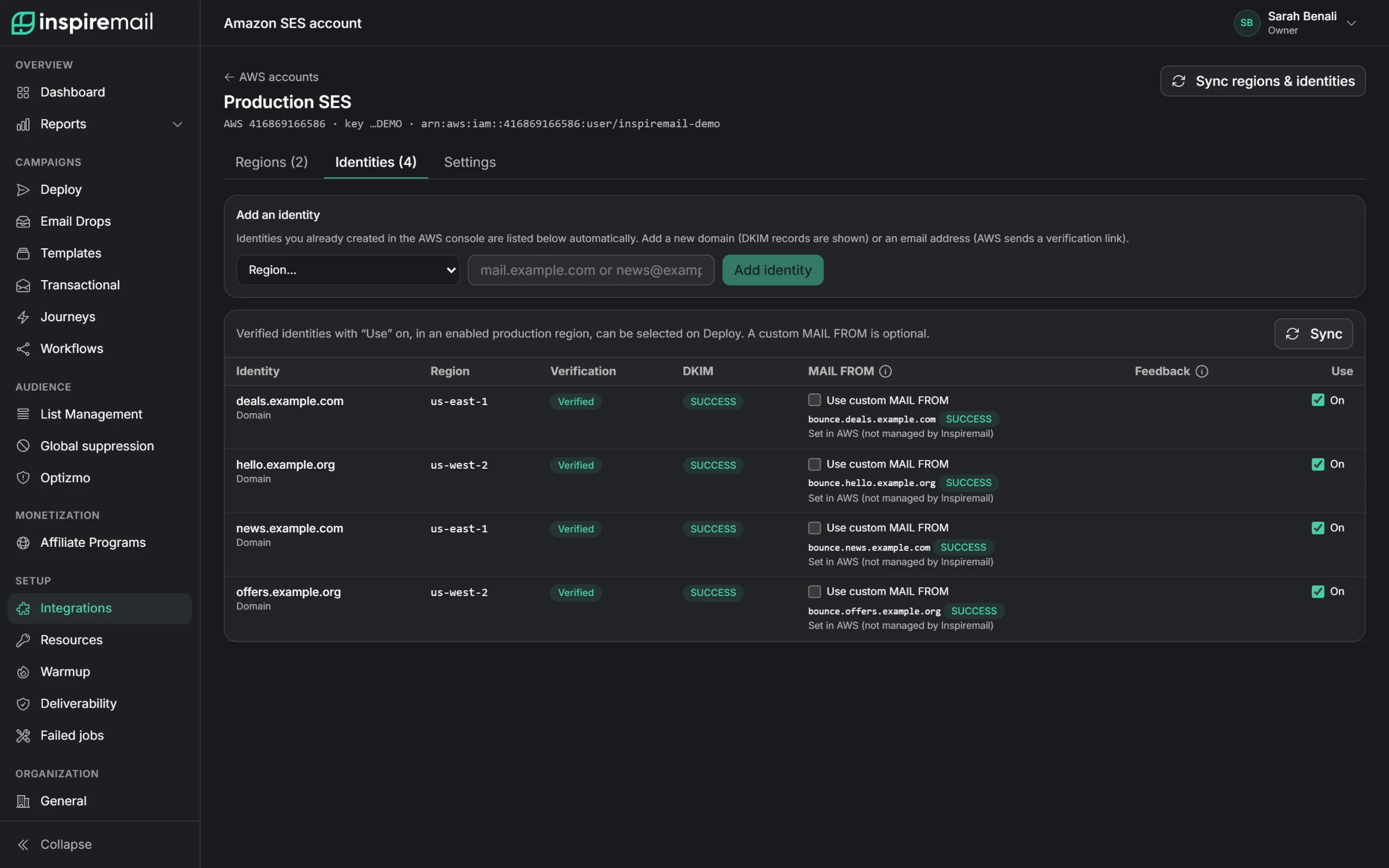
The Identities tab: add a domain or address, set MAIL FROM, choose which identities can be used.
Step 3: add tracking domains, then deploy
Every sender needs an active tracking domain before Deploy will use it. Open Integrations › Tracking domains, keep the suggested t. hostname or type your own, and click Set up. The tracking domain setup guide covers the DNS side. After that, the identities appear in the sending panel of Deploy, where you can combine identities from several regions and AWS accounts in one drop.
Why it's quick
- One key per AWS account covers every region, so there's nothing to repeat per region.
- The SNS plumbing (topic, subscription confirmation, configuration set, event destination) is done for you, per region.
- Re-syncing is one click (Sync regions & identities), and new regions or identities appear without reconnecting.
Troubleshooting
- "Invalid AWS credentials": the key ID or secret is wrong, or the key was deactivated. Create a new key for the IAM user.
- "AWS account 123456789012 is already connected": each AWS account is connected once. Open the existing account instead, or replace its key.
- "This key belongs to AWS account …, not …": when replacing a key, use one from the same AWS account.
- "This region is in the SES sandbox (200 emails/day, verified recipients only). Request production access in AWS first.": shown when you try to enable a sandbox region.
- "Sending is paused by AWS in this region": AWS has paused sending (often a review after high bounce or complaint rates). Resolve it in the SES console first.
- "The MAIL FROM domain must be a subdomain of the identity domain": use something like
bounce.mail.example.comformail.example.com.
How we checked this guide
We tested each step in a demo organization with fictitious data on 22 November 2026 and compared it with the provider documentation linked above, and with NIST SP 800-177 Rev. 1, Trustworthy Email for the background on SPF, DKIM and DMARC. Screens, button labels, limits and error messages are taken from the product as it works today. If something here no longer matches what you see, contact us and we'll correct it, as our editorial policy describes. Read more about us.
Related guides
Running more than one provider? See sending pools and rotation. New identities should follow a warmup plan, and the SPF, DKIM and DMARC check confirms the DNS side. For SES itself (sandbox, quotas, review thresholds, dedicated IPs), read Amazon SES bulk email: the operator's guide. Feature overview: Amazon SES in Inspiremail.
Amazon SES is AWS's email sending service: you verify identities (domains or addresses) per region and pay per message. An IAM access key is the credential Inspiremail uses to call SES on your behalf, limited by the policy you attach to it.
Frequently asked questions
Which IAM permissions does Inspiremail need for Amazon SES?
The policy shown in the connect dialog: SES actions to read the account, list and create identities, set MAIL FROM and feedback options, send email and manage the inspiremail-events configuration set; SNS actions limited to the inspiremail-ses-events topic; and two optional Route 53 actions for tracking-domain DNS.
Can I connect several AWS accounts?
Yes. Each AWS account is connected once with its own access key, and every account can send from all of its enabled SES regions. Bulk connect takes several keys at once.
Do sandbox regions work?
They are listed but never enabled automatically, because a sandbox region can only send 200 emails a day to verified recipients. Request production access in the AWS console first, then sync the account again.
Do I have to set up SNS notifications myself?
No. For every enabled region Inspiremail creates the configuration set and the SNS topic and subscribes its own HTTPS endpoint, so deliveries, bounces and complaints arrive without manual steps.
What happens to the secret access key?
It is validated against AWS, stored encrypted and never shown again. To replace it, connect the new key for the same AWS account; a key that belongs to a different AWS account is refused.
- Amazon SES setup
- amazon ses
- iam policy
- sns
- integration guide