
SendGrid setup: API key and Event Webhook
SendGrid setup with Inspiremail: create a Mail Send API key, connect the account, and sign the Event Webhook so bounces and spam reports suppress automatically.
· 5 min read · By Reda El Kasraoui

TL;DR: create a SendGrid API key with Mail Send (and Sender Authentication: Read to list identities), paste it in Integrations › SendGrid › Connect account, then create an Event Webhook in SendGrid with the URL Inspiremail shows, turn on Signed Event Webhook and paste the verification key back. Your verified senders and authenticated domains become senders on Deploy, and bounces, drops and spam reports are suppressed as they arrive.
The Event Webhook is SendGrid's way of reporting what happened to each message, such as a delivery, a bounce or a spam report. A signed webhook is one where every batch carries a signature you can verify with a public key, so forged events are rejected.
Two things decide whether this works well: the key's permissions and the signed webhook. Everything else is filled in for you.
What you need from SendGrid
- A sending identity: an authenticated domain is best. Twilio's guide on domain authentication covers the DNS records. A single verified sender works for testing.
- An API key created under Settings › API Keys. SendGrid's API key documentation explains Restricted Access.
- Access to Mail Settings › Event Webhooks, to create the webhook and enable signature verification.
Step 1: create the API key in SendGrid
- In SendGrid open Settings › API Keys › Create API Key and choose Restricted Access.
- Set Mail Send to Full Access. Set Sender Authentication to Read Access so the identities can be listed.
- Create the key and copy it. It starts with
SG.and has three parts; SendGrid shows it once.
Step 2: connect the account in Inspiremail
- Open Integrations › SendGrid and click Connect account.
- Paste the key, pick the Data residency (Global, or EU for an EU regional subuser) and optionally name the account.
- Click Test & connect. The key is tested with SendGrid before it's saved, then stored encrypted.
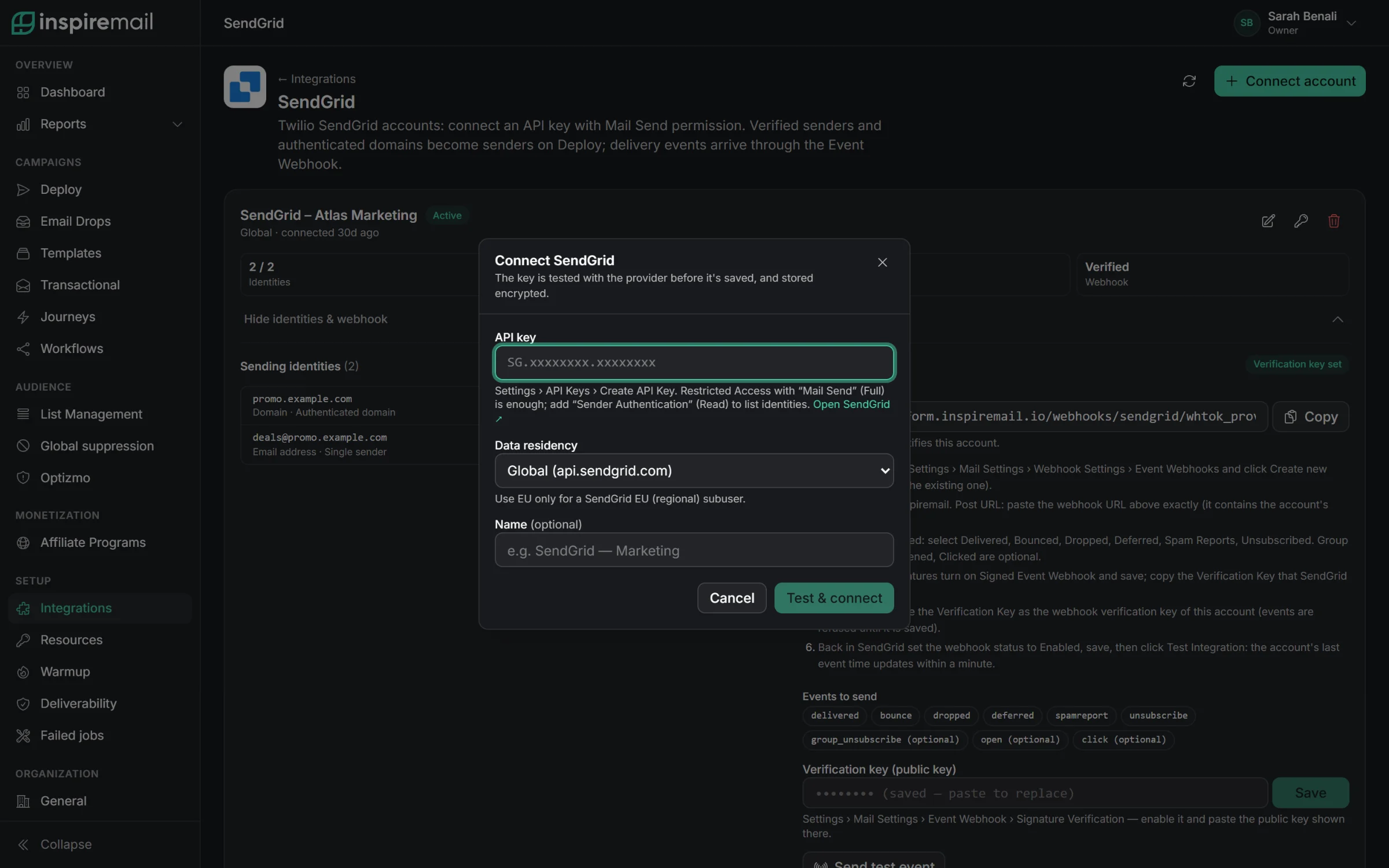
The Connect SendGrid dialog. The hint under the key field repeats which permissions to grant.
Step 3: set up the signed Event Webhook
Open the account's Event webhook section. It shows the webhook URL (it contains a secret token for this account, so treat it like a password), the exact SendGrid steps and the event list.
- In SendGrid open Settings › Mail Settings › Webhook Settings › Event Webhooks and click Create new webhook.
- Friendly name: Inspiremail. Post URL: paste the URL from Inspiremail exactly.
- Select Delivered, Bounced, Dropped, Deferred, Spam Reports and Unsubscribed. Group Unsubscribes, Opened and Clicked are optional.
- Under Security features turn on Signed Event Webhook, save and copy the Verification Key.
- Paste it into Verification key (public key) in Inspiremail and click Save. Events are refused until it's saved.
- Back in SendGrid enable the webhook and click Test Integration. The account's last event time updates within a minute.
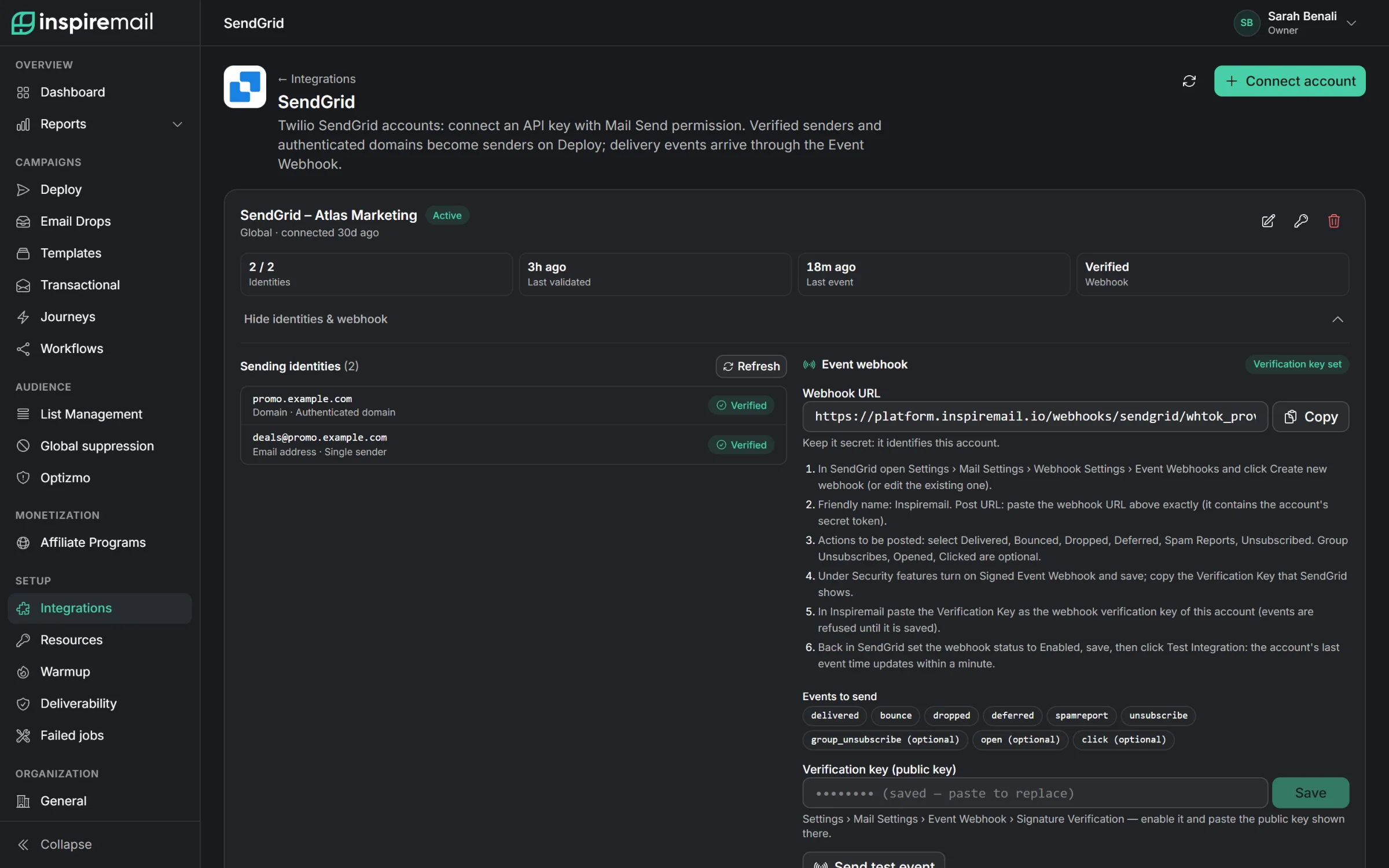
A connected SendGrid account (fictitious demo data): identities on the left, the webhook steps on the right.
Send test event runs a dry-run check: it builds a synthetic event, signs it and pushes it through the same verification and parsing code real events use, without writing anything. SendGrid's Test Integration remains the definitive end-to-end check.
What Inspiremail does after setup
- Identities. Verified senders and authenticated domains are listed and become senders on Deploy. Refresh re-reads them after you add one in SendGrid.
- Event handling. Every webhook batch is verified with the ECDSA signature before it's accepted. Hard bounces and spam reports go to your suppression list; deliveries, deferrals and drops feed the live monitor, reports and auto-pause. The SendGrid event reference lists what each event means.
- Tracking. SendGrid's click, open and subscription tracking are turned off per message. Links, opens and unsubscribes run on your own tracking domain, and attribution tags travel as custom arguments so every event maps back to its drop.
- Pacing. The account gets a default send rate of 100 emails per second, which you can change on the account.
Why it's quick
The key test catches a missing Mail Send permission before anything is saved. The webhook page lists SendGrid's own menu path, the URL and the events, so you don't have to work out which of SendGrid's options matter. And the dry-run test tells you whether the saved key is valid before you wait for real traffic.
When something goes wrong during a drop
| What SendGrid returns | What Inspiremail does |
|---|---|
| HTTP 429 | Not counted as failed. The message goes back in the queue, sending pauses two seconds and resumes. The live monitor shows "Provider throttling; retrying shortly". |
| A credits or quota message | Logged as a quota failure with SendGrid's code. Check your plan in SendGrid. |
| HTTP 401 | Owners and managers get a critical "Provider credentials rejected" alert. |
| HTTP 403 about the sender identity | Rejected: the From address isn't verified on that SendGrid account. |
On top of that, a drop pauses itself if bounces pass 5% or complaints pass 0.1% after 500 deliveries (both adjustable per drop).
Troubleshooting
- "Enter a SendGrid API key (starts with SG.)": the value pasted isn't a SendGrid key, often a key ID or a truncated copy.
- "This SendGrid API key can't send mail (missing the Mail Send permission)": edit the key in SendGrid and set Mail Send to Full Access.
- No identities listed: the key lacks Sender Authentication read access, or no sender is verified yet. Verify one in SendGrid (Settings › Sender Authentication) and click Refresh.
- Test Integration fails with HTTP 401 "Invalid signature": the verification key in Inspiremail doesn't match the one SendGrid shows. Copy it again after enabling Signed Event Webhook.
- Last event never updates: the webhook is still disabled in SendGrid, or the Post URL was edited. Paste it again exactly.
How we checked this guide
We tested each step in a demo organization with fictitious data on 22 November 2026 and compared it with the provider documentation linked above, and with NIST SP 800-177 Rev. 1, Trustworthy Email for the background on domain authentication. Screens, button labels, limits and error messages are taken from the product as it works today. If something here no longer matches what you see, contact us and we'll correct it, as our editorial policy describes. Read more about us.
Related guides
Set up a tracking domain for each SendGrid identity before the first drop, and plan a warmup for new domains. Other providers: Amazon SES, Mailgun. Overview: SendGrid integration and multi-provider sending.
Frequently asked questions
Which SendGrid API key permissions does Inspiremail need?
Restricted Access with Mail Send set to Full Access is enough to send. Add Sender Authentication with Read Access so Inspiremail can list your verified senders and authenticated domains.
Do I have to turn off SendGrid click and open tracking?
No. Inspiremail turns SendGrid's own click, open and subscription tracking off on every message it sends, because links and opens are tracked on your own tracking domain.
Why does Inspiremail refuse SendGrid events?
Events are refused until the Signed Event Webhook verification key is saved on the account. Turn on signature verification in SendGrid, copy the public key and paste it into the account's webhook section.
Can I use a SendGrid EU subuser?
Yes. Choose EU data residency (api.eu.sendgrid.com) when you connect. Use it only for a SendGrid EU regional subuser; global accounts use api.sendgrid.com.
Can I connect several SendGrid accounts?
Yes. Each account is connected with its own key and gets its own webhook URL. Their identities can be combined in one drop as long as the drop uses SendGrid as its provider.
- SendGrid setup
- sendgrid
- event webhook
- api key
- integration guide