
Signup form with double opt-in: setup guide
Build a double opt-in signup form in Inspiremail: choose the list and fields, write the consent text, embed the form and keep a consent record per subscriber.
· Last updated · 5 min read · By Reda El Kasraoui
TL;DR: open List Management › Signup forms and click New form. Pick the list it subscribes to, tick the fields, write the consent checkbox text, keep Double opt-in on and choose your own sender for the confirmation email. Click Create form, then use the share button to copy the hosted link, the iframe or the JavaScript widget. People who sign up get a confirmation email; only after they click it are they added to the list, and each step leaves a consent record you can export.
Double opt-in is a sign-up that only counts after the person clicks a link in a confirmation email. A consent record is the stored proof of that sign-up: what was shown, where and when.
Double opt-in costs you a few sign-ups that never confirm. What you get in return is a list of people who typed their real address and meant it, which is what keeps bounce and complaint rates low later. It's also the cleanest evidence of consent you can have. The rules on what has to be in your footer once you mail them are in CAN-SPAM footer requirements.
Step 1: create the form
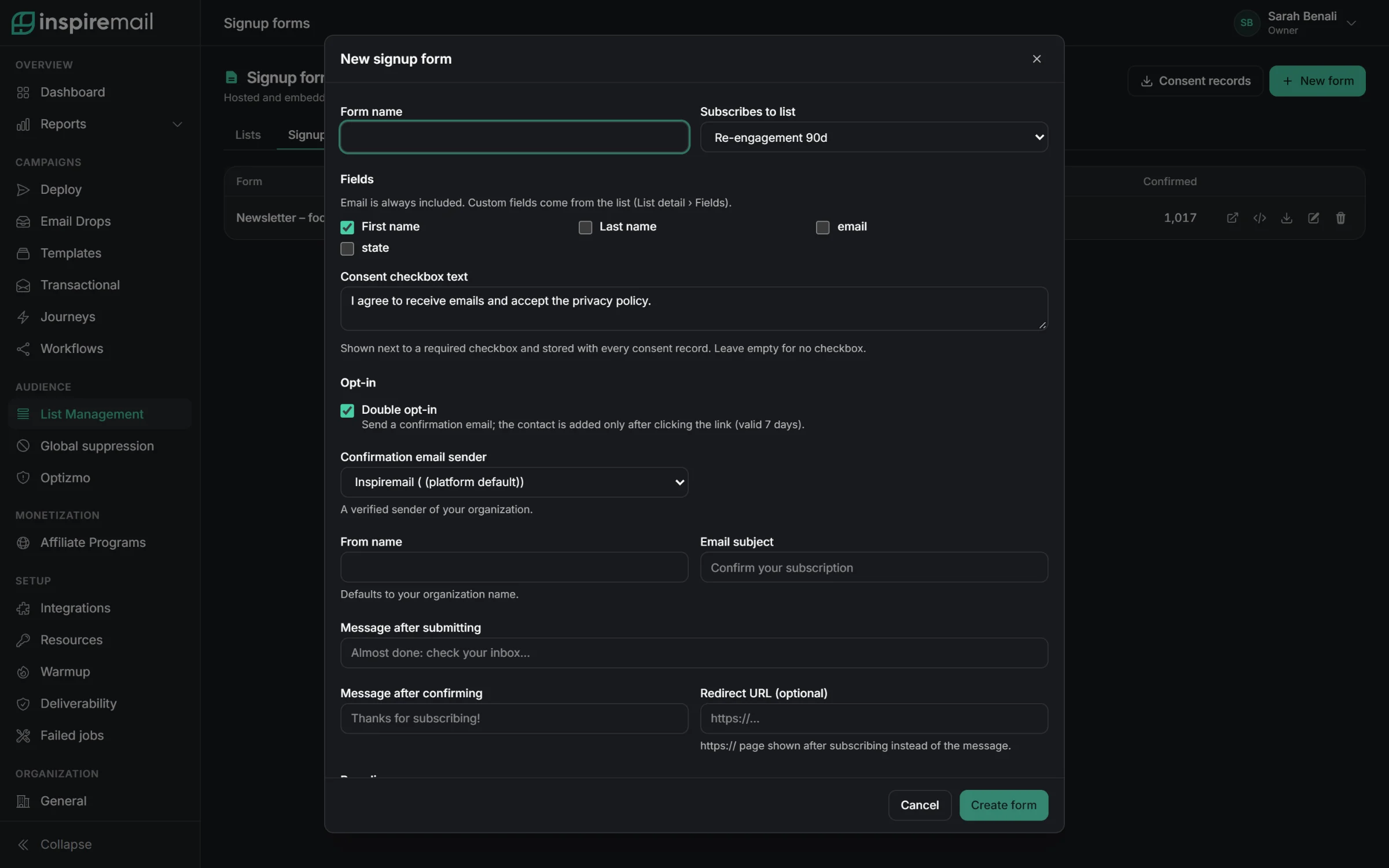
The New signup form dialog. Custom fields come from the list's field schema.
- Open List Management › Signup forms and click New form. You need a list first; the form subscribes people to exactly one.
- Name the form ("Newsletter – footer form") and choose the list under Subscribes to list.
- Tick the Fields to show. Email is always included; other fields come from the list (List detail › Fields).
- Write the Consent checkbox text. It appears next to a required checkbox and is stored word for word with every consent record. Say what people will get and how often, not just "I agree". For example: "Yes, send me the Atlas Insider newsletter every Thursday. I can unsubscribe at any time."
- Keep Double opt-in checked.
- Choose the Confirmation email sender: one of your verified senders. Set the From name and Email subject ("Confirm your subscription" is the default).
- Write the Message after submitting ("Almost done: check your inbox…") and the Message after confirming, or give a Redirect URL to send people to your own page instead.
- Click Create form.
Further down the dialog: Branding (brand color, page background, button label), Allowed domains for embedding, a Honeypot field that bots fill in and humans never see, and an optional invisible challenge that runs before a submission is accepted. Leave the honeypot on; it costs real visitors nothing.
Step 2: put it on your site
Click the embed icon on the form's row to open the share dialog.
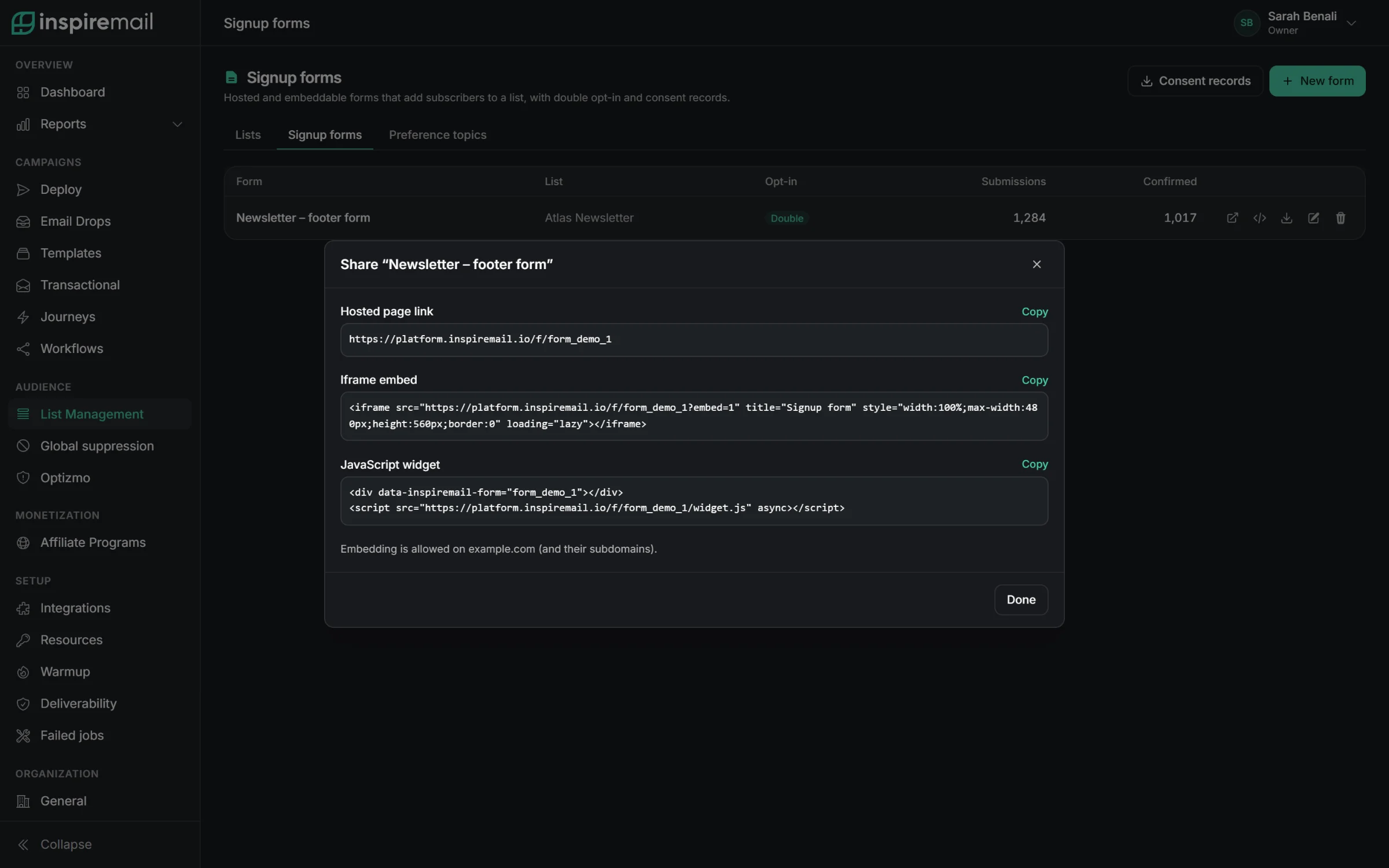
Three ways to publish one form (fictitious demo form).
- Hosted page link: a page on the platform you can link from anywhere, including social profiles and QR codes.
- Iframe embed: drop it into any page builder. The form keeps its own styling.
- JavaScript widget: a
divplus a script tag, for sites where you want the form to sit in your own layout.
The iframe and the widget only work on the domains you listed under Allowed domains for embedding (subdomains included). That stops someone else from embedding your form on their site and filling your list with people who never heard of you.
Step 3: what a sign-up looks like
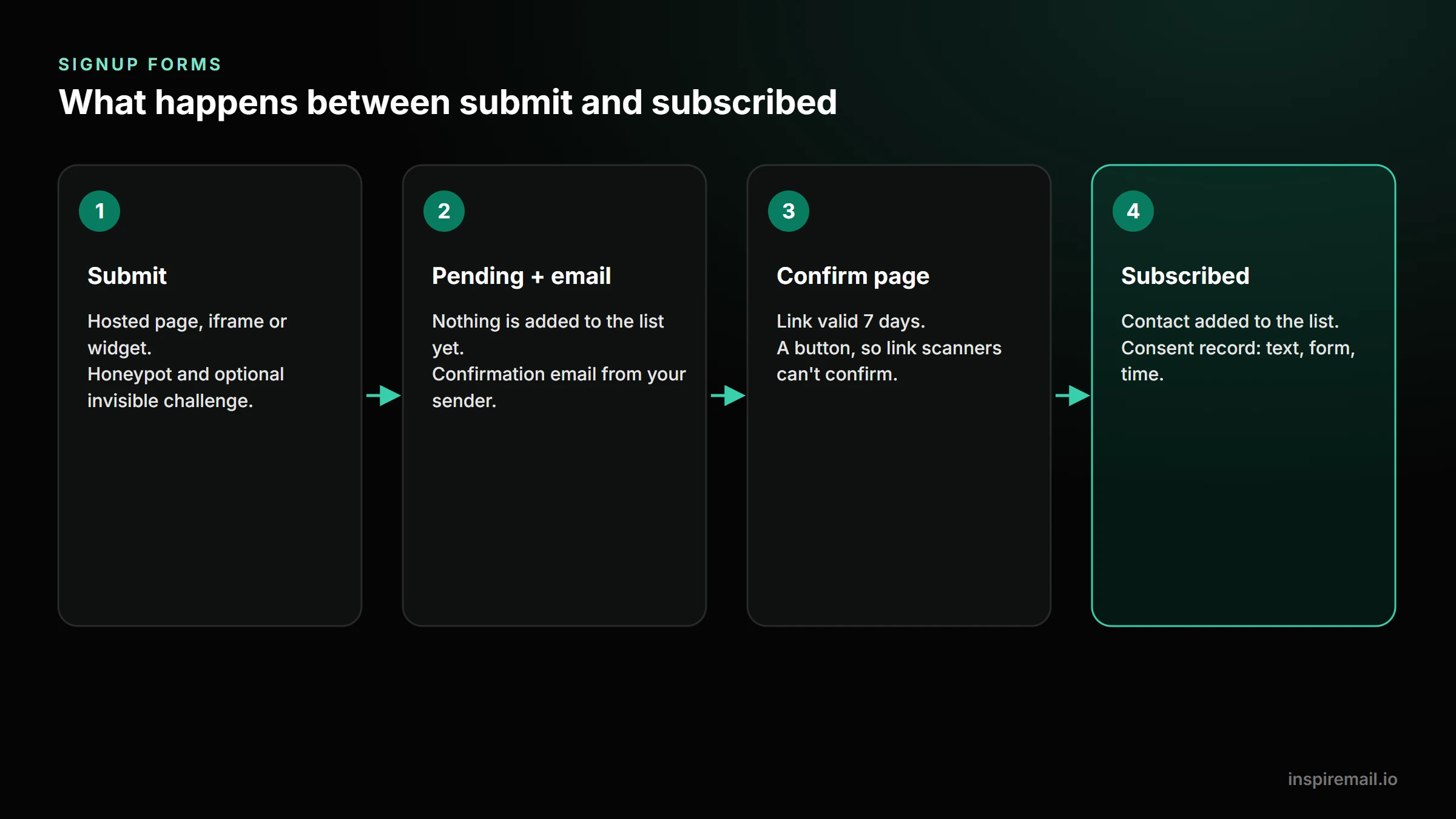 Nobody is on the list until they press the confirm button themselves.
- Submit. The visitor fills in the form and ticks the consent box. Bot submissions caught by the honeypot are ignored.
- Pending. The visitor sees your "check your inbox" message and receives the confirmation email. They are not on the list yet.
- Confirm. The link opens a page with a confirm button. That extra click matters: security scanners in corporate mailboxes open every link in an email, and they would otherwise confirm subscriptions nobody asked for.
- Subscribed. The contact joins the list and a consent record stores the text, the form and the time.
The form's row keeps two counters, Submissions and Confirmed, so you can see your confirmation rate at a glance. A low rate usually means the confirmation email is landing in spam: send it from an authenticated domain with a tracking domain, and check it with the SPF, DKIM and DMARC check.
Consent records
Click Consent records to export a CSV for a list, a form or a single email address. Each row has the consent text that was shown, the source (form, import or API), the form and the time of sign-up and confirmation. Imports with a consent note and contacts added through the API leave records too, so the file covers every way a contact can reach your list. Consent records are included in a data export for a person and removed with them when you erase a contact.
Why it matters: under the GDPR the controller has to be able to show consent, and the European Data Protection Board's guidelines on consent expect you to keep track of who consented, when, how and what they were told. Gmail's sender guidelines recommend confirming subscriptions for the same reason.
Troubleshooting
- "Create a list first": a form needs a list to subscribe to. Create it under List Management, then come back.
- The embedded form doesn't show: the page's domain isn't under Allowed domains for embedding. Add it (subdomains are included) or use the hosted link.
- Confirmations are low: check the spam folder of a few test addresses, for example one at Gmail and one at Outlook.com, then the sender's authentication. Sending the confirmation from your own verified domain instead of the platform default helps.
- A visitor says they never got the email: they can submit the form again; the earlier link simply expires after 7 days.
- Sign-ups stop being accepted: your plan's contact limit has been reached. Forms refuse new sign-ups rather than adding contacts over the limit.
How we checked this guide
We tested each step in a demo organization with fictitious data on 22 November 2026 and compared it with the provider documentation linked above, and with Article 7 of the GDPR on EUR-Lex for the background on consent. Screens, button labels, limits and error messages are taken from the product as it works today. If something here no longer matches what you see, contact us and we'll correct it, as our editorial policy describes. Read more about us.
Related guides
Let subscribers choose what they get with the preference center, and read how Optizmo suppression fits in if you also mail affiliate offers. Feature overview: signup forms and preferences.
Frequently asked questions
How long is the confirmation link valid?
7 days. After that the submission expires and the visitor has to sign up again. Until they confirm, they are not on the list and receive nothing else.
Why does the confirmation link open a page with a button?
Security scanners in corporate mailboxes open links automatically. If opening the link confirmed the subscription, scanners would confirm people who never clicked. The button means only a person confirms.
Which address sends the confirmation email?
A verified sender of your organization that you choose on the form, so it comes from your own domain. Without one, a platform default address is used with your organization's name as the display name.
Can I embed the form on my website?
Yes, as an iframe or a JavaScript widget, on the domains you list under Allowed domains for embedding (subdomains included). The hosted page link works anywhere without that setting.
What is stored as proof of consent?
A consent record per sign-up and per confirmation: the consent text shown, the form, the list and the time. Export them as CSV with Consent records, filtered by list, form or email address.
- double opt-in signup form
- signup form
- consent
- double opt-in
- list growth