
Shopify customer sync: subscribers into a list
Set up a Shopify customer sync in Inspiremail: create a custom app with read_customers, connect the store and keep subscribed customers in a list via webhooks.
· Last updated · 5 min read · By Reda El Kasraoui
TL;DR: in Shopify admin, create a custom app (Settings › Apps › Develop apps › Create an app), grant it read_customers, install it and copy the Admin API access token and the API secret key. In Inspiremail open Integrations › Shopify › Connect store, enter the store domain, both values and the list to import into, then click Connect. Customers who accept email marketing are imported with their consent state, and new or changed customers keep syncing through signed webhooks.
A custom app is a Shopify app built for one store only: it gets an access token scoped to the permissions you grant, and nobody else can install it. Email marketing consent is the field Shopify keeps on each customer to record whether, and how, they agreed to receive marketing email.
Shopify's own email tools are fine for simple newsletters. Stores that already send through Inspiremail (for example a home goods store that also mails partner offers) want one list, one suppression system and one set of reports. That's what this sync is for.
What you need
- Store owner or staff access with permission to develop apps. Shopify's help center explains custom apps and who can create them.
- A list in Inspiremail to receive the customers. A dedicated list ("Atlas Newsletter – Shopify") keeps reporting clean.
- The right role: owner or Organization Manager, since it's an integration.
Step 1: create the custom app in Shopify
- In Shopify admin, open Settings › Apps › Develop apps (allow custom app development if Shopify asks).
- Click Create an app and name it "Inspiremail".
- Under Admin API scopes, grant read_customers. Nothing else.
- Install the app, then copy the Admin API access token (it starts with
shpat_; Shopify shows it once) and the API secret key.
The secret key isn't used to call Shopify. It verifies the webhooks Shopify sends, because Shopify signs each one with an HMAC of the body, as its webhook documentation describes. A webhook that fails the check is refused.
Step 2: connect the store
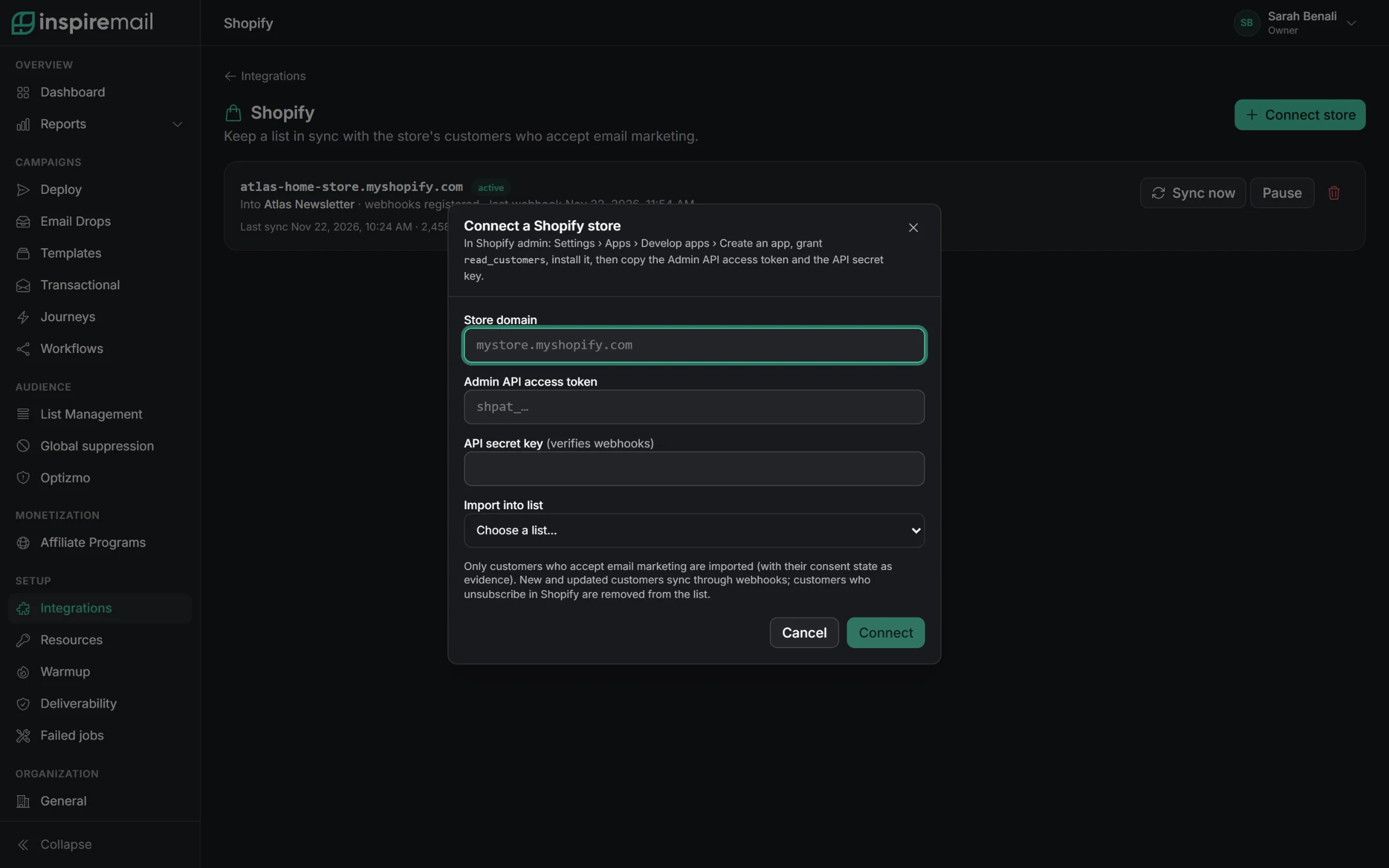
The Connect a Shopify store dialog (fictitious demo store behind it). The hint at the top repeats the Shopify steps.
- Open Integrations › Shopify and click Connect store.
- Store domain: the
.myshopify.comaddress, for exampleatlas-home-store.myshopify.com. - Paste the Admin API access token and the API secret key.
- Choose Import into list and click Connect. The first import starts right away.
What the sync does
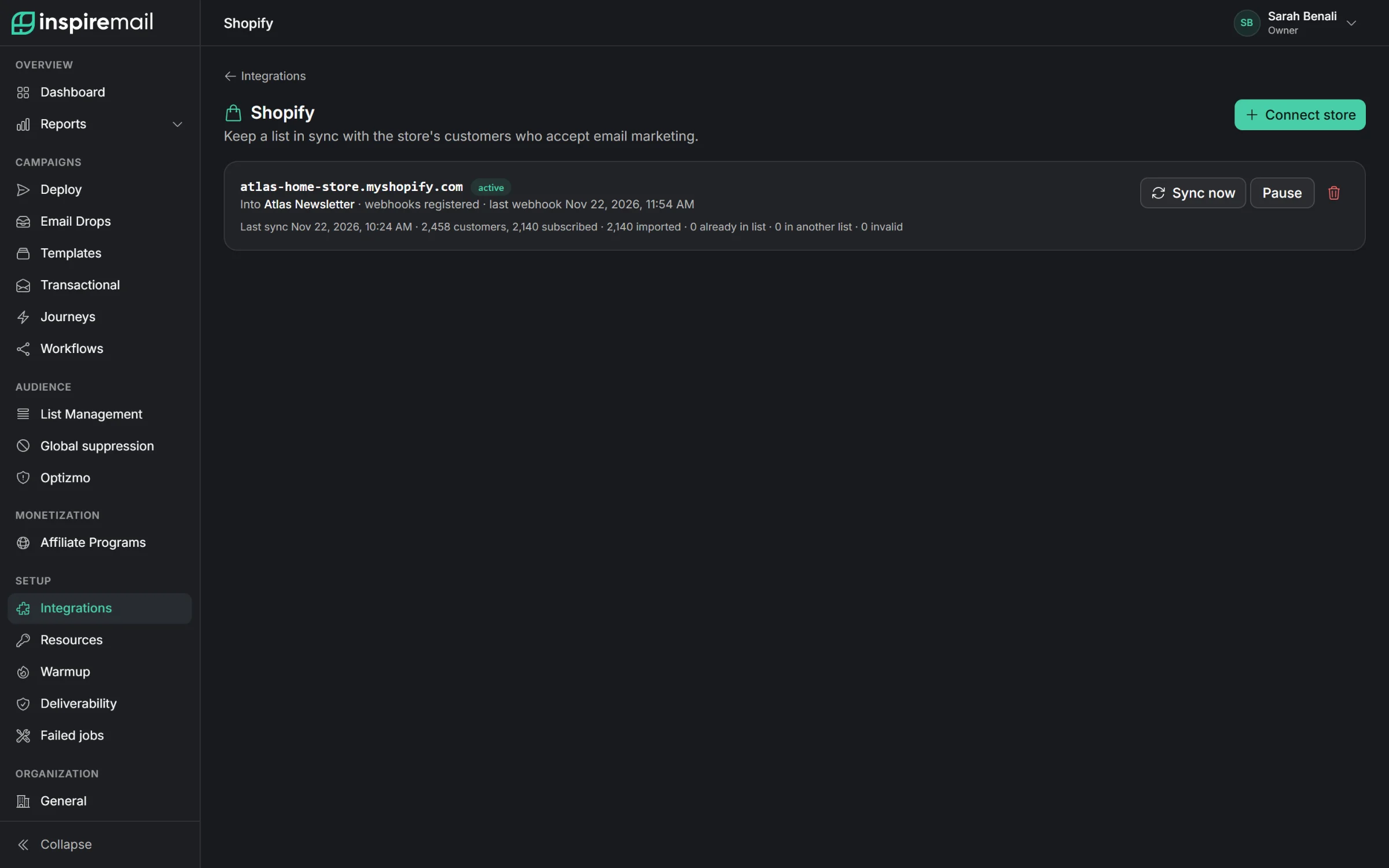
A connected store (fictitious demo data): last sync results and the last webhook time.
- First import. Customers are read 250 at a time, up to 10,000 per run; a bigger store continues on the next run from where it stopped. Only subscribed customers are imported, through the same importer as file uploads, so duplicates, invalid addresses and your list's field rules are handled the same way.
- Consent records. Each imported contact gets a consent record noting it came from Shopify, which is the evidence you'd want if someone asks how they got on your list. Consent records are explained in the double opt-in signup form guide.
- Webhooks. Inspiremail registers
customers/createandcustomers/update. A customer who subscribes at checkout is added to the list; one who unsubscribes in Shopify is removed from it. - Results. The store's row shows the last sync (customers read, subscribed, imported, duplicates, invalid) and the time of the last webhook.
A worked example
The demo store atlas-home-store.myshopify.com (fictitious) has 2,458 customers. The first sync reads all of them and imports the 2,140 who accept email marketing into "Atlas Newsletter"; the other 318 never opted in and stay in Shopify only. The next morning a customer ticks the marketing box at checkout: the customers/create webhook adds them to the list without anyone running a sync. A week later another customer unsubscribes from their Shopify account page: customers/update removes them from the list, and the next drop to "Atlas Newsletter" skips them.
Pause, sync again, disconnect
- Sync now runs another import, for example after a bulk consent change in Shopify.
- Pause ignores the store's webhooks until you click Process webhooks again. Manual syncs still work.
- Disconnect removes Inspiremail's webhooks from the store and forgets the token. Contacts already imported stay in the list.
Troubleshooting
- Connect fails with an authorization error: the token was copied before the app was installed, or the app lacks read_customers. Reinstall it after granting the scope and copy a fresh token.
- Fewer contacts than customers: expected. Only subscribed customers are imported, and duplicates or invalid addresses are counted separately in the results.
- No webhooks arriving: the store is paused, or the API secret key doesn't match the app. Paste it again.
- Import stops early: your plan's contact limit was reached. The results say how many contacts didn't fit.
How we checked this guide
We tested each step in a demo organization with fictitious data on 22 November 2026 and compared it with Shopify's documentation linked above and its reference for the customer resource, which defines the email marketing consent states. Screens, button labels, limits and error messages are taken from the product as it works today. If something here no longer matches what you see, contact us and we'll correct it, as our editorial policy describes. Read more about us.
Related guides
Google Sheets import for other sources, the Shopify integration overview, and CAN-SPAM footer requirements before you mail your customers. The FTC's CAN-SPAM guide applies to store newsletters too.
Frequently asked questions
Which Shopify customers does Inspiremail import?
Only customers who accept email marketing: an email marketing consent state of subscribed, or the older accepts marketing flag. Customers who never opted in stay in Shopify.
Which Shopify permission does the app need?
Only read_customers. Inspiremail reads customers and registers two webhooks; it never changes anything in your store.
What happens when a customer unsubscribes in Shopify?
The customers/update webhook removes them from the synced list. They are not added to your organization-wide suppression list, so other lists they joined on their own are not affected.
How many customers can a sync import?
A sync reads up to 10,000 customers per run and continues from where it stopped on the next run, so large stores are imported in several passes. Your plan's contact limit still applies.
Can I pause the sync without disconnecting?
Yes. Pause ignores the store's webhooks until you resume; manual syncs with Sync now still work. Disconnect removes the webhooks and forgets the token, and imported contacts stay in the list.
- Shopify customer sync
- shopify
- ecommerce email
- consent
- integration guide