
Email preference center: topics, pause and digest
Set up the Inspiremail email preference center: create topics, tag drops, and give subscribers a page to pause, pick a weekly digest or leave one topic.
· 5 min read · By Reda El Kasraoui

TL;DR: open List Management › Preference topics, click New topic and add one topic per kind of email you send ("Weekly deals", "Home & energy"), with a one-line description. On Deploy, choose the drop's Preference topic. Put {{preferences_url}} in your footer next to the unsubscribe link. Subscribers then get a page where they can opt out of single topics, pause emails for 1 to 4 weeks, switch to a weekly digest, fix their name or unsubscribe from everything, and each drop respects those choices automatically.
An email preference center is a page where a subscriber controls what they receive instead of choosing between everything and nothing. A preference topic is a category of email (a newsletter, a product line, a type of offer) that subscribers can switch off on its own.
People unsubscribe because they get too much, or the wrong kind of mail, more often than because they never want to hear from you again. A pause button and a topic switch turn some of those unsubscribes into "less" or "later". That's better for you, and mailbox providers notice too: fewer people reach for the spam button when there's an easier way out.
Step 1: create topics
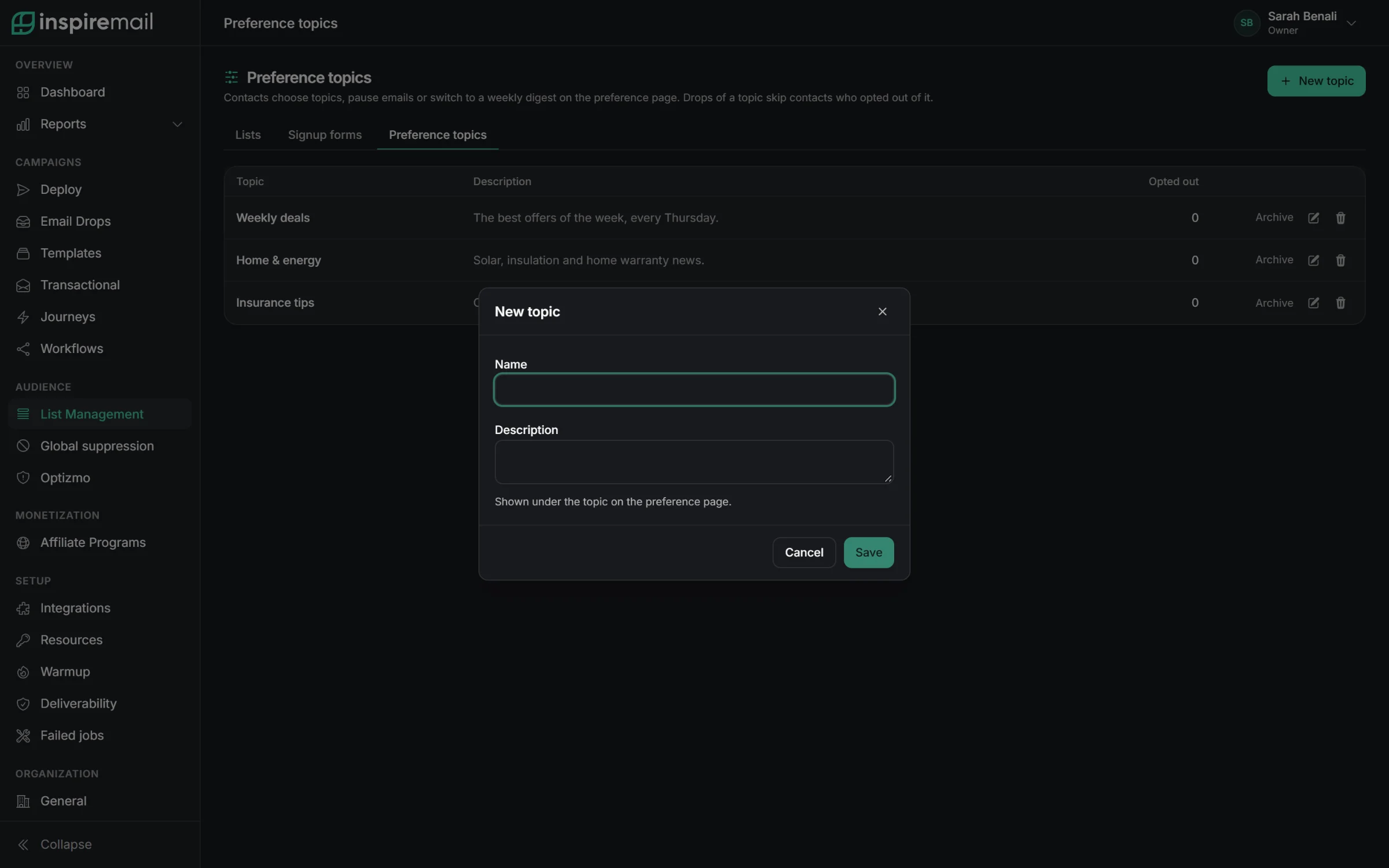
List Management › Preference topics with fictitious demo topics. The Opted out column counts contacts who switched a topic off.
- Open List Management › Preference topics and click New topic.
- Name: what subscribers will recognize, for example "Weekly deals". Avoid internal codes.
- Description: one line shown under the topic on the preference page, such as "The best offers of the week, every Thursday."
- Save. Repeat for each kind of email you send. Three to six topics is plenty; twenty makes the page a chore.
You can edit a topic later, or Archive it when you stop sending that kind of email. The Opted out count tells you which topics people are tired of.
Step 2: tag each drop with a topic
On Deploy, the list panel has a Preference topic select. Pick the topic the drop belongs to. The audience then leaves out everyone who opted out of that topic. With No topic, nobody is left out for topic reasons, but paused contacts are still skipped.
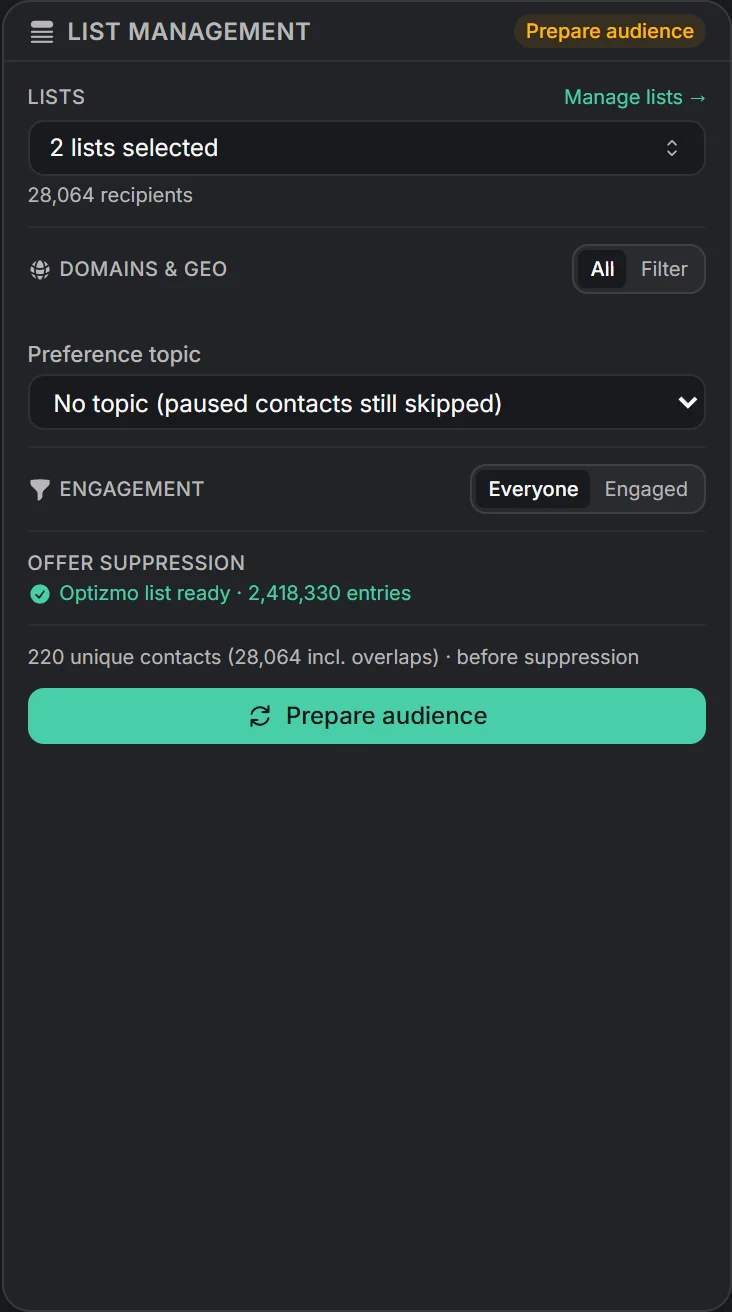
The Deploy list panel. The Preference topic select sits above the engagement filter.
Topics also work with the engagement filter: "engaged" can mean an open, click or conversion on drops of the same topic, so a "Home & energy" drop can target people who engaged with home and energy mail, not with anything at all.
Step 3: link the page from your emails
Add {{preferences_url}} to your footer, next to the unsubscribe link. Something as plain as "Manage your preferences · Unsubscribe" works. The link is personal to the recipient and opens on the sender's own tracking domain, like the unsubscribe page, so nobody needs an account or a password.
What subscribers see
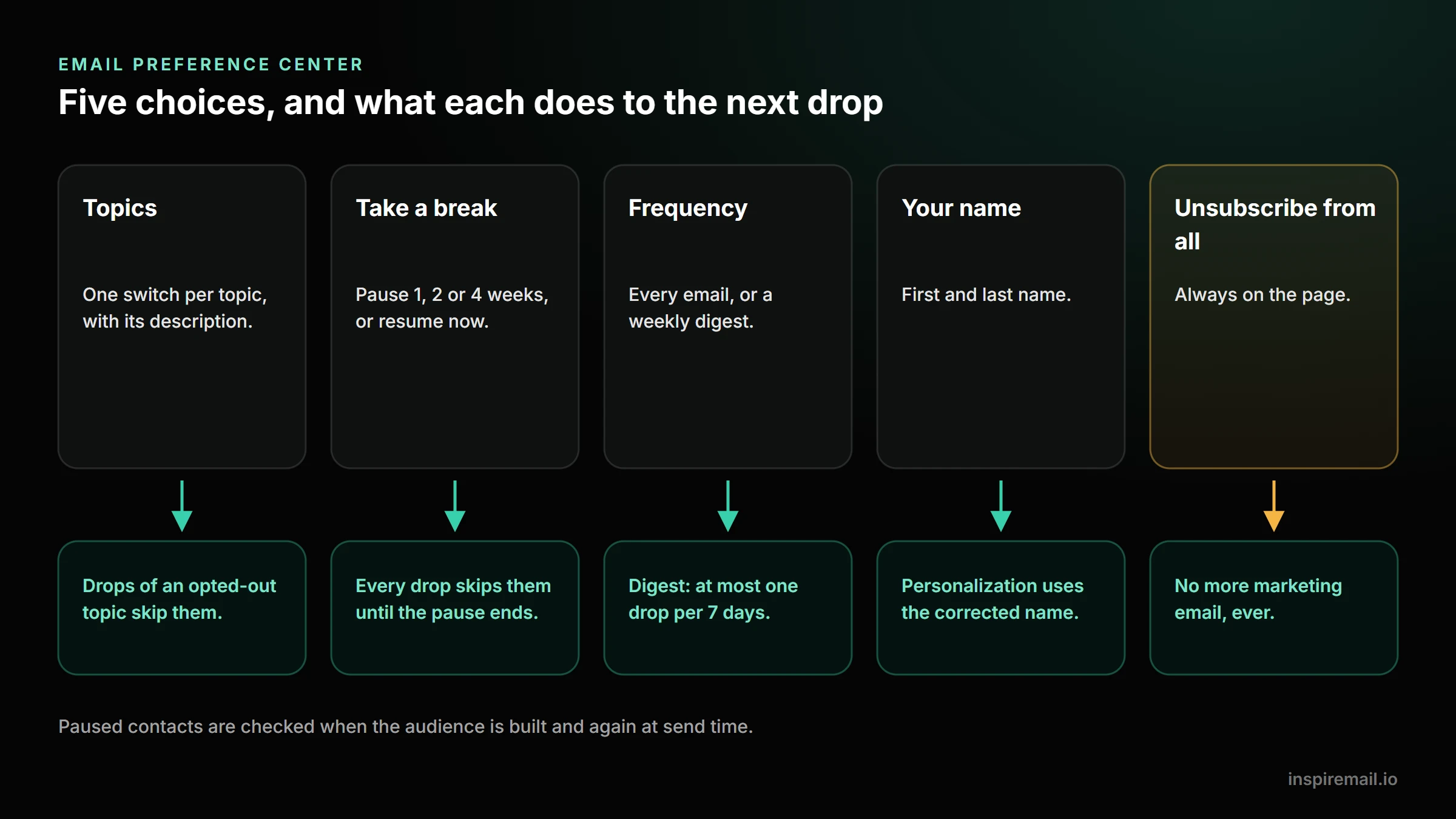 Each choice on the page and what it does to the next drop.
- Topics: one switch per topic, with its description.
- Take a break: pause emails for 1, 2 or 4 weeks, or Resume emails now.
- Frequency: "All emails as they are sent" or "Weekly digest", at most one email per week.
- Your name: first and last name, so personalization stays right.
- Unsubscribe from all: always there. A preference center that hides the exit isn't one.
Choices apply straight away: "Your preferences are saved."
How drops apply the choices
| Choice | Effect on a drop |
|---|---|
| Opted out of the drop's topic | Left out of that drop |
| Opted out of another topic | Still receives this drop |
| Paused | Left out of every drop until the pause ends |
| Weekly digest | Left out if they already got a drop in the last 7 days (checked when the audience is built) |
| Unsubscribed from all | Never receives marketing email again |
Paused contacts are checked twice, when the audience is built and again at send time, so a pause set during a long drop still counts.
A worked example
Atlas Media Group (our fictitious demo company) sends three kinds of mail: a Thursday deals roundup, home and energy offers, and insurance comparisons. They create one topic for each. A subscriber who only cares about solar switches off "Weekly deals" and "Insurance tips"; from then on, only drops tagged "Home & energy" reach them. Another subscriber is moving house and pauses for four weeks; every drop skips them until the pause ends, then they're back without having to sign up again. A third picks the weekly digest, so if they got Monday's drop, Thursday's skips them.
None of these three unsubscribed, and none of them will hit the spam button out of annoyance. That's the point of the page.
Writing topics people understand
- Name the content, not your org chart. "Home & energy" beats "Vertical B".
- Promise a rhythm in the description when you have one: "every Thursday" sets an expectation you can keep.
- Tag every drop. A drop without a topic ignores topic opt-outs, which is exactly what annoys people who used the page.
Troubleshooting
- A topic has a high opt-out count: that's information, not a bug. Send it less often, or make the topic narrower.
- Someone says they still got a drop after opting out: check the drop's topic. A drop with no topic only respects pauses and unsubscribes.
How we checked this guide
We tested each step in a demo organization with fictitious data on 22 November 2026. Screens, button labels, limits and error messages are taken from the product as it works today. For the background, Google's email sender guidelines ask senders to make unsubscribing easy, RFC 8058 defines one-click unsubscribe, and the FTC's CAN-SPAM guide allows a menu of choices as long as one option is to stop all commercial email. If something here no longer matches what you see, contact us and we'll correct it, as our editorial policy describes. Read more about us.
Related guides
Double opt-in signup forms to collect subscribers, CAN-SPAM footer requirements for what the footer must contain, and the signup forms and preferences feature page.
Frequently asked questions
Where do subscribers find the preference center?
Through the preferences link in your emails, the {{preferences_url}} variable. It opens a page on the sender's tracking domain, personal to that recipient, with no login.
What happens when a subscriber opts out of a topic?
Drops tagged with that topic skip them. Drops with another topic, or with no topic, still reach them, unless they also unsubscribed from everything.
How does the pause option work?
A subscriber can pause emails for 1, 2 or 4 weeks. Paused contacts are skipped by every drop, with or without a topic, until the pause ends or they resume on the same page.
What is the weekly digest setting?
A frequency choice: at most one email per week. When you build a drop's audience, contacts on the weekly digest who already received a drop in the last 7 days are left out.
Does a preference center replace the unsubscribe link?
No. Every marketing email keeps its unsubscribe link and the one-click List-Unsubscribe header, and the preference page has an Unsubscribe from all button. The preference center gives people options before they leave.
- email preference center
- preference topics
- unsubscribe
- list retention
- integration guide