
Google Sheets import: contacts from a link, daily
Google Sheets contact import in Inspiremail: paste a sheet or CSV link, preview the columns, record consent and add new rows every day automatically.
· 5 min read · By Reda El Kasraoui

TL;DR: open Integrations › Google Sheets & CSV and click New import. Paste the link of a Google Sheet (published to the web as CSV, or shared with anyone with the link) or of any public CSV file, click Preview to check the columns, pick the list, write the consent text and tick Re-sync daily if the sheet keeps growing. Click Save and import. New rows are added every day; existing contacts are never changed.
A CSV export is the plain-text version of a spreadsheet, one row per line with commas between columns, which is what Inspiremail actually downloads. Consent text is the sentence stored with each imported contact to record how they agreed to hear from you, for example "Subscribed at our booth, March 2026".
A role address is a mailbox that belongs to a function rather than a person, such as info@ or sales@; these are often read by several people, so the person who signed up may not be the one who reads your email.
| Sharing option | What it exposes | When to use it |
|---|---|---|
| Publish to web, one tab, CSV | Only that tab, as plain values | Best default for imports |
| Anyone with the link can view | The whole spreadsheet, all tabs | When you can't publish (some company policies block it) |
| A CSV file on your own server | Whatever the file contains | Exports from other tools |
This is for the sheets that collect sign-ups outside your website: an event registration form, a webinar tool's export, a partner's lead sheet. Instead of downloading and uploading a file every week, you point Inspiremail at it once.
Before you start
- Consent you can describe. Only import people who agreed to hear from you. If you can't write the consent text in one honest sentence, don't import the sheet.
- A header row with an email column.
email,email address,e-mailormailall work.first name/last name(orfirstname,first) are picked up too. - The right sharing setting. Google explains both options in its help on publishing a file to the web and sharing files. Publishing one tab as CSV shares less than "anyone with the link".
Step 1: create the import
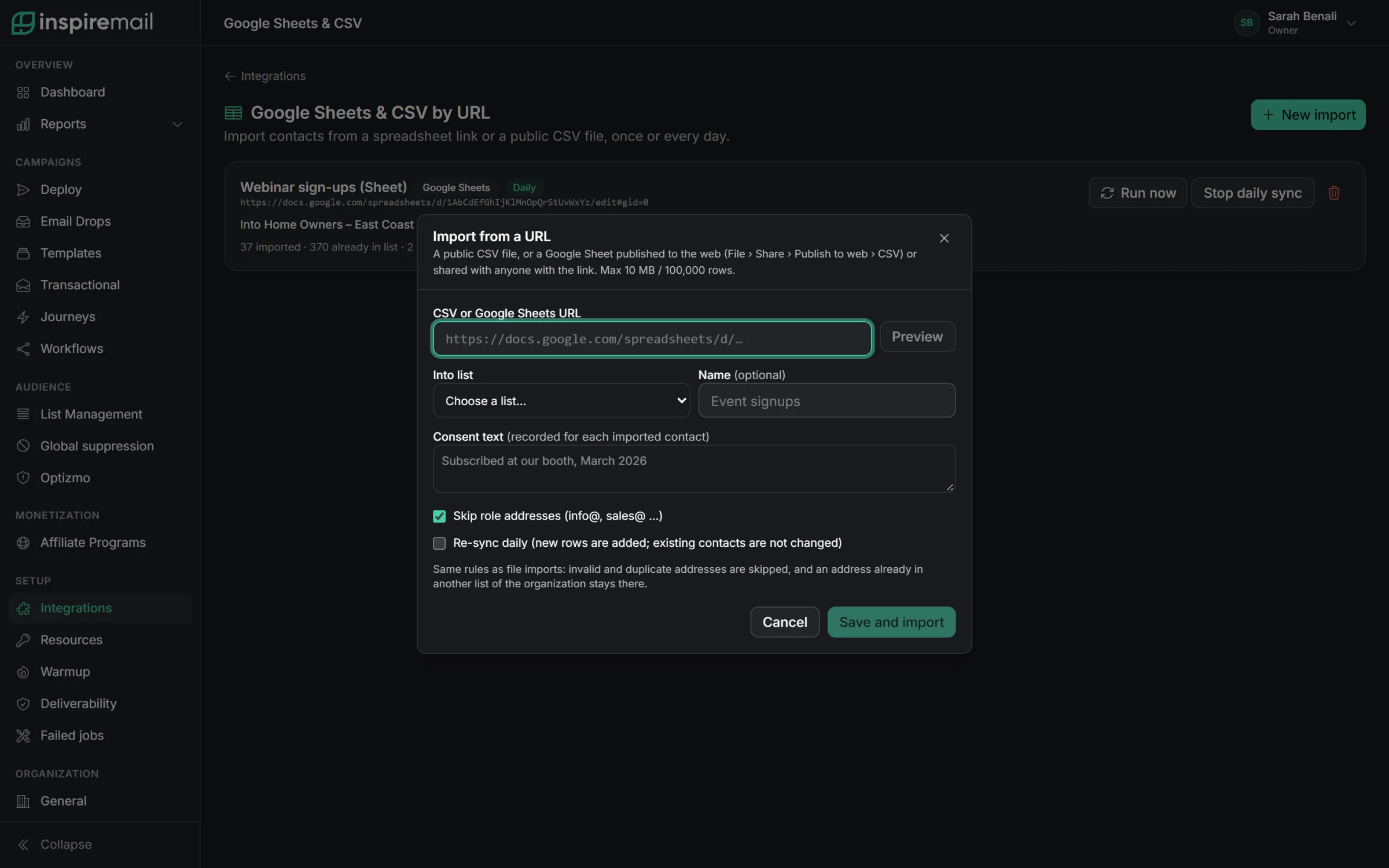
The Import from a URL dialog. The limits are printed at the top: 10 MB or 100,000 rows.
- Open Integrations › Google Sheets & CSV and click New import.
- Paste the CSV or Google Sheets URL. A normal sheet link (
…/spreadsheets/d/…/edit#gid=0) is fine; Inspiremail requests the CSV export of that tab. - Click Preview. You see the detected header, the email column, the row count and the first rows. If the email column isn't found, rename it in the sheet.
- Choose the list under Into list and give the import a Name ("Webinar sign-ups (Sheet)").
- Write the Consent text. It's recorded for every imported contact.
- Leave Skip role addresses on, so
info@andsales@style addresses aren't imported. - Tick Re-sync daily if new rows keep arriving, then click Save and import.
What the import does
The rules are the same as a file upload, so there are no surprises:
- Validation. Invalid addresses are skipped and counted.
- De-duplication. An address already in the list is counted as a duplicate; one already in another list of your organization stays there.
- Fields. Columns other than email and names become custom fields (CSV itself is described in RFC 4180), and their names become template variables (
Zip Codebecomeszip_code). If the list has a field schema, defaults and types are applied. - Plan limits. If your plan's contact limit is reached, only what fits is added and the result says how many didn't.
- Consent records. Each contact added gets a consent record with your text, the source "import" and the time.
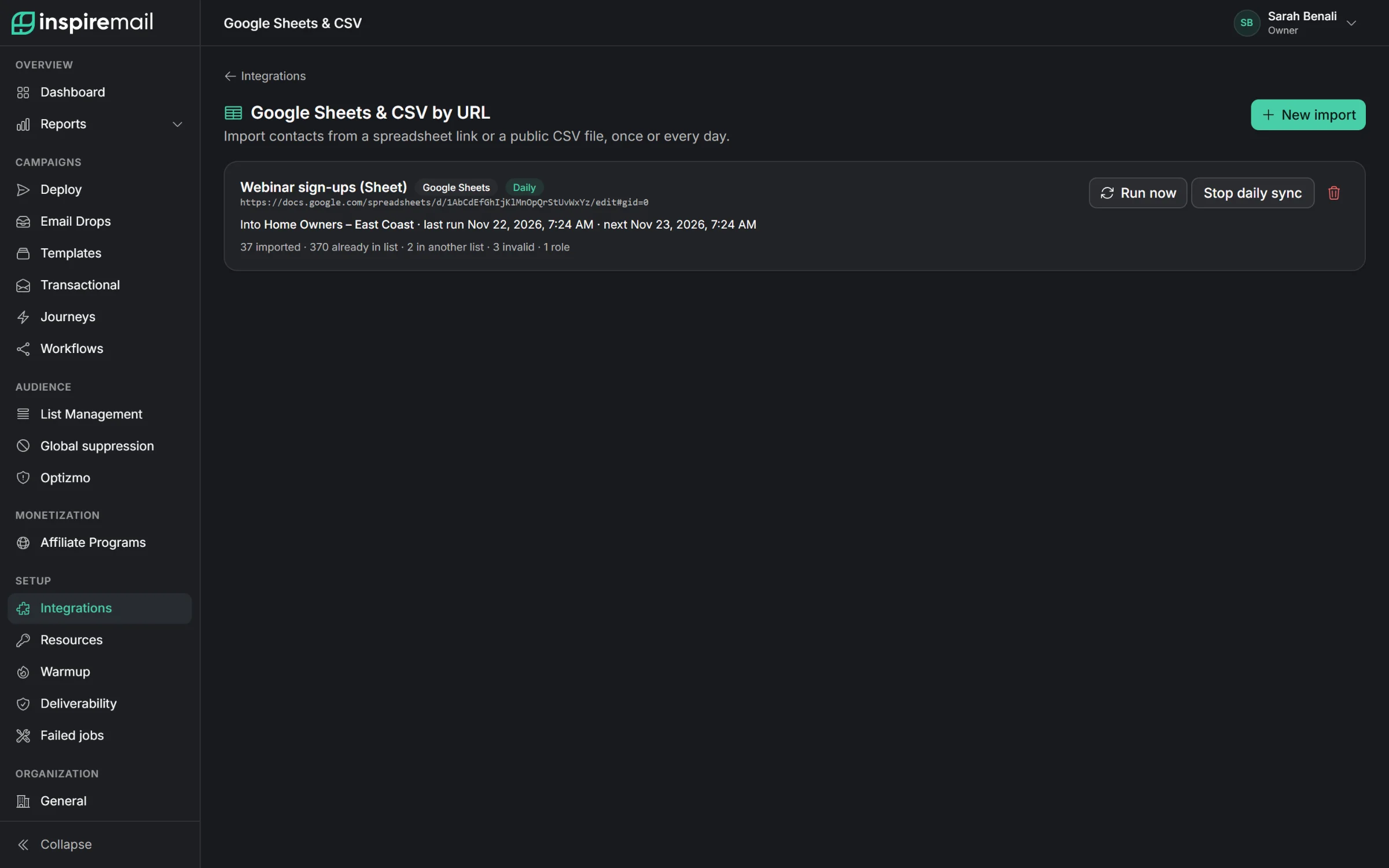
A daily import (fictitious demo data). The last result shows what happened to every row.
The daily re-sync
With Re-sync daily on, the sheet is fetched again about every 24 hours. New rows are added with the same consent text. Rows you edit or delete in the sheet don't change anything in Inspiremail, and that's deliberate: an accidental sort or a cleared column should never wipe out contacts or overwrite their data. Unsubscribes always come from the recipients themselves, through your emails or preference center.
Run now fetches immediately; Stop daily sync stops the schedule and keeps the contacts already imported.
A worked example
Atlas Media Group (fictitious) runs a monthly solar webinar. Registrations land in a Google Sheet through the webinar tool, with the columns Email, First name and Zip Code. They create one import, "Webinar sign-ups (Sheet)", into the "Home Owners – East Coast" list, with the consent text "Signed up for the Atlas solar webinar and agreed to receive follow-up emails", and turn on the daily re-sync.
The first run imports the existing registrants. Each day after that, only new rows are added: one recent run shows 37 imported and 370 already in the list. Zip Code arrives as the custom field zip_code, so the follow-up email can say "installers near {{zip_code}}". When the webinar series ends, they click Stop daily sync; the contacts stay.
Security notes
The URL must be public https on a normal host name. Addresses that resolve to private networks are refused, redirects are limited to three hops and checked at every hop, and a download that takes longer than 20 seconds is stopped. Use a sheet that only contains what you want imported; anyone with a published link can read it too.
Troubleshooting
- "No email column found in the header row": rename the column to
email, or make sure the header is in the first row. - "The file needs a header row and at least one contact": the tab is empty, or the link points at another tab. Check the
gidin the URL. - The preview shows a login page or HTML: the sheet isn't published or shared. Fix the sharing setting and preview again.
- Fewer contacts than rows: compare the counters (duplicates, already in another list, invalid, role addresses skipped). They add up to the row count.
How we checked this guide
We tested each step in a demo organization with fictitious data on 22 November 2026 and compared it with Google's documentation linked above. Screens, button labels, limits and error messages are taken from the product as it works today. If something here no longer matches what you see, contact us and we'll correct it, as our editorial policy describes. Read more about us.
Related guides
Collect sign-ups directly with a double opt-in signup form, or connect a store with the Shopify customer sync. Overview: Google Sheets integration. Under the GDPR you must be able to demonstrate consent, which is what the consent text is for.
Frequently asked questions
How do I share a Google Sheet so Inspiremail can read it?
Either publish it to the web as CSV (File › Share › Publish to web, choose the sheet and Comma-separated values) or share it with anyone with the link as a viewer. Paste the normal sheet link; Inspiremail turns it into the CSV export address.
Which columns does the import need?
A header row with an email column named email, email address, e-mail or mail. First name and last name columns are recognized too; every other column becomes a custom field you can use as a template variable.
What does the daily re-sync change?
It only adds new rows. Contacts already in the list are never modified or removed, so editing or deleting a row in the sheet doesn't change Inspiremail.
How big can the sheet be?
Up to 10 MB and 100,000 rows per import. Larger files are refused or truncated, and the result says so.
What happens to addresses that are already in another list?
They stay in the list they're in. An address belongs to one list in your organization, so the import counts it as already in another list instead of copying it.
- Google Sheets contact import
- google sheets
- csv import
- consent
- integration guide