
Optizmo integration: connect the token, map offers
Optizmo integration setup in Inspiremail: paste the Mailer API token once, check each offer's Mailer Access Key and let suppression lists download on their own.
· 5 min read · By Reda El Kasraoui

TL;DR: in Optizmo, open an offer's access page and copy the Mailer API token (Developer APIs › Mailer API). In Inspiremail open Integrations › Optizmo, paste it and click Save; it's verified on the first download. Then sync your offers in Affiliate Programs so each offer brings in its Mailer Access Key. From there every offer's suppression list downloads in the background and Deploy scrubs it out of the audience before sending.
Optizmo is a suppression list service that advertisers and networks use to share opt-outs with the affiliates who mail their offers. A Mailer Access Key is the per-offer key that identifies which advertiser's list to download.
The why (advertiser obligations, MD5 files, offer versus global opt-outs) is in how to scrub affiliate email lists with Optizmo. This guide is the setup, click by click.
What you need
- Access to the offers in Optizmo. Your network or advertiser grants it; the offer then has an access page for mailers.
- The Mailer API token. Optizmo's help center describes the Mailer API and where the token lives.
- Offers synced from your network. If you haven't connected Everflow yet, do that first; offer details carry the Optizmo link. See the Everflow integration.
- The right role. The owner or an Organization Manager adds the token. List Managers can take over from there.
Step 1: add the token
- In Optizmo, open the access page of any offer you mail, then Developer APIs › Mailer API, and copy the token.
- In Inspiremail, open Integrations › Optizmo.
- Paste it in Mailer API token and click Save. The message "Saved — it is verified on the first download" means it's stored (encrypted at rest) and will be checked the first time a list downloads.
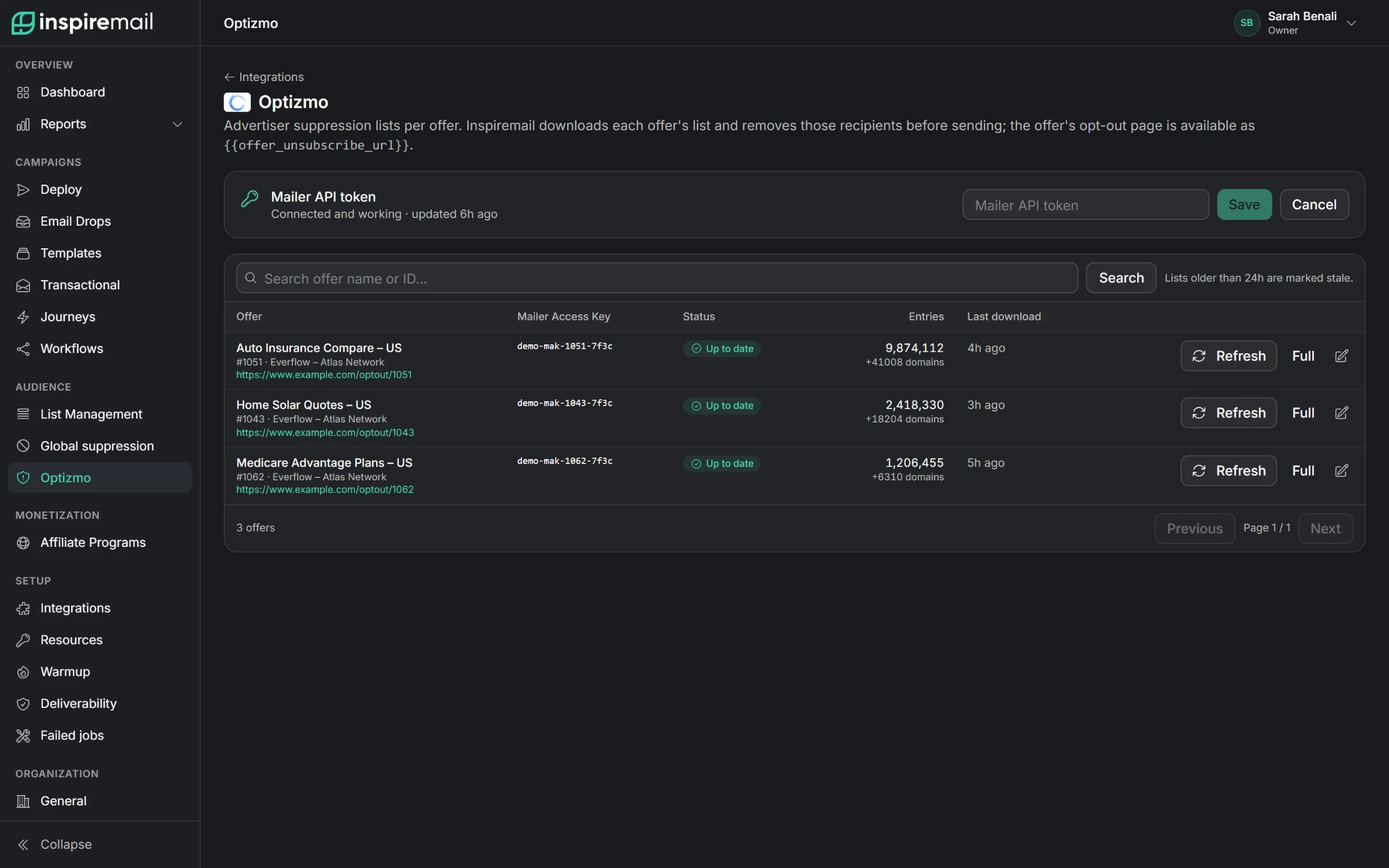
Replacing the token (fictitious demo data). The offers below keep their lists while you do.
Once a download has worked, the card says "Connected and working" with the time of the last update. Use Replace token if Optizmo issues a new one.
Step 2: check the offers
Offers appear on the Optizmo page as soon as their details are synced from your network. Each row shows:
- Offer with its network ID, program and opt-out link.
- Mailer Access Key taken from the offer's Optizmo link.
- Status: Up to date, Downloading, Processing, Stale, Refresh failed or Not downloaded.
- Entries: the number of suppressed emails and, below it, suppressed domains.
- Last download and the Refresh / Full buttons.
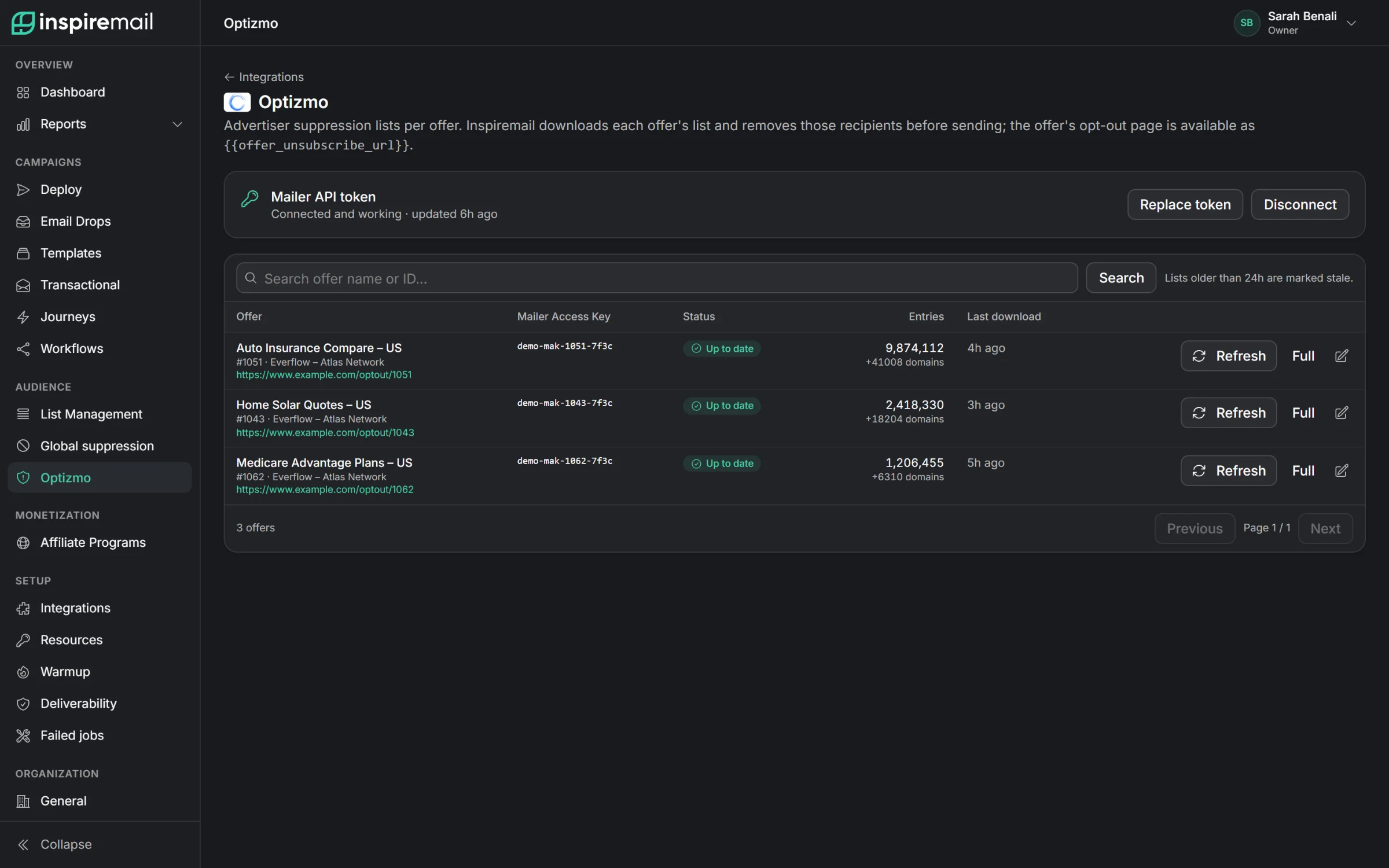
Three offers, each with its own list. Lists older than 24 hours are marked Stale.
An offer without a key, or with the wrong one? Click the pencil to open Offer suppression settings and paste the Mailer Access Key (or the Optizmo access URL), plus the opt-out link if needed. These values override what was synced for that offer only. If the network later changes the key, offers that still use the synced value follow the change; your manual overrides stay.
Step 3: let it run
You don't schedule anything. Lists of offers you're actually using refresh in the background:
- an offer used by a drop in the last 30 days is refreshed when its list is older than 20 hours;
- an offer with a drop scheduled in the next two hours is refreshed so the list is at most about an hour old at send time;
- refreshes are deltas, with a full download when the last full one is more than 7 days old.
When a refresh fails, the previous good version stays in use and the row shows the error. An Optizmo download failed alert goes to owners and managers so nobody finds out from the advertiser.
What Deploy does with it
On Deploy, the list panel shows the offer's Optizmo list, its entry count and download time before you prepare the audience. Preparing the audience removes every match (emails and domains), on top of your global suppression list, offer unsubscribes, bounces and complaints. Deploy refuses an offer whose list was never downloaded and warns when it's stale.
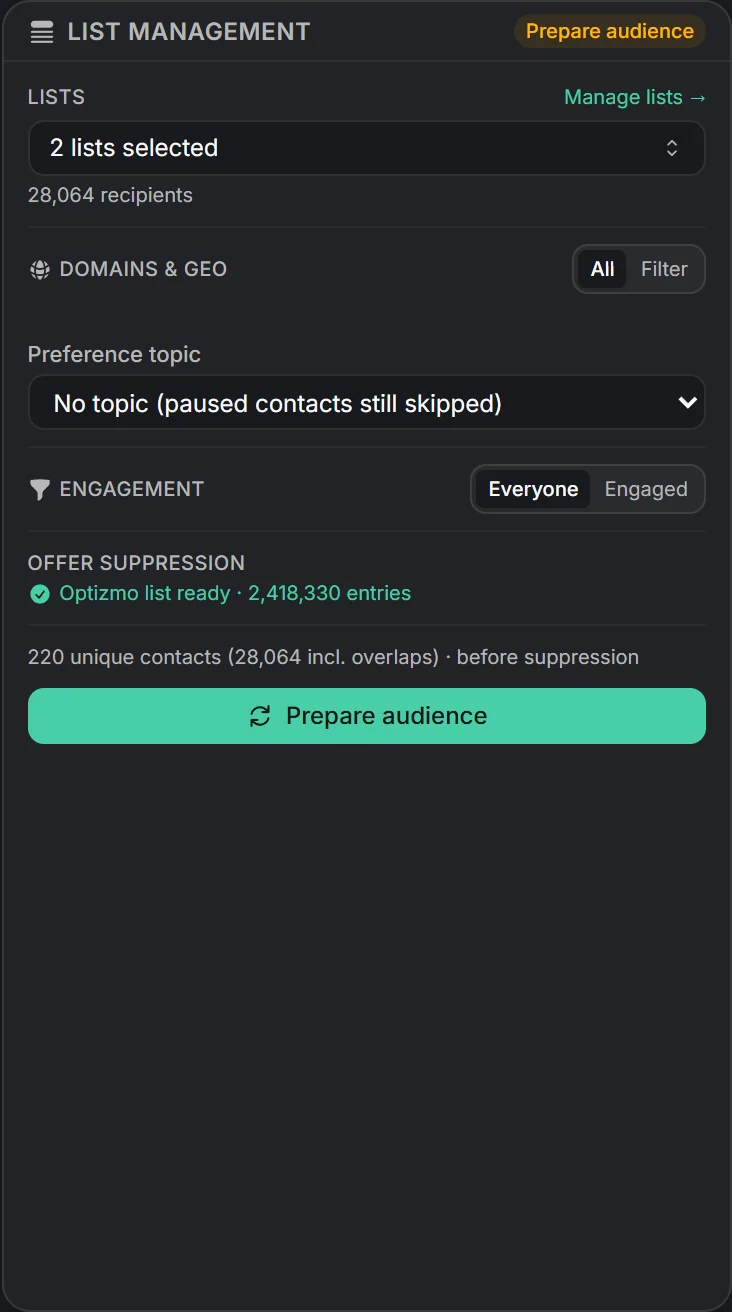
The Deploy list panel: the offer's suppression list is ready before Prepare audience.
In the email itself, {{offer_unsubscribe_url}} inserts the offer's opt-out link, so the advertiser's opt-out sits next to your own unsubscribe link.
Troubleshooting
- "No offers with Optizmo suppression yet": offer details haven't been synced. Open Affiliate Programs, sync the offer details, and the offers with an Optizmo link appear here.
- Refresh failed right after saving the token: the token is only checked on the first download. Copy it again from Developer APIs › Mailer API, click Replace token, then Refresh.
- Not downloaded on one offer: its Mailer Access Key is missing or wrong. Open the pencil and paste the key or the full Optizmo access URL.
- Stale: the list is more than 24 hours old, usually because the offer hasn't been used lately. Click Refresh before a drop, or schedule the drop and let the pre-send refresh handle it.
- You disconnected Optizmo by mistake: lists already downloaded are kept, but they can't refresh until you add the token again.
Why it's less work than doing it by hand
No CSV downloads, no MD5 conversions, no remembering to fetch the list the morning of a drop, and no guessing which version of the file a teammate used last week. One token, keys that come with the offers, refreshes timed around your schedule, and a record of which list version each audience was cleaned against.
How we checked this guide
We tested each step in a demo organization with fictitious data on 22 November 2026 and compared it with the provider documentation linked above, and with the FTC's CAN-SPAM guide for the background on suppression. Screens, button labels, limits and error messages are taken from the product as it works today. If something here no longer matches what you see, contact us and we'll correct it, as our editorial policy describes. Read more about us.
Related guides
CAN-SPAM footer requirements for the two opt-out links, suppression and Optizmo for the feature overview, and the Optizmo integration page. The FTC's CAN-SPAM compliance guide explains why the advertiser's opt-outs must be honored, and the Optizmo Mailer API reference documents the download endpoints Inspiremail calls.
Frequently asked questions
Where do I find the Optizmo Mailer API token?
On an offer's Optizmo access page, under Developer APIs › Mailer API. The token belongs to you as a mailer, so one token covers every offer you have access to.
Do I have to enter a Mailer Access Key for every offer?
Usually not. When you sync offer details from Everflow, the Optizmo link of each offer is picked up automatically. Use the edit button on the Optizmo page only to fix or override an offer's key or opt-out link.
What happens if an Optizmo download fails?
The last good version of the list stays in use, the row shows Refresh failed with the error, and owners and managers get an Optizmo download failed alert. Retry with Refresh once the cause is fixed.
Can a List Manager run Optizmo?
Yes. A List Manager can view and refresh Optizmo lists without access to drops or billing. Adding or replacing the token is done by the owner or an Organization Manager.
What does Full do compared with Refresh?
Refresh downloads only what changed since the last version (a delta). Full downloads the whole list again. Inspiremail does a full download on its own when the last one is older than 7 days.
- Optizmo integration
- optizmo
- suppression
- affiliate email
- integration guide