
Brevo setup: API v3 key and webhooks
Brevo setup with Inspiremail: connect an API v3 key, let Inspiremail create the transactional webhook and turn off Brevo tracking so stats stay on your domain.
· 5 min read · By Reda El Kasraoui
TL;DR: generate a Brevo API v3 key (it starts with xkeysib-), paste it in Integrations › Brevo › Connect account and click Test & connect. Then click Configure automatically in the account's webhook section so Inspiremail creates the transactional webhook, and turn off open and click tracking for transactional email in Brevo. Your validated senders and authenticated domains become senders on Deploy.
Brevo is a French email and marketing platform, known as Sendinblue until 2023; Inspiremail uses only its transactional API. A transactional webhook is the Brevo setting that reports deliveries, bounces and complaints for messages sent through that API. An API v3 key is the credential Brevo issues for its REST API; it starts with xkeysib-.
Brevo (formerly Sendinblue) needs one extra step compared with the other providers, and it's on Brevo's side: the tracking setting. Everything else is automatic.
What you need from Brevo
- A validated sender or an authenticated domain (Senders, Domains & Dedicated IPs). An authenticated domain is the better choice for DMARC.
- An API v3 key. Brevo's getting started guide shows where keys are created and how they authenticate requests.
- Access to transactional settings, to switch off Brevo's open and click tracking for transactional email.
Step 1: create the key and connect
- In Brevo open SMTP & API › API Keys and click Generate a new API key. Copy it.
- In Inspiremail open Integrations › Brevo and click Connect account.
- Paste the key, optionally name the account ("Brevo – Newsletter"), and click Test & connect.
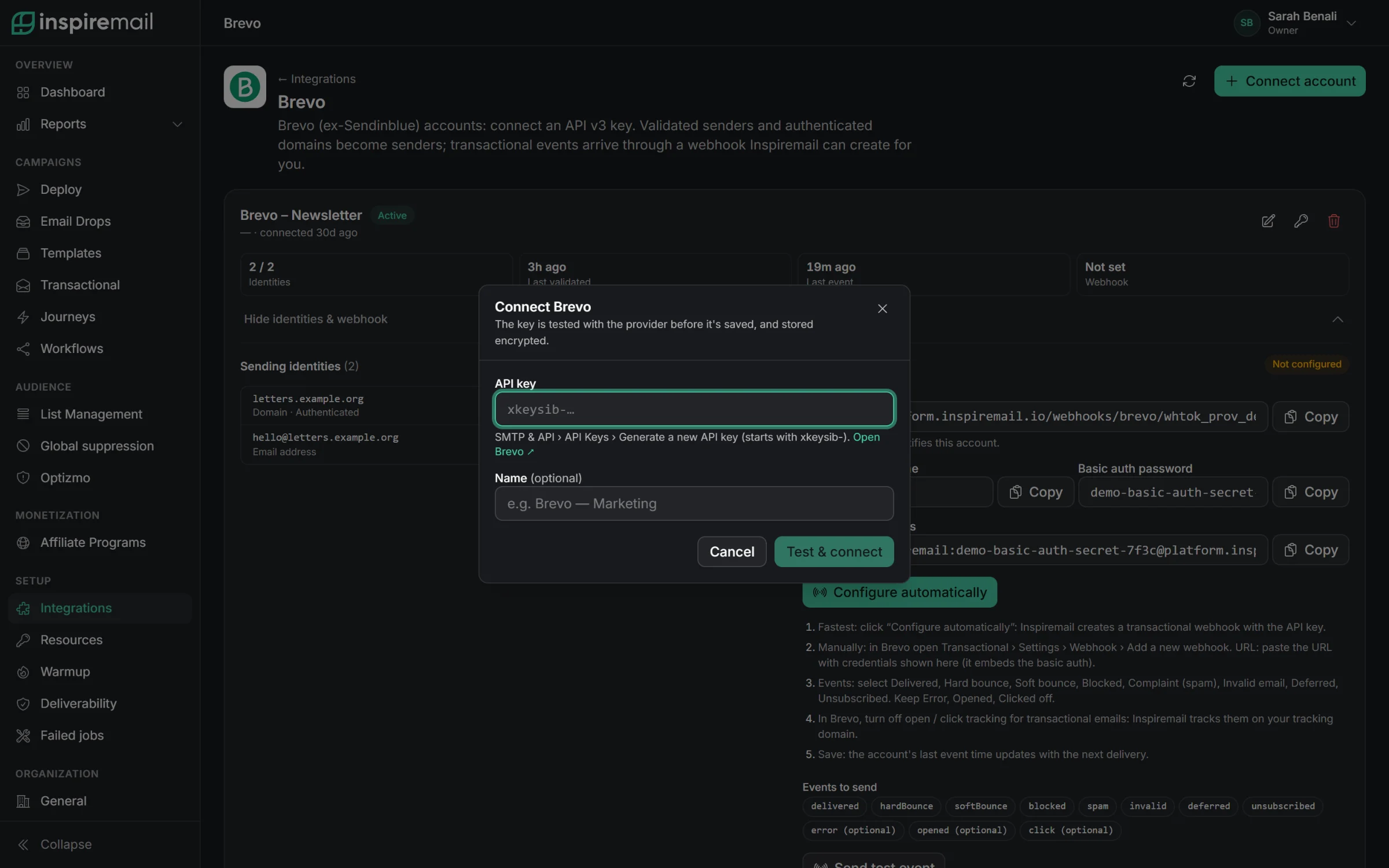
The Connect Brevo dialog: one key, one optional name.
Step 2: webhook and tracking
- Open the account's Event webhook section and click Configure automatically. Inspiremail creates a transactional webhook through the API (or updates the one it created earlier) with basic auth embedded in the URL and the required events.
- In Brevo, turn off open and click tracking for transactional emails. Inspiremail tracks both on your tracking domain.
- Send a test drop or wait for the next delivery: the account's last event time updates.
Doing it by hand instead? In Brevo open Transactional › Settings › Webhook › Add a new webhook, paste the URL with credentials from the panel, and select Delivered, Hard bounce, Soft bounce, Blocked, Complaint (spam), Invalid email, Deferred and Unsubscribed. Brevo's transactional webhooks documentation describes each event.
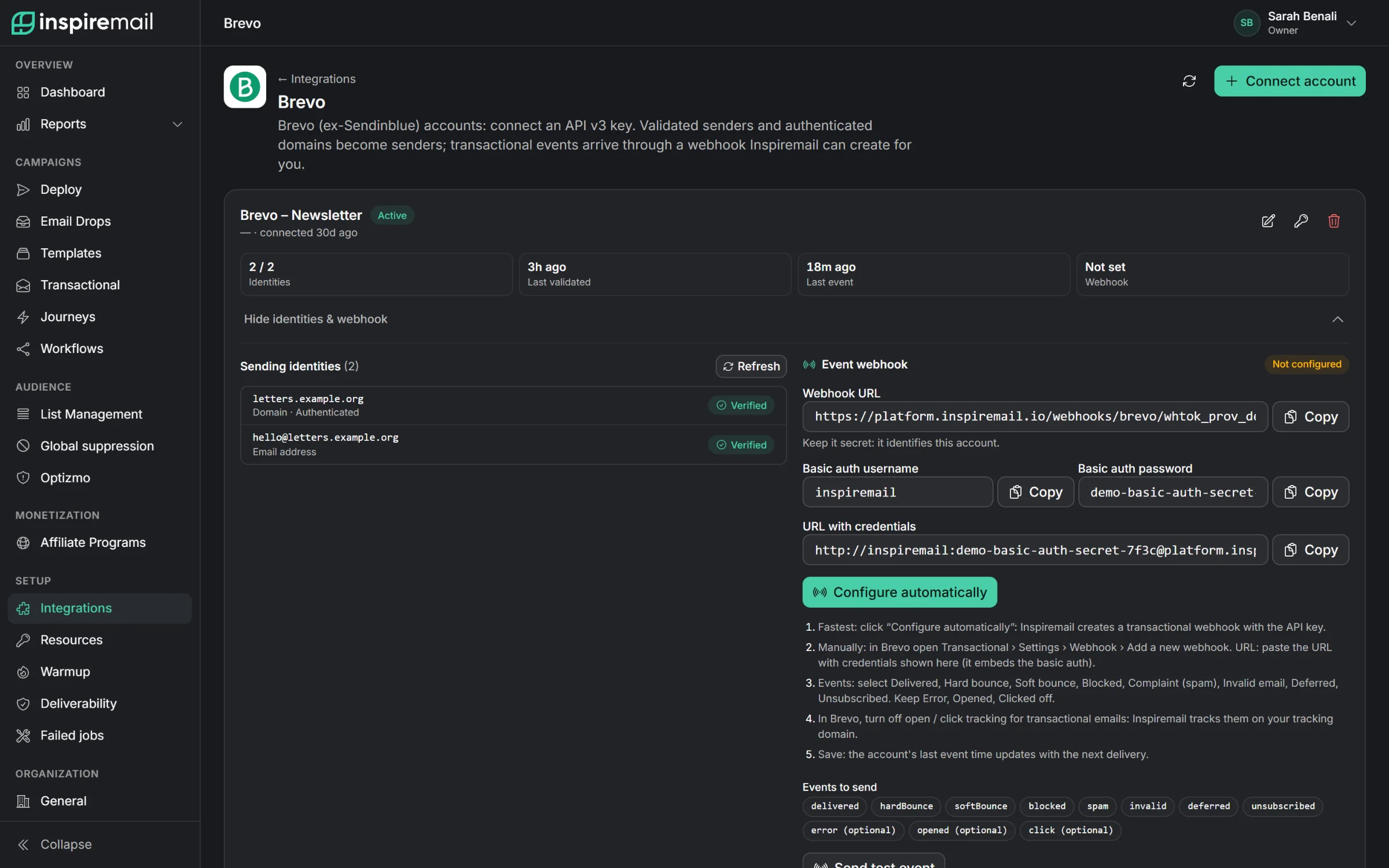
A connected Brevo account (fictitious demo data): two senders and the webhook panel.
What Inspiremail does after setup
- Senders. Validated senders and authenticated domains are listed and become senders on Deploy.
- Sending. Brevo has no raw MIME endpoint, so each message goes through its transactional email API with sender, reply-to, subject, HTML and text, plus List-Unsubscribe, Message-ID and your
X-headers. Attribution travels in theX-Mailin-customheader, which Brevo echoes in every webhook event. - Events. Hard bounces and invalid addresses (such as a mistyped domain) suppress; complaints suppress; soft bounces and deferrals are recorded and feed auto-pause; blocked messages are logged as rejected.
- Pacing. The account starts at 20 emails per second, adjustable on the account. Brevo's own plan limits still apply.
Why it's quick
There's one credential to paste and one button for the webhook. You don't type event names or invent a shared secret: the generated basic auth is already in the URL Brevo receives. The panel even reminds you about the tracking setting, the one step that can't be automated.
Before your first Brevo drop
Run through this once per account. It takes five minutes and saves a confusing first send.
- Authenticate the domain, not just a sender. A validated single sender works, but DMARC alignment needs the domain authenticated in Brevo. For example, authenticate
letters.example.orgitself instead of relying onhello@letters.example.orgalone. The panel marks unauthenticated domains with "Domain not authenticated". - Check the identity list. Inspiremail reads both your senders and your domains. Anything still pending in Brevo shows a note ("Sender not validated") and won't be offered on Deploy.
- Turn tracking off in Brevo. Covered above, and it's the only step Inspiremail can't do for you. Skip it and Brevo rewrites your links before they reach the inbox.
- Give the sender a tracking domain, then send a test drop to a few seed addresses before the real list.
When something goes wrong during a drop
Brevo answers every API call with a status code, and Inspiremail sorts them into a few buckets so you can tell a passing hiccup from a real problem.
| What Brevo returns | What Inspiremail does |
|---|---|
| HTTP 429 (too many requests) | The message isn't counted as failed. It goes back in the queue, sending pauses for two seconds and the next pass picks it up. The live monitor shows "Provider throttling; retrying shortly". |
HTTP 402 or not_enough_credits | Logged as a quota failure with Brevo's code. Top up credits or switch the drop to another account. |
HTTP 401, or permission_denied on the key | The account is flagged and owners and managers get a "Provider credentials rejected" alert. |
account_under_validation | Rejected: Brevo is still reviewing the account. Nothing will send until they finish. |
| HTTP 400 on the recipient | That one address fails; the rest of the drop continues. |
Bounces and complaints that come back through the webhook also count toward the drop's auto-pause: by default a drop stops itself when bounces pass 5% or complaints pass 0.1%, measured after 500 deliveries. You can change both thresholds per drop.
Troubleshooting
- "Enter a Brevo API v3 key (starts with xkeysib-)": an SMTP key (
xsmtpsib-) or a v2 key was pasted. Generate a v3 API key. - Test & connect fails with "Brevo 401": the key was deleted or belongs to another Brevo account. Generate a new one.
- Configure automatically says "Updated the existing Brevo webhook": that's expected when you run it again. The existing webhook was updated instead of duplicated.
- Clicks show Brevo links instead of your domain: transactional click tracking is still on in Brevo. Turn it off.
- A sender is missing: validate it in Brevo or authenticate its domain, then click Refresh.
How we checked this guide
We tested each step in a demo organization with fictitious data on 22 November 2026 and compared it with the provider documentation linked above, and with NIST SP 800-177 Rev. 1, Trustworthy Email for the background on domain authentication. Screens, button labels, limits and error messages are taken from the product as it works today. If something here no longer matches what you see, contact us and we'll correct it, as our editorial policy describes. Read more about us.
Related guides
Next steps: a tracking domain per sender and the SPF, DKIM and DMARC check. Other providers: Postmark, SendGrid. Overview: Brevo integration and multi-provider sending.
Frequently asked questions
Which Brevo key does Inspiremail need?
An API v3 key from SMTP & API › API Keys. It starts with xkeysib-. SMTP keys and legacy v2 keys don't work.
Does Inspiremail use Brevo campaigns or transactional email?
Transactional email: each message is sent through Brevo's transactional API, and events arrive through a transactional webhook. Your lists, segments and suppression stay in Inspiremail.
Why turn off Brevo's open and click tracking?
Brevo's transactional tracking is an account setting that Inspiremail can't switch off per message. Inspiremail already tracks opens and clicks on your own tracking domain, so turning Brevo's off avoids double tracking and Brevo-branded links.
How are Brevo webhooks authenticated?
With HTTP basic auth generated by Inspiremail, embedded in the webhook URL, on top of the account's secret URL token. Configure automatically sets it up for you.
- Brevo setup
- brevo
- sendinblue
- webhook
- integration guide