
Postmark setup with a Broadcast stream
Postmark setup with Inspiremail: connect a Server API token, send marketing through a Broadcast stream and let Inspiremail create the signed webhook for you.
· 5 min read · By Reda El Kasraoui
TL;DR: in Postmark, create (or pick) a Broadcast message stream for marketing mail and copy the server's Server API token. In Inspiremail open Integrations › Postmark › Connect account, paste the token, type the stream ID in Message stream and click Test & connect. Then click Configure automatically in the account's webhook section. Delivery, bounce, complaint and subscription events start arriving on a webhook protected by basic auth.
A message stream is Postmark's way of separating kinds of mail on one server, for example transactional receipts on outbound and newsletters on a Broadcast stream. A Broadcast stream is the stream type Postmark reserves for bulk and marketing email.
Postmark is strict about keeping bulk mail out of transactional streams, and it's right to be. Most setup problems come from connecting the default outbound stream and using it for drops.
What you need from Postmark
- A server with a confirmed sender signature or a verified domain (DKIM and Return-Path). Postmark's API overview explains servers and tokens.
- A Broadcast message stream on that server. Postmark's guide to message streams shows how to create one and why marketing mail belongs there.
- The Server API token (Servers › your server › API Tokens). Optionally the Account API token (Account › API Tokens), which lets Inspiremail list sender signatures and domains.
Step 1: connect the server
- Open Integrations › Postmark and click Connect account.
- Paste the Server API token (a UUID, 36 characters).
- In Message stream replace
outboundwith your Broadcast stream ID, for examplebroadcast. - Optional: paste the Account API token so identities can be listed automatically.
- Name the account if you like and click Test & connect. The stream is checked on the server before anything is saved.
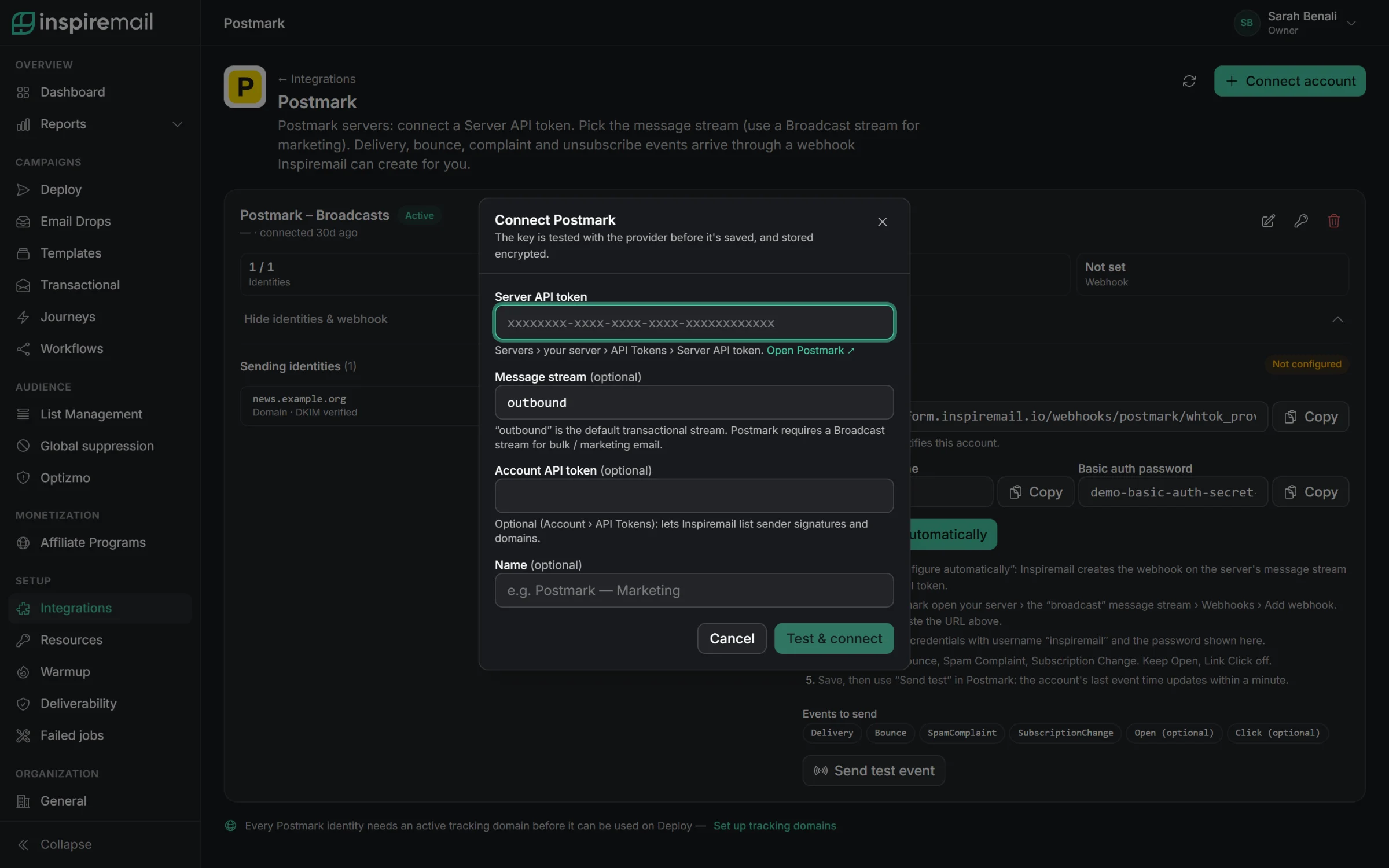
The Connect Postmark dialog. The help under Message stream is the important line.
Step 2: create the webhook
Postmark doesn't sign webhooks, so Inspiremail generates HTTP basic auth credentials for each account on top of the secret token in the URL. You don't have to copy them anywhere if you let Inspiremail do it:
- Open the account's Event webhook section.
- Click Configure automatically. Inspiremail uses the Server API token to create the webhook (or update the existing one) on the account's message stream, with the basic auth credentials and the right events.
- In Postmark, use Send test on the webhook. The account's last event time updates within a minute.
Prefer doing it by hand? The panel lists the manual route: server › your stream › Webhooks › Add webhook, paste the URL, enable basic auth with the username and password shown, select Delivery, Bounce, Spam Complaint and Subscription Change, and leave Open and Link Click off. Postmark's webhooks overview describes the same screen.
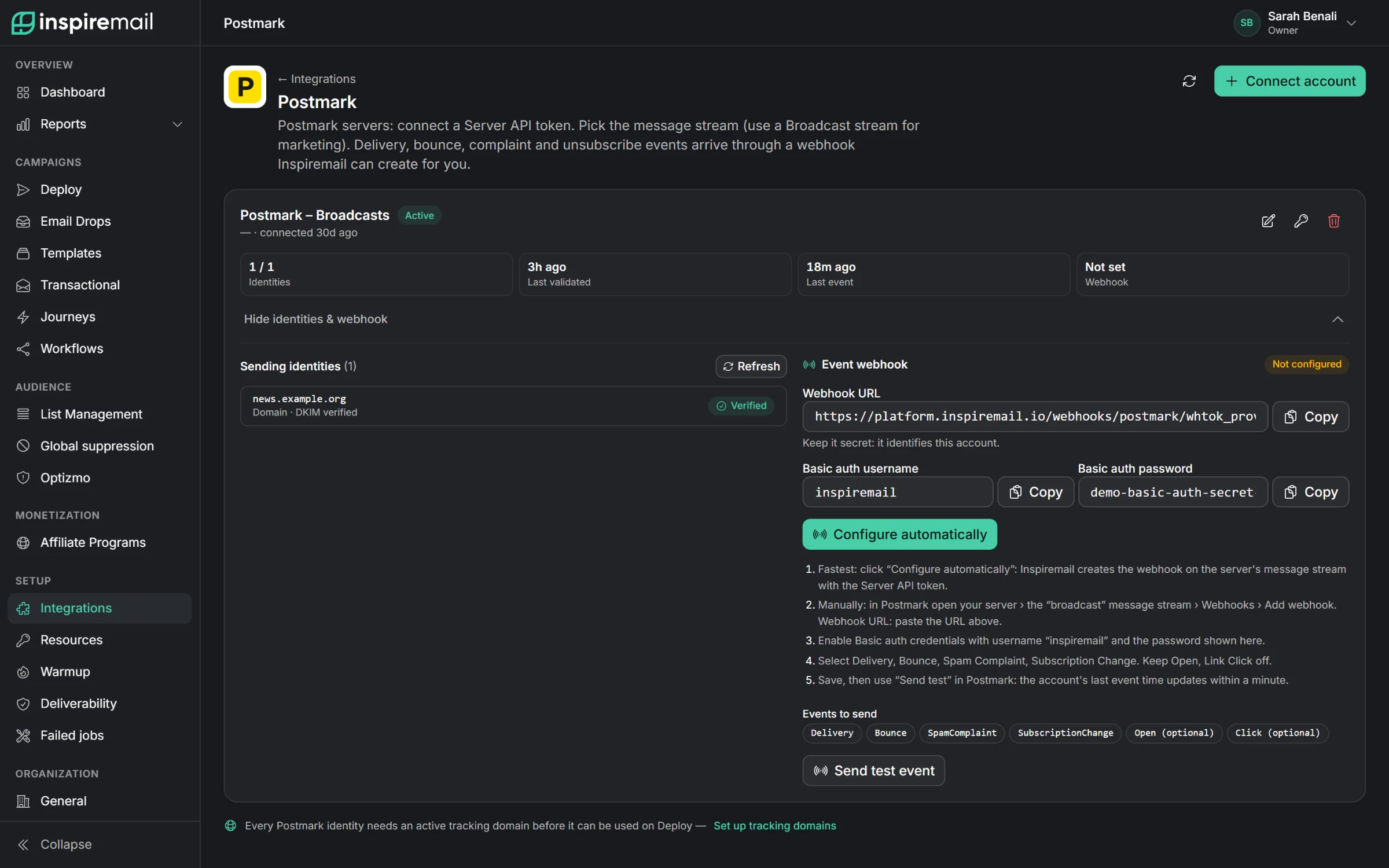
A connected Postmark server (fictitious demo data): basic auth credentials and the Configure automatically button.
What Inspiremail does after setup
- Senders. Sender signatures and verified domains become senders on Deploy (listed automatically with the Account API token, or after you confirm a signature and refresh).
- Sending. Postmark has no raw MIME endpoint, so messages go out through its email API as JSON: From, Reply-To, subject, HTML and text, plus List-Unsubscribe, Message-ID and your
X-headers inHeaders. Attribution tags travel asMetadata, so every event maps back to its drop. - Events. Hard bounces and spam complaints suppress the address; soft and transient bounces are recorded. A Subscription Change for a manual suppression becomes an unsubscribe.
- Tracking. Postmark's open and link tracking are off; your own tracking domain handles both.
- Pacing. The account starts at 50 emails per second.
Why it's quick
The stream is validated when you connect, so a typo can't slip through to the first drop. The webhook is a single click, credentials included. And the setup panel shows the stream name it will use, so you can see at a glance that marketing goes to Broadcast.
Before your first Postmark drop
- Check the stream on the account page. It should read your Broadcast stream ID, not
outbound. - Verify the domain with DKIM and Return-Path rather than relying on a single sender signature, so DMARC aligns.
- Add a tracking domain for each identity, then send a seed drop to a handful of your own addresses.
When something goes wrong during a drop
Postmark returns a numeric error code with each refusal, and its API error codes page lists them all. These are the ones you'll actually meet:
| What Postmark returns | What Inspiremail does |
|---|---|
| HTTP 429 | Not a failure. The message is released, sending pauses for two seconds and resumes. The live monitor shows "Provider throttling; retrying shortly". |
| Code 10 (bad token) | Owners and managers get a critical "Provider credentials rejected" alert. |
| Code 405 or 413 (no credits, monthly limit) | Logged as a quota failure. Add credits in Postmark. |
| Code 406 (inactive recipient) | That address fails. Postmark has it on its own suppression list after an earlier bounce or complaint. |
| Code 1235 and other stream errors | Rejected. Check the stream ID on the account. |
Auto-pause watches the events side: after 500 deliveries, a drop pauses itself if bounces pass 5% or complaints pass 0.1%. Change either threshold per drop.
Troubleshooting
- "Enter a Postmark Server API token": the value isn't a server token (it should be 20 to 64 letters, digits or dashes, usually a UUID).
- "The message stream “broadcast” doesn't exist on this Postmark server": create the stream in Postmark first, or fix the stream ID (it's the ID, not the display name).
- "The Postmark Account API token looks invalid": leave the optional field empty or paste the Account token, not a server token.
- No identities listed: without the Account API token, confirm a sender signature in Postmark and click Refresh.
- Bounces don't appear: check that the webhook is on the same stream the account sends through. Configure automatically always uses the account's stream.
How we checked this guide
We tested each step in a demo organization with fictitious data on 22 November 2026 and compared it with the provider documentation linked above, and with NIST SP 800-177 Rev. 1, Trustworthy Email for the background on DKIM and Return-Path. Screens, button labels, limits and error messages are taken from the product as it works today. If something here no longer matches what you see, contact us and we'll correct it, as our editorial policy describes. Read more about us.
Related guides
Next: a tracking domain per identity and a warmup plan. For receipts and other one-off messages, connect the same server a second time on the default outbound stream and use it in a transactional stream. Overview: Postmark integration and multi-provider sending.
Frequently asked questions
Which Postmark token do I need?
The Server API token of the Postmark server you send from (Servers › your server › API Tokens). The Account API token is optional; with it Inspiremail can list your sender signatures and domains.
Why use a Broadcast stream?
Postmark separates transactional and bulk email into message streams and requires a Broadcast stream for marketing mail. Enter the stream ID, for example broadcast, in the Message stream field when you connect.
Can Inspiremail create the Postmark webhook itself?
Yes. Configure automatically creates or updates the webhook on the account's message stream with the Server API token, including the basic auth credentials Inspiremail generated.
Should I enable Postmark open and click tracking?
No. Keep Open and Link Click off. Inspiremail tracks opens and clicks on your own tracking domain and turns Postmark's tracking off on the messages it sends.
- Postmark setup
- postmark
- broadcast stream
- webhook
- integration guide