
Sending pools: group senders and rotate them
Build a sending pool in Inspiremail, pick it on Deploy and set the rotate rate, so every drop spreads across your identities with their own caps and tracking.
· 5 min read · By Reda El Kasraoui

TL;DR: a sending pool is a saved list of senders (account · region · identity). Create one under Integrations › Amazon SES › Sending pools › New pool, or tick the identities on Deploy › Sending and click Save as pool. On the next drop, choose the pool in the Pool menu, set Rotate Rate in the Configuration panel, and Inspiremail hands out the emails in turn across the identities while respecting each account's rate, each identity's warmup cap and each sender's tracking domain.
A sending pool is a saved list of senders, each an account, a region and an identity, that you can pick on Deploy in one click. The rotate rate is how many emails one identity sends before the next one takes over.
Why spreading volume matters, and where it stops being legitimate, is in email warmup schedules and sender rotation. Read that first if you're new to it. Rotation is for spreading real, wanted mail across your own domains, not for hiding from filters.
Before you start
- Verified identities, each with an active tracking domain. Deploy won't send from an identity without one, and the sending panel marks it "Tracking domain" with a Set up tracking link. See the tracking domain setup guide.
- Production access on SES. Regions still in the SES sandbox are hidden from Deploy and from pools, since AWS limits them to 200 emails a day to verified addresses.
- A warmup plan for anything new. A pool of three fresh domains is three domains to warm up. Set it up first with the warmup plan guide.
Step 1: create the pool
- Open Integrations › Amazon SES and find the Sending pools card, then click New pool. Name it after what it's for: "Solar – US warm pool", not "Pool 3".
- Tick the identities. Each line is one account, one region and one identity, so the same domain verified in two regions can be two senders.
- Click Save pool.
Already on Deploy with the right identities ticked? Click Save as pool under the list instead. It works for any provider, not only SES. If you change the ticks later, Deploy tells you that the selection differs from the saved pool, so you never wonder whether the pool was updated.
Step 2: pick it on Deploy
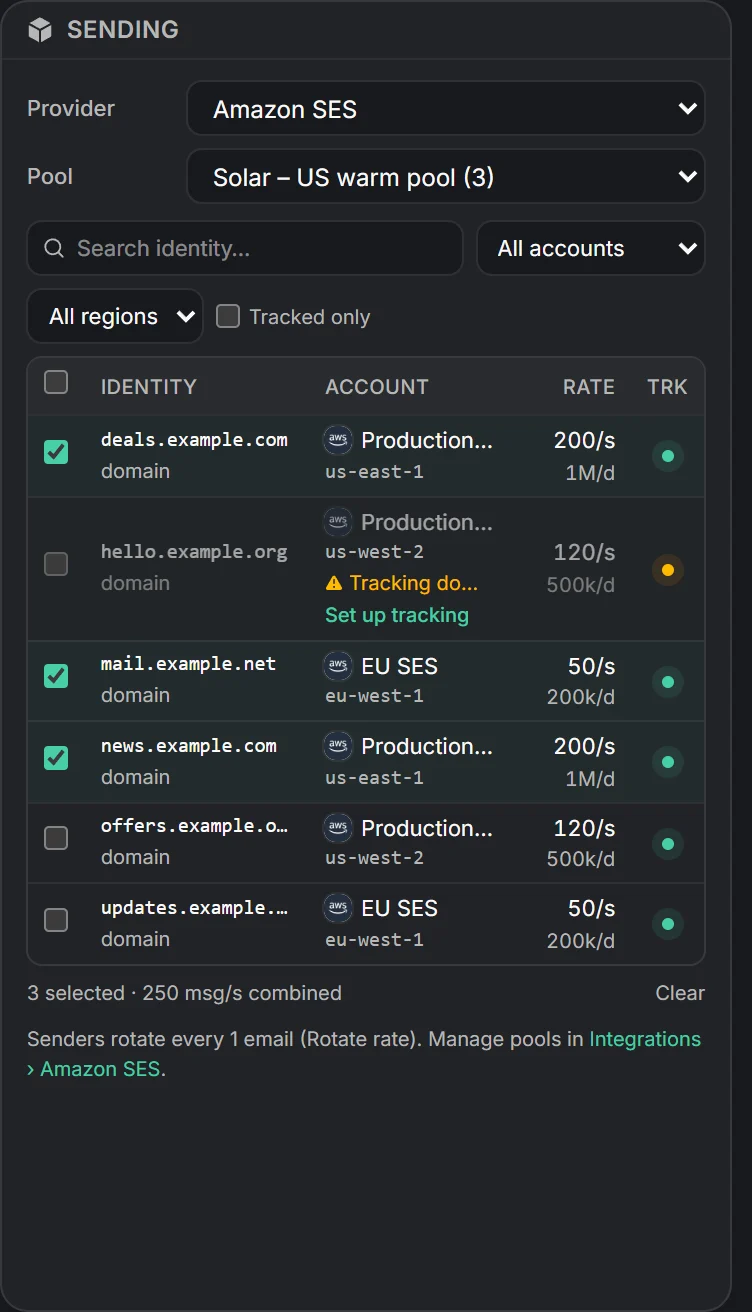
Deploy › Sending with a pool selected (fictitious demo data). The combined rate counts each account once.
- On Deploy › Sending, choose the Provider, then the Pool. The identities in the pool are ticked.
- Check the table: every row shows the account, region, send rate per second, daily quota and a tracking dot. Use Tracked only to hide identities without tracking.
- Read the footer: how many senders are selected and the combined rate. Two identities on the same account and region share that account's rate, which is why three senders can add up to less than the sum of the rows.
Step 3: set the rotate rate
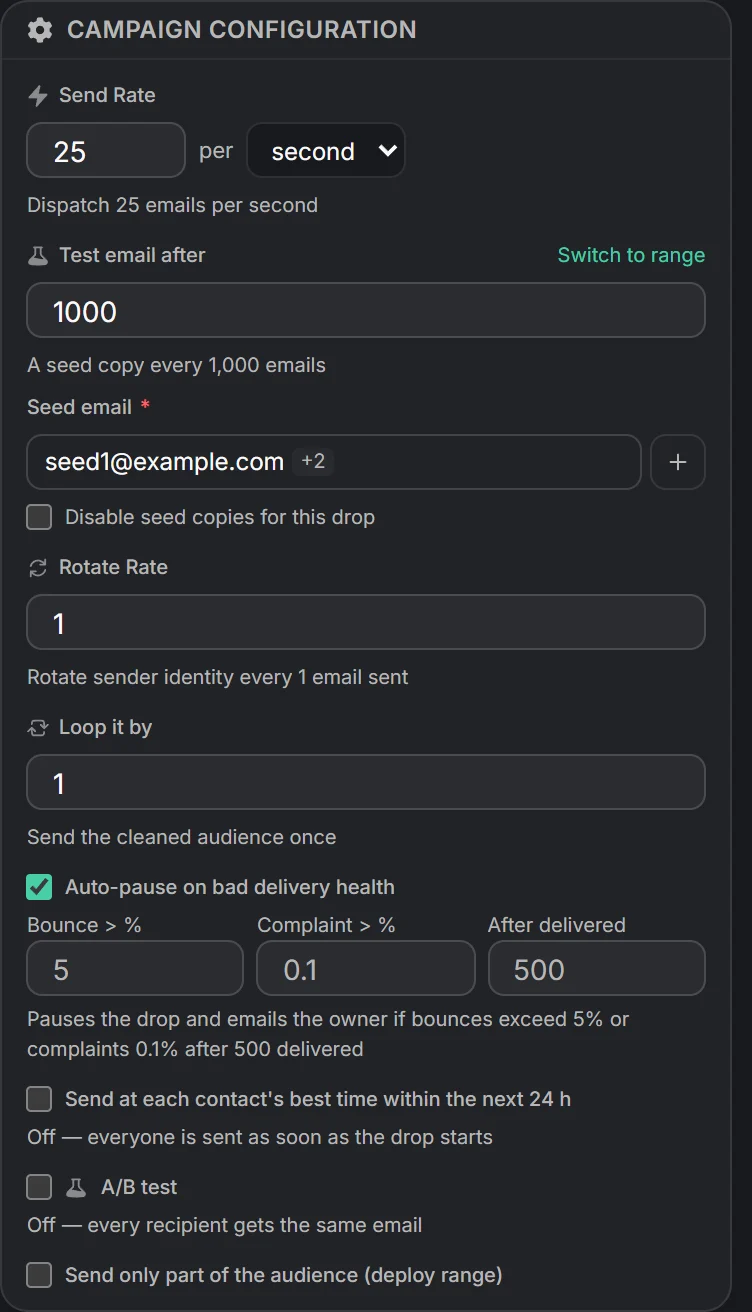
The Configuration panel. Rotate Rate sits between the seed settings and Loop it by.
Rotate Rate is how many emails one identity sends before the next takes its turn. With 1, consecutive emails alternate between identities. With 50, each identity sends blocks of 50.
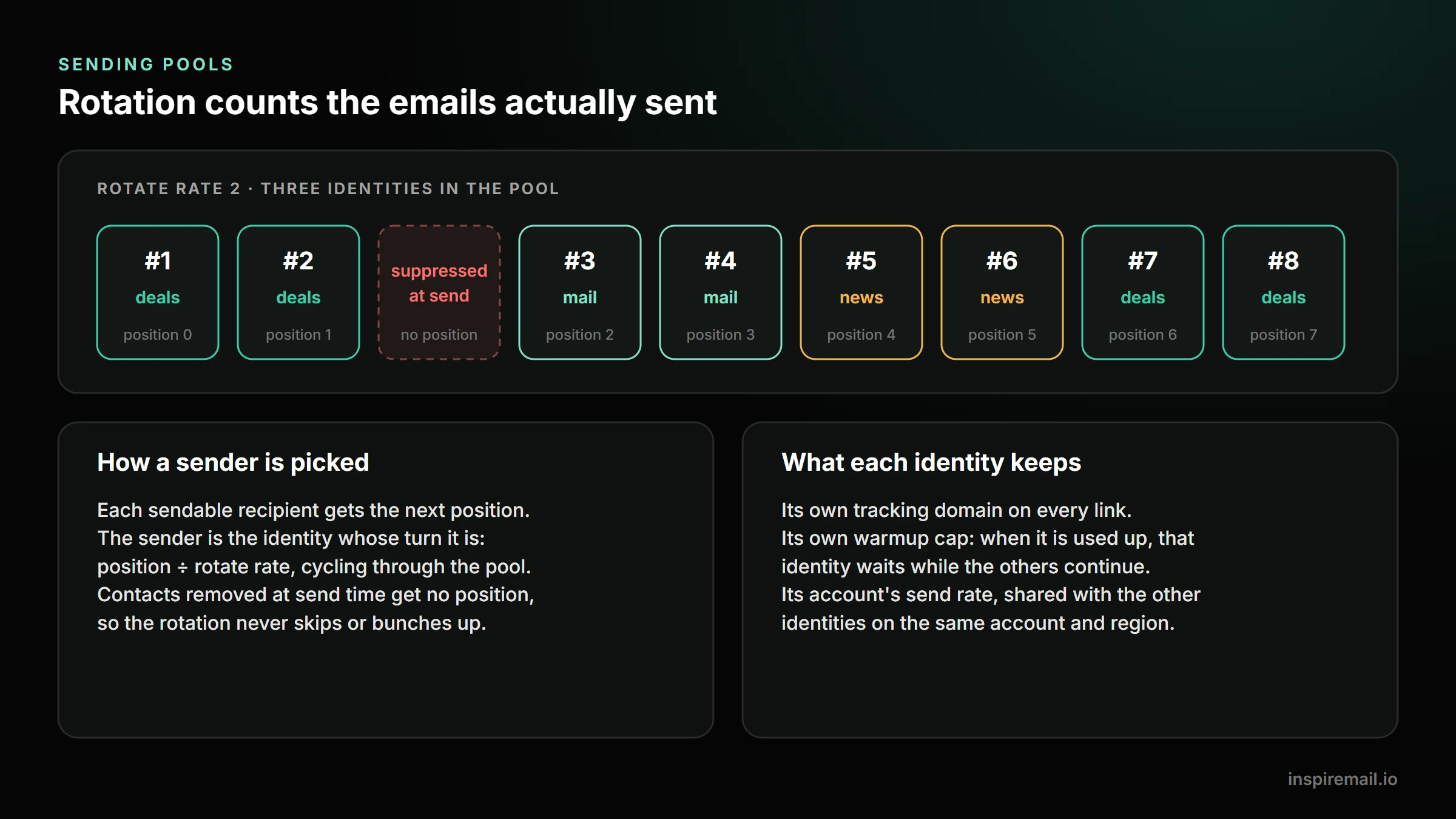 Rotation counts the emails actually sent, so suppressed contacts don't push the order around.
The count is based on emails actually sent. Contacts removed at send time (a late unsubscribe, an offer suppression match, a paused subscriber) don't get a position, so the rotation never bunches up on one identity. Seed copies ("Test email after") are counted the same way, so a seed every 1,000 emails means 1,000 emails actually sent.
There's no magic number. A low rate spreads every part of the list across every domain, which keeps each domain's mix of mailbox providers similar. A higher rate keeps consecutive recipients on the same domain, which some teams prefer when they compare senders in reports. Either way the per-identity results are in the reports and the live monitor.
What happens during the drop
- Rates and quotas per account. Each account sends at its own rate; a busy account slows down without holding the others back.
- Warmup per identity. When one identity reaches today's cap, its share waits and resumes when the 24-hour window has room. The other identities keep going.
- Tracking matches the sender. Every message carries the tracking hostname of the identity that sent it.
- Auto-pause watches the whole drop. By default it stops the drop if bounces pass 5% or complaints pass 0.1% after 500 deliveries, and emails the owner.
- Every identity still has to be you. Rotating domains is legal, but the FTC's CAN-SPAM guide is clear that header information must identify the sender accurately, so each From domain in the pool should be one your recipients recognize.
Troubleshooting
- An identity in the pool is greyed out on Deploy: it has no active tracking domain. Click Set up tracking on the row.
- "Selection differs from the saved pool": you ticked or unticked identities after picking the pool. That's fine for one drop; click Save as pool if the change should stick.
- A region is missing: it's still in the SES sandbox, or the account was disconnected. Request production access in AWS, then refresh the account.
- The drop is slower than the combined rate suggests: a warmup cap or a daily quota is holding one identity back. The live monitor names the plan or the quota that's waiting.
Who can use which pool
On the Resources page, assign a pool to a user or a group (for example a "Solar team" group of Emailers). Emailers only see the senders assigned to them on Deploy, so a new team member can't accidentally send from your best domain. The roles and resources page describes the permission model.
How we checked this guide
We tested each step in a demo organization with fictitious data on 22 November 2026 and compared it with the provider documentation linked above. Screens, button labels, limits and error messages are taken from the product as it works today. If something here no longer matches what you see, contact us and we'll correct it, as our editorial policy describes. Read more about us.
Related guides
Per-provider setup starts with the Amazon SES guide. For limits on the provider side, AWS documents SES sending quotas and leaving the SES sandbox, Google's sender guidelines list what Gmail expects from every domain you rotate through, and Yahoo's sender best practices say the same for Yahoo and AOL mailboxes.
Frequently asked questions
What is a sending pool in Inspiremail?
A saved group of senders, each one an account, a region and an identity. Instead of ticking the same identities on every deploy, you pick the pool and the selection is filled in.
Can one drop use several providers?
No. A drop sends through one provider, but it can combine every account, region and identity of that provider. You can still keep pools for different providers and choose the right one per drop.
What does the rotate rate do?
It sets how many emails each identity sends before the next one takes over. Rotate rate 1 alternates every email; 100 sends blocks of 100. Only emails actually sent count, so suppressed contacts never shift the rotation.
What happens when one identity in the pool reaches its cap?
That identity waits while the others continue. Each identity keeps its own warmup cap, and each account its own send rate and quota, so one tired sender doesn't stop the drop.
Can I limit which pools an Emailer can use?
Yes. Assign the pool to a user or a group on the Resources page. Emailers only see the senders they have been given on Deploy.
- sending pool
- sender rotation
- deploy
- rate limits
- integration guide