
Team roles and permissions: members, groups, resources
Set up team roles and permissions in Inspiremail: invite members with one of six roles, group them and assign the accounts, pools and lists each Emailer can use.
· 4 min read · By Reda El Kasraoui
TL;DR: invite people from Organization › Members with one of five roles (Organization Manager, Emailer, List Manager, Offer Manager, HR Manager; the owner is you). Then open Resources, create groups such as "Solar team", and assign each group the sending pools, AWS accounts, SES regions, provider accounts and subscriber lists it may use. Owners and Organization Managers always see everything; everyone else sees only what's assigned to them or their groups.
A role decides what a person can do (deploy, manage lists, manage offers, read reports). A resource assignment decides which things they can do it with: which sending accounts, pools and lists an Emailer can pick on Deploy.
Most teams start with everyone as a manager and regret it the first time a new hire sends from the wrong domain. Splitting "what" from "with what" fixes that without slowing anyone down.
The six roles
| Role | What they can do |
|---|---|
| Owner | Everything, including transferring ownership. Never uses a seat. |
| Organization Manager | Everything except changing or removing the owner. |
| Emailer | Deploys with the resources assigned to them; sees only their own drafts, drops and reports. |
| List Manager | List management, the suppression list and Optizmo downloads. Can't change the Optizmo token. |
| Offer Manager | Manages Affiliate Programs (Everflow connections); read-only reports and email drops. |
| HR Manager | Read-only access to all reports, email drops and the audit log. |
A few details that matter in practice: Emailers can add an address to the suppression list (a recipient asked by phone) but can't remove one. List Managers can export the suppression list for an audit. Offer and HR Managers never deploy.
Step 1: invite members
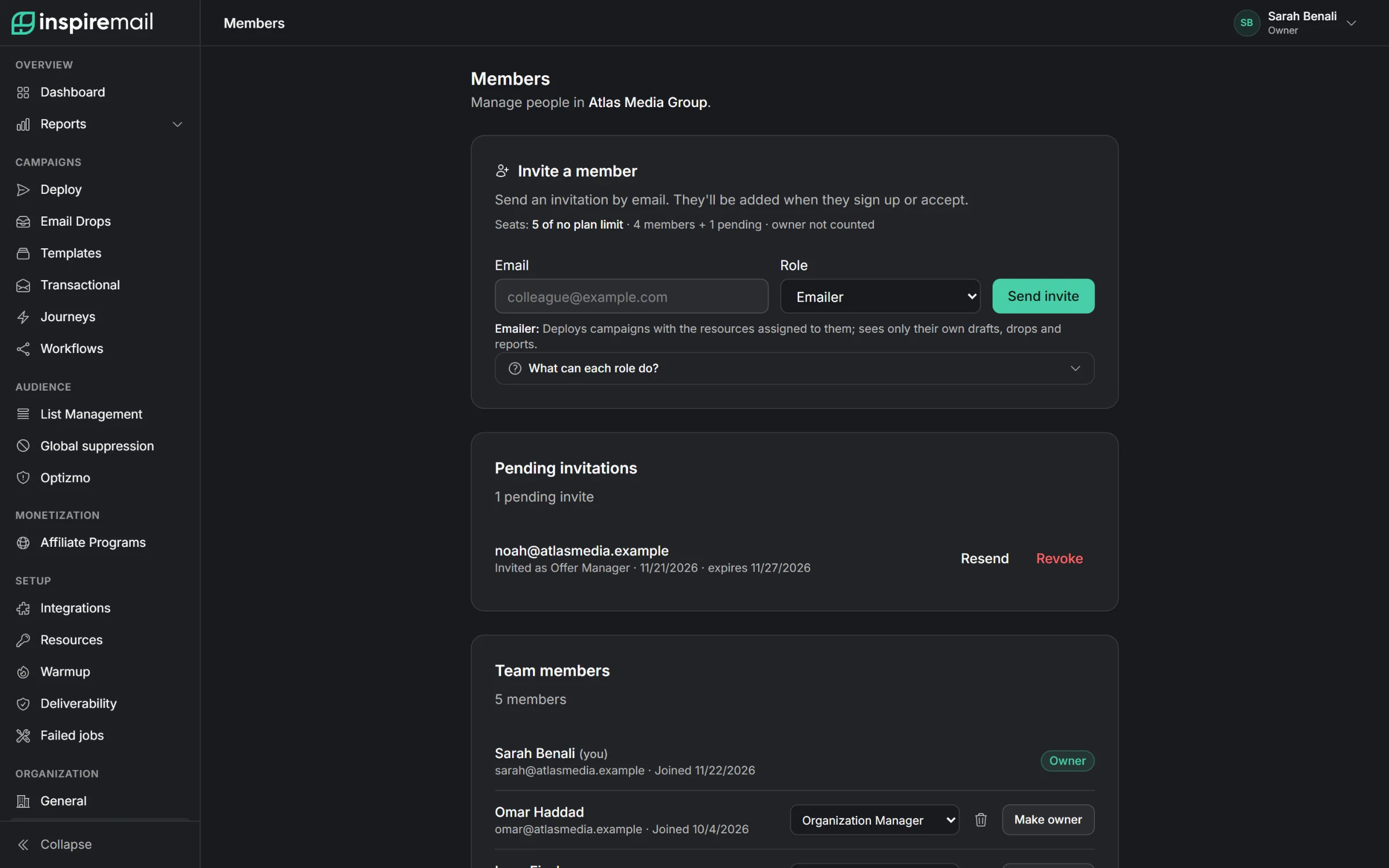
Organization › Members (fictitious demo team). The seat line counts members and pending invitations, never the owner.
- Open Organization › Members.
- Enter the person's Email, choose a Role (the description under the select says what it allows; What can each role do? shows the full list) and click Send invite.
- The invitation appears under Pending invitations with its expiry date. Resend or Revoke it there.
- Once accepted, the person shows under Team members, where you can change their role or remove them.
Seats are a hard cap of your plan: members other than the owner, plus pending invitations. If you're at the limit, revoke an old invitation before sending a new one.
Step 2: create groups
On Resources › Groups, click New group, name it after the team or the vertical ("Solar team", "Insurance desk"), add members and save. Groups are optional, but with more than two or three Emailers they save a lot of clicking: assign once to the group, and anyone added later inherits it. Deleting a group removes the access it gave; direct assignments stay.
Step 3: assign resources
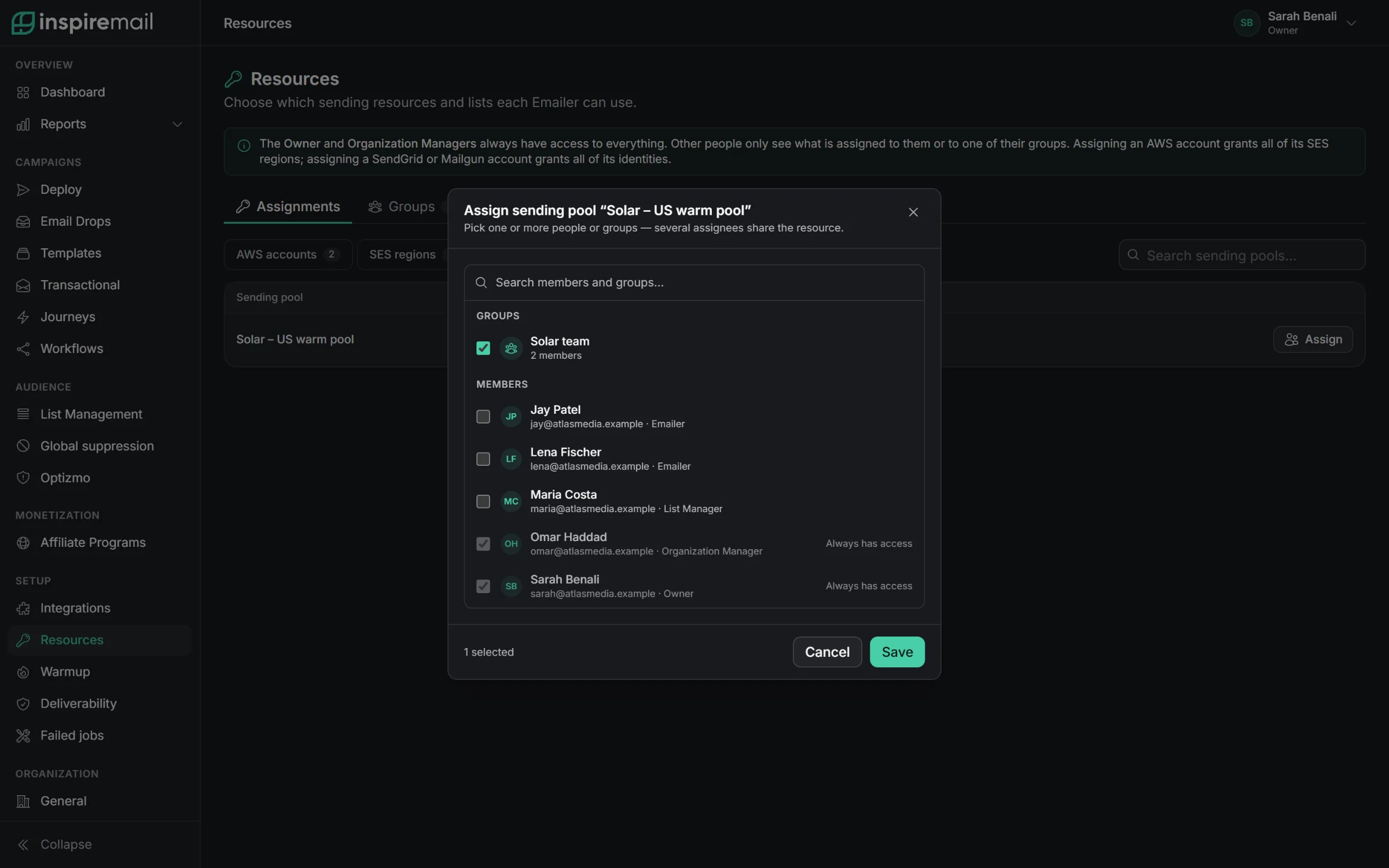
Assigning a sending pool to a group. The owner and managers are listed as always having access.
- Open Resources › Assignments and pick the resource type: AWS accounts, SES regions, provider accounts, Sending pools or subscriber lists.
- Click Assign on a row and tick groups or members. Several assignees can share one resource.
- Save.
Assigning an AWS account grants all of its SES regions; assigning a SendGrid or Mailgun account grants all of its identities; assigning a sending pool grants the senders in it. On Deploy, an Emailer then sees only those senders and those lists. The sending pools guide covers building the pools themselves.
Which role for which job
| Job | Role to give |
|---|---|
| Builds and sends drops for one vertical | Emailer, in that vertical's group |
| Imports lists, handles opt-out requests, runs Optizmo | List Manager |
| Manages the network accounts and offers | Offer Manager |
| Needs numbers for payroll or commissions, never sends | HR Manager |
| Connects providers, DNS and billing-level settings | Organization Manager |
When in doubt, pick the smaller role and widen it later. Going the other way, taking access away after someone got used to it, is always the harder conversation. The idea has a name in security, least privilege, and NIST's control catalog SP 800-53 lists it as control AC-6.
A setup that works for most teams
- One owner, who rarely needs to do day-to-day work.
- One or two Organization Managers who connect providers, DNS and networks.
- Emailers in groups, one group per vertical, each with its own sending pool and lists.
- A List Manager for imports, suppression and Optizmo, so list hygiene has an owner.
- An Offer Manager if someone else runs the network relationships.
For example, at our fictitious demo company Atlas Media Group, the "Solar team" group (two Emailers) has the "Solar – US warm pool" and the "Solar Leads – US (Q2)" list. A third Emailer has one SES region assigned directly while they're being trained.
Troubleshooting
- An Emailer sees no senders on Deploy: nothing is assigned to them or their groups yet. Assign a pool or an account.
- "Seats" error when inviting: the plan's seat limit is reached, counting pending invitations. Revoke one or upgrade.
- A List Manager can't change the Optizmo token: by design; an owner or Organization Manager does that.
How we checked this guide
We tested each step in a demo organization with fictitious data on 22 November 2026. Screens, button labels and limits are taken from the product as it works today, and the role descriptions are the product's own. The principle behind the setup is the classic one of least privilege, as defined in the NIST glossary and recommended by OWASP's authorization guidance. If something here no longer matches what you see, contact us and we'll correct it, as our editorial policy describes. Read more about us.
Related guides
Roles and resources on the feature page, and Optizmo integration for the List Manager's main job.
Frequently asked questions
Which roles does Inspiremail have?
Six: Owner, Organization Manager, Emailer, List Manager, Offer Manager and HR Manager. Each organization has exactly one owner; the other five roles can be given through invitations or role changes.
Does the owner use a seat?
No. Seats count members other than the owner plus pending invitations, so on a plan with five seats you can have the owner and five other people.
What can an Emailer see?
Only the sending resources and lists assigned to them, directly or through a group, and only their own drafts, drops and reports. They can add to the suppression list but not remove from it.
How do I give a whole team the same access?
Create a group on the Resources page, add the members, then assign sending pools, AWS accounts, SES regions, provider accounts or lists to the group. New members of the group get the same access straight away.
How do I change the owner?
The owner clicks Make owner next to another member. Ownership can only move by transfer, so an organization always has exactly one owner.
- team roles and permissions
- members
- resources
- access control
- integration guide