
SparkPost setup: API key, domains, webhooks
SparkPost setup with Inspiremail: grant the three API key permissions, connect the US or EU account and create the event webhook in one click.
· 5 min read · By Reda El Kasraoui
TL;DR: create a SparkPost API key with Transmissions: Read/Write, Sending Domains: Read and Event Webhooks: Read/Write, then paste it in Integrations › SparkPost › Connect account with the right region (US or EU). After Test & connect, open the account's webhook section and click Configure automatically. Verified sending domains become senders on Deploy and bounces, complaints and list unsubscribes are applied as they come in.
SparkPost (now part of Bird) is the most "pass-through" of the built-in providers: it takes the complete MIME message Inspiremail builds, so what you design on Deploy is exactly what leaves.
What you need from SparkPost
- A verified sending domain. Bird's page on sending domain requirements lists the DNS records SparkPost checks.
- An API key with three permissions. Bird's guide to API keys shows where permissions are set. The Transmissions API is what sends, and the Event Webhooks API is what Inspiremail calls to create the webhook.
- The account's region: US (
api.sparkpost.com) or EU (api.eu.sparkpost.com).
Step 1: create the key in SparkPost
- Open Configuration › API Keys › Create API Key.
- Grant Transmissions: Read/Write, Sending Domains: Read and Event Webhooks: Read/Write. Nothing else is needed.
- Save and copy the key (40 hexadecimal characters).
Step 2: connect it in Inspiremail
- Open Integrations › SparkPost and click Connect account.
- Paste the key and choose the Region the SparkPost account was created in.
- Optionally name the account and click Test & connect.
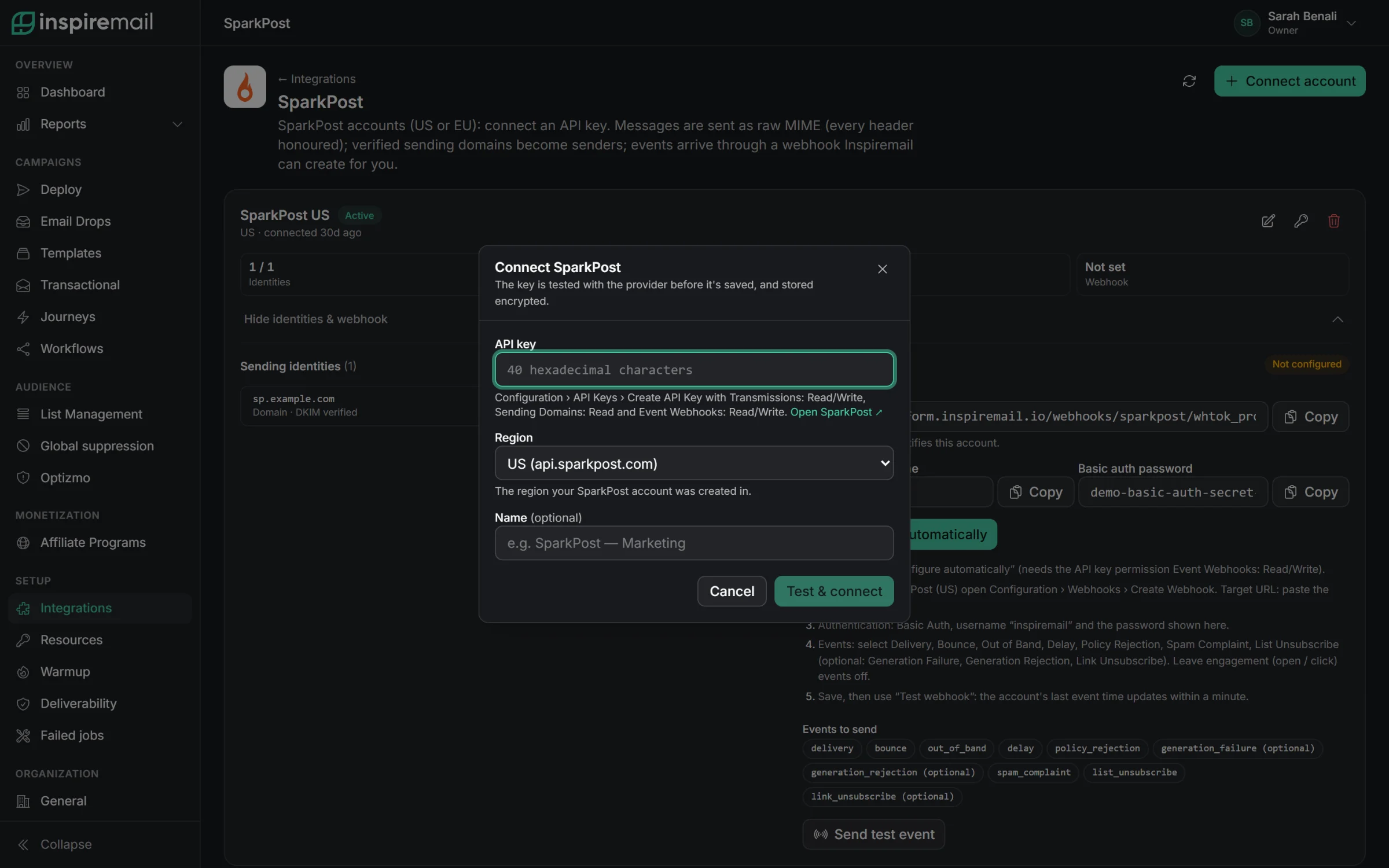
The Connect SparkPost dialog. The hint under the key lists the three permissions.
Step 3: create the webhook
SparkPost webhooks use basic auth, which Inspiremail generates per account. One click does the whole thing:
- In the account's Event webhook section, click Configure automatically. Inspiremail creates the webhook (or updates the existing one) with the target URL, the basic auth credentials and the events.
- In SparkPost use Test webhook on it. The account's last event time updates within a minute.
The manual alternative is listed in the same panel: Configuration › Webhooks › Create Webhook, paste the target URL, choose Basic Auth with the username and password shown, select the events and leave open and click events off.
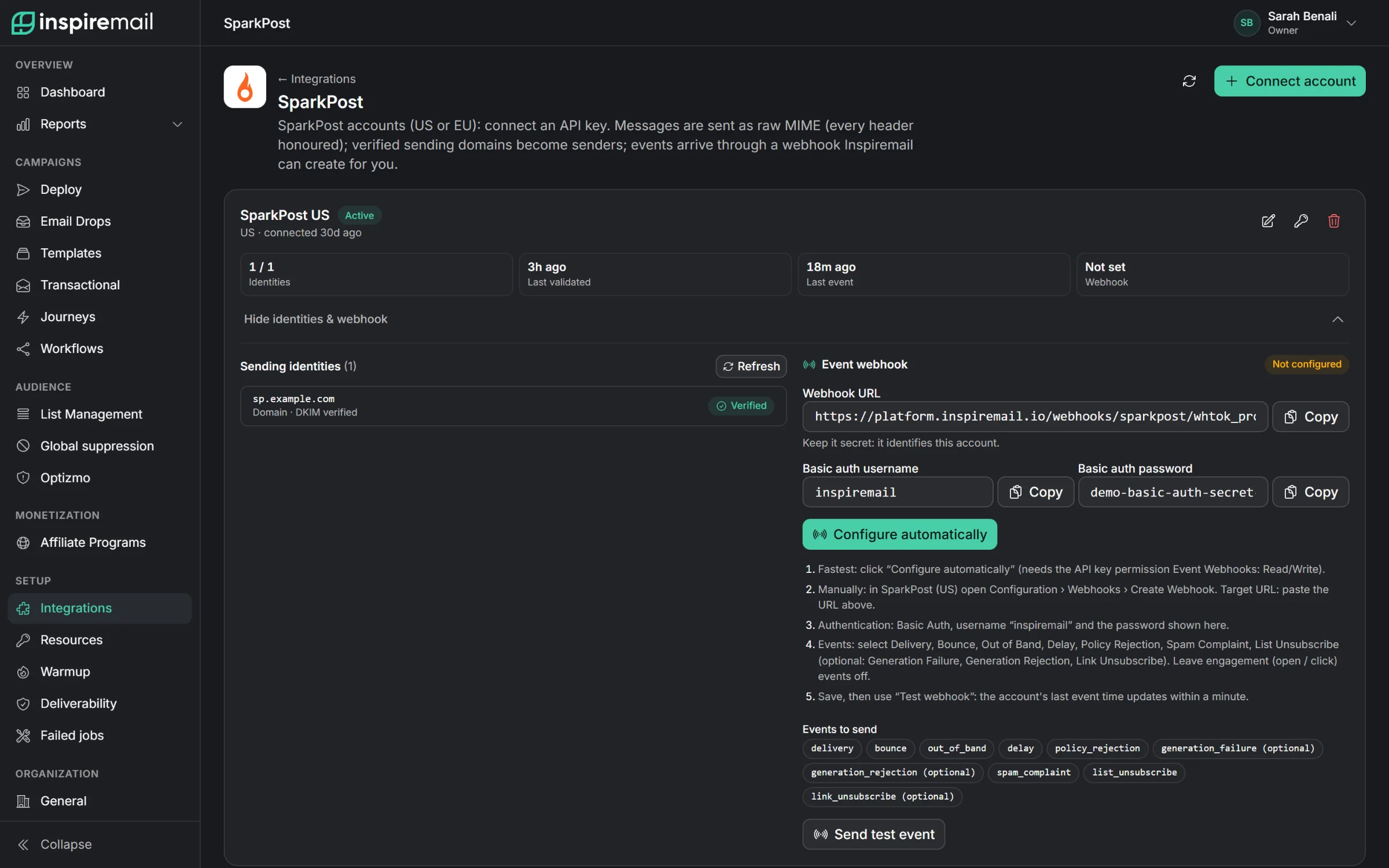
A connected SparkPost account (fictitious demo data) with the generated basic auth credentials.
What Inspiremail does after setup
- Domains as senders. Each verified sending domain becomes a sender; you choose the local part on Deploy.
- Raw MIME. Messages are sent as
content.email_rfc822, the full message with every header you set. Attribution tags travel as recipient metadata and come back in each event asrcpt_meta. - Bounce classes. SparkPost's bounce classes are mapped: 10 and 30 are hard (suppressed), 20 to 24 soft, 25 and 50 to 54 blocks. Spam complaints and list unsubscribes suppress too.
- Tracking. SparkPost's own open and click tracking are off; your tracking domain records both.
- Pacing. The account starts at 50 emails per second, adjustable on the account.
Why it's quick
One key with three permissions covers sending, identity listing and webhook creation, so you never paste a webhook URL into SparkPost by hand. The region is chosen once, and the generated credentials mean there's no shared secret to invent or store yourself.
Before your first SparkPost drop
Raw MIME is the complete email as it travels between servers, headers and body included, so nothing is rebuilt by the provider. A bounce class is SparkPost's numeric category for why a message failed, for example 10 for an invalid recipient.
- Make sure the domain is fully green in SparkPost. Inspiremail only offers a domain on Deploy when SparkPost reports three things: ownership verified, DKIM valid and compliance status valid. A domain that's half done shows up in the list but stays unavailable.
- Confirm the region one more time. It's the cause of most 401s. An EU account never works against the US endpoint.
- Set up a tracking domain for each sending domain and check SPF, DKIM and DMARC alignment.
- Send a seed test. A small drop to your own addresses shows the raw MIME arriving exactly as built.
When something goes wrong during a drop
SparkPost has its own sending limits per account, and new accounts start low. Here's what Inspiremail does with each kind of answer:
| What SparkPost returns | What Inspiremail does |
|---|---|
| HTTP 429 | Not a failure. The message is released back to the queue, sending pauses for two seconds and resumes. The live monitor shows "Provider throttling; retrying shortly". |
| HTTP 420, or error 2102 / 2103 (sending limit) | Logged as a quota failure with SparkPost's code. Ask SparkPost to raise the limit, or lower the account's send rate in Inspiremail. |
| HTTP 401 | Owners and managers get a critical "Provider credentials rejected" alert. |
| A rejected recipient | Only that address fails. The drop keeps going. |
Auto-pause still watches the drop from the event side: once 500 messages are delivered, a bounce rate above 5% or complaints above 0.1% pause it. Both numbers are adjustable per drop. SparkPost's bounce classification codes explain what each class means if you want to dig into a spike.
Troubleshooting
- "Enter a SparkPost API key (40 hexadecimal characters)": the value pasted is truncated or isn't an API key.
- Test & connect fails with "SparkPost 401" or "SparkPost 403": wrong region, or the key lacks a permission. Check the three permissions and the region.
- Configure automatically fails: the key needs Event Webhooks: Read/Write. Edit the key in SparkPost and try again; the panel also shows the manual steps.
- "SparkPost rejected the recipient" in a drop's log: SparkPost refused that address (for example it's on SparkPost's own suppression list). The rest of the drop continues.
- No domains listed: the key lacks Sending Domains: Read, or the domain isn't verified yet. Fix it and click Refresh.
How we checked this guide
We tested each step in a demo organization with fictitious data on 22 November 2026 and compared it with the provider documentation linked above, and with NIST SP 800-177 Rev. 1, Trustworthy Email for the background on sending domain verification. Screens, button labels, limits and error messages are taken from the product as it works today. If something here no longer matches what you see, contact us and we'll correct it, as our editorial policy describes. Read more about us.
Related guides
Set a tracking domain per domain and check DNS with the SPF, DKIM and DMARC check. Other providers: Mailgun, Brevo. Overview: SparkPost integration and multi-provider sending.
Frequently asked questions
Which permissions does the SparkPost API key need?
Transmissions: Read/Write to send, Sending Domains: Read to list your verified domains, and Event Webhooks: Read/Write so Inspiremail can create the webhook for you.
Does Inspiremail support SparkPost EU?
Yes. Choose EU (api.eu.sparkpost.com) when you connect. Keys only work in the region where the account was created.
How does SparkPost send Inspiremail's messages?
As raw MIME: each message is passed to the Transmissions API as content.email_rfc822, so every header and MIME option set on Deploy is kept. SparkPost's open and click tracking are off.
Which SparkPost events matter?
Delivery, Bounce, Out of Band, Delay, Policy Rejection, Spam Complaint and List Unsubscribe are required. Generation failures and Link Unsubscribe are optional; leave open and click events off.
- SparkPost setup
- sparkpost
- webhooks
- raw mime
- integration guide