
Seed list testing: check inbox placement per drop
Seed list testing in Inspiremail: send tests from every identity before a drop, then send seed copies every N emails during it to see real inbox placement.
· Last updated · 5 min read · By Reda El Kasraoui
TL;DR: before a drop, click Test on Deploy and send to up to 5 of your own addresses; each gets one email from every selected identity, up to 25 emails per click, with a link check. During the drop, the Configuration panel's Test email after setting sends a seed copy every N emails (fixed, or a random number in a range) to up to 10 seed emails. Open the seed mailboxes as the drop runs to see whether mail lands in the inbox, the promotions tab or spam, sender by sender.
A seed list is a small set of mailboxes you own, at the providers your audience uses, that receive the same email as real recipients so you can see where it lands. A seed copy is one such email, sent to the seed addresses in the middle of a real drop. Inbox placement is where a delivered message ends up: the inbox, a tab such as Promotions, or the spam folder.
Delivery reports tell you a message was accepted. They don't tell you it reached the inbox. Seeds are the cheapest way to find out, as long as you remember their limit: a handful of mailboxes with no history is a signal, not a measurement.
Step 1: test before you send
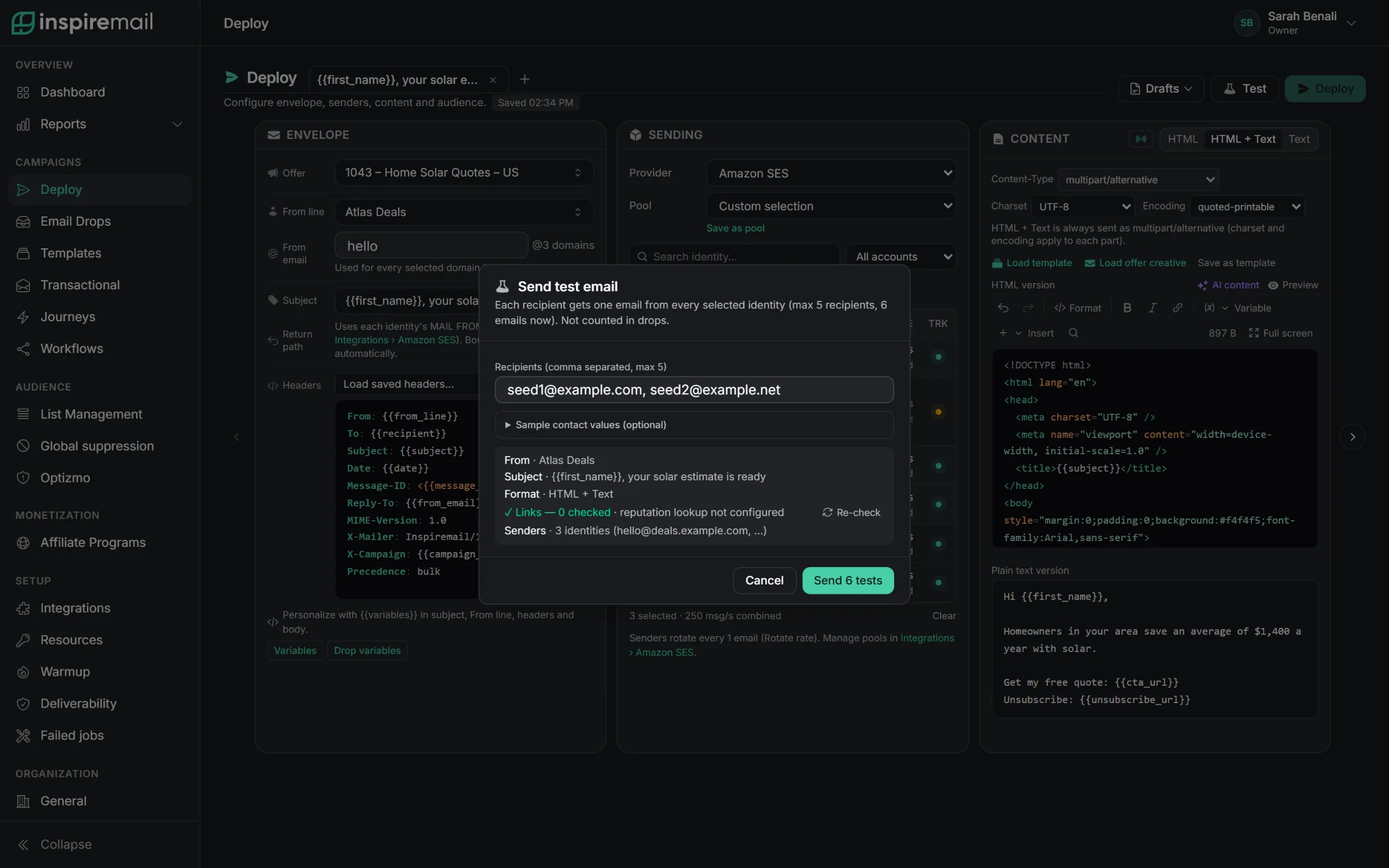
Send test email (fictitious demo drop). Two recipients and three identities make six emails.
- On Deploy, with the senders, subject and content set, click Test.
- Enter up to 5 Recipients, comma separated.
- Optional: open Sample contact values to fill
{{first_name}}and list columns, so personalization renders as a real recipient would see it. - Check the summary: From line, subject, format, the Links check and the identities that will send.
- Click Send. Each recipient gets one email from every selected identity, capped at 25 emails per click; with more identities than that allows, the first ones are tested and the dialog says so.
Test emails use the same tracking pipeline as the real drop, so links, the unsubscribe link and images run on each sender's tracking domain. If an identity has no active tracking domain, the dialog warns you. Tests aren't counted in drop statistics.
Step 2: seed copies during the drop
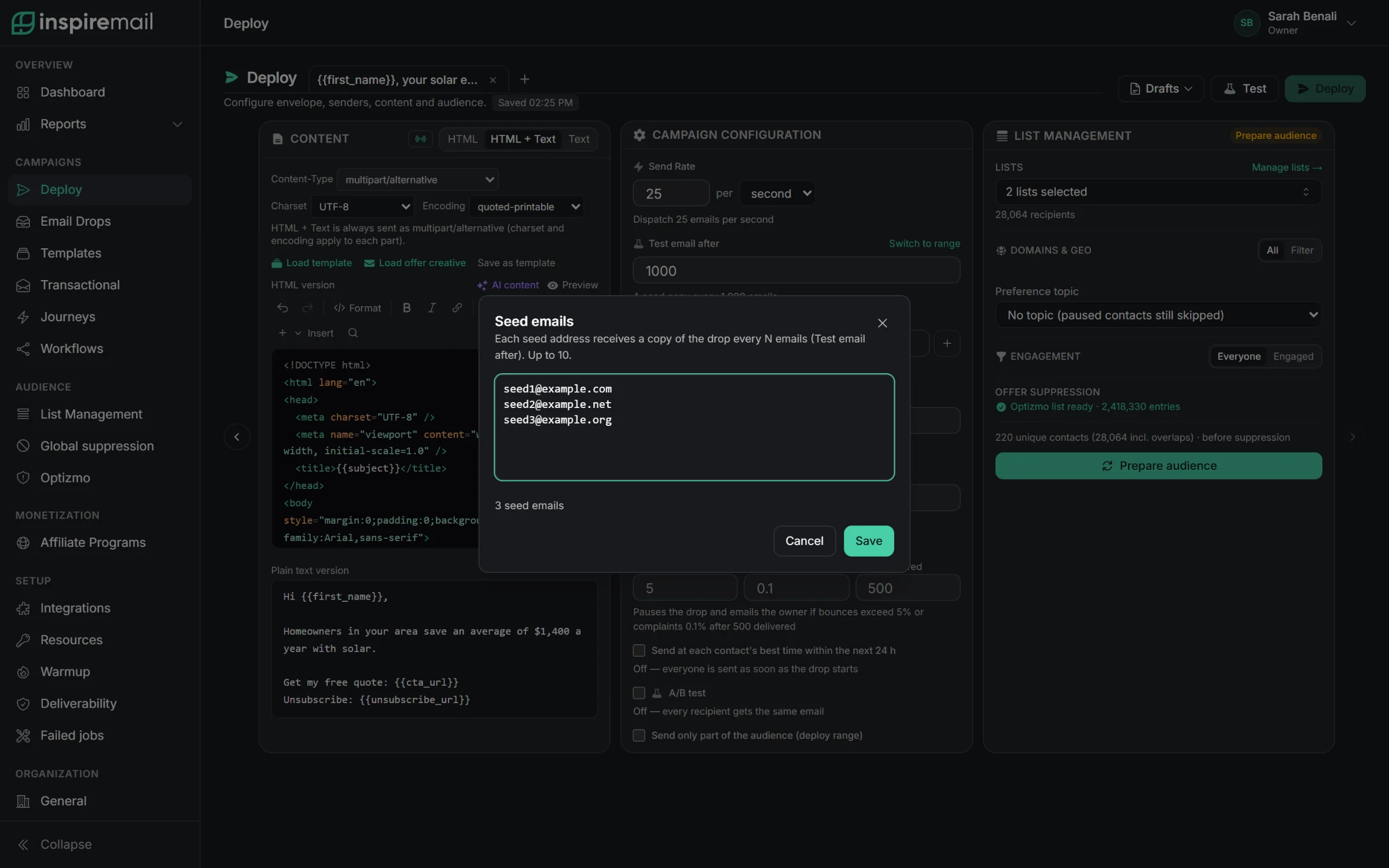
The Seed emails dialog. One address per line, up to 10.
- In the Configuration panel, find Test email after. Enter how often a seed copy goes out, for example 1000 for one copy every 1,000 emails.
- Prefer a less regular pattern? Click Switch to range and enter a minimum and maximum; each interval is picked at random in that range.
- Enter a Seed email, or click + to add several in the Seed emails dialog (up to 10).
- Leave Disable seed copies for this drop unticked. Seeds are on by default, which is why the seed field is required.
Each seed copy is the exact email that just went to a real recipient: same identity, same content variant, same tracking domain. Over a drop that rotates through several identities, your seeds therefore see each sender in turn. The count is based on emails actually sent, so suppressed contacts don't delay or skip a seed copy.
What seed copies don't do
| Real recipient | Seed copy | |
|---|---|---|
| Counted as sent / failed | Yes | No |
| In the drop's recipient file | Yes | No |
| Open pixel | Yes | No, so your own opens never inflate the open rate |
| Bounce or complaint suppresses | Yes | No |
| Counts toward auto-pause | Yes | No |
| Unsubscribe link | Works | Works, for the seed address |
Building a good seed list
- Cover the providers your audience uses. Look at the domains in your lists first: if most addresses are Gmail and Outlook.com, two Gmail and two Outlook.com seeds tell you more than one of everything.
- Use real, separate mailboxes you can log into, not aliases of one account. Each should be used only for seeding.
- Keep them quiet otherwise. Don't sign them up elsewhere or mark your own mail as spam from them; their placement should reflect your mail, not their history.
- Don't over-read them. A brand-new seed mailbox has no engagement history, so it may treat you more harshly (or more kindly) than a long-time subscriber would. Look for changes between drops rather than one result in isolation.
Reading the results
- Inbox at every provider: carry on, and keep an eye on the live monitor.
- Promotions tab at Gmail: normal for marketing mail, not a deliverability problem.
- Spam at one provider: look at that provider first. Check the SPF, DKIM and DMARC check (NIST's Trustworthy Email guide explains why receivers weigh these records), and whether one identity in the pool is newer than the others.
- Spam everywhere, from one identity only: that sender needs a slower warmup plan, or a break.
Pair seeds with real data: Google's Postmaster Tools shows the spam rate your actual Gmail recipients report, which seeds can't, and Microsoft's Smart Network Data Services does the same for Outlook.com traffic from IPs you control. Yahoo's sender best practices give the same advice for Yahoo mailboxes.
Troubleshooting
- "Seed email" is red: seeds are on and no valid address is entered. Add one or disable seed copies for this drop.
- No seed copy arrived yet: the drop hasn't sent N emails yet. A drop of 2,000 with "every 1,000" sends two rounds of seed copies.
- The test dialog says only some identities were tested: one click is capped at 25 emails. Use fewer recipients to test more identities.
How we checked this guide
We tested each step in a demo organization with fictitious data on 22 November 2026. Screens, button labels, limits and error messages are taken from the product as it works today; Gmail's guidance on email authentication and RFC 5321 give the background on what "accepted" means for a delivered message. If something here no longer matches what you see, contact us and we'll correct it, as our editorial policy describes. Read more about us.
Related guides
Sending pools and rotation for multi-identity drops, and the Deploy feature page.
Frequently asked questions
What is the difference between a test email and a seed copy?
A test email is sent once, before the drop, to up to 5 addresses from every selected identity. A seed copy is sent during the drop: every N emails, the same message that just went to a recipient also goes to your seed addresses.
How many seed addresses can a drop have?
Up to 10. Use a mix of mailbox providers you care about, for example Gmail, Outlook.com and Yahoo, and keep them only for seeding.
Do seed copies count in my drop statistics?
No. Seed copies aren't counted as sent or failed, aren't in the recipient file, and a bounce or complaint on a seed address doesn't suppress anyone or count toward auto-pause.
Can I turn seed copies off for one drop?
Yes. Tick Disable seed copies for this drop in the Configuration panel. Seed copies are on by default, so a drop needs at least one seed address unless you turn them off.
Why does the seed copy have no open pixel?
So that opening it in your test mailboxes never inflates the drop's open rate. Links and the unsubscribe link work, so you can still check where they go.
- seed list testing
- inbox placement
- test email
- deploy
- deliverability