
Everflow integration: offers, postbacks, reconciliation
Everflow integration setup in Inspiremail: connect the affiliate API key, let offers sync in the background and add one postback URL for conversions.
· 5 min read · By Reda El Kasraoui
TL;DR: in Affiliate Programs, click Add connection, name it, paste your Everflow affiliate API key and keep the base URL (https://api.eflow.team/v1, or the EU one for EU-hosted accounts). Runnable offers start syncing in the background, with from lines, subject lines, creatives and the Optizmo key. Then copy the Conversion postback URL from the Conversion tracking card into Everflow (Postbacks › + Postback, type Conversion) and click Send test postback. From then on conversions land in your drop reports, and a daily reconciliation applies reversals.
Everflow is a partner marketing platform that many affiliate networks run on; as a publisher you see the offers you're approved for and get paid per conversion. A postback is the server-to-server call Everflow makes to tell you a conversion happened, so you don't rely on a pixel in the advertiser's page.
What you need
- An affiliate API key. You can't create one yourself. Your network issues it. It then shows up under Company Settings › My Account › API in your partner platform. Everflow's help page on partner API keys has the details. The key goes in the
X-Eflow-API-Keyheader of the Affiliate API. - The right role. The owner, an Organization Manager or an Offer Manager can add connections.
- Approval on some offers. Only runnable offers you're approved for are synced.
Step 1: connect the account
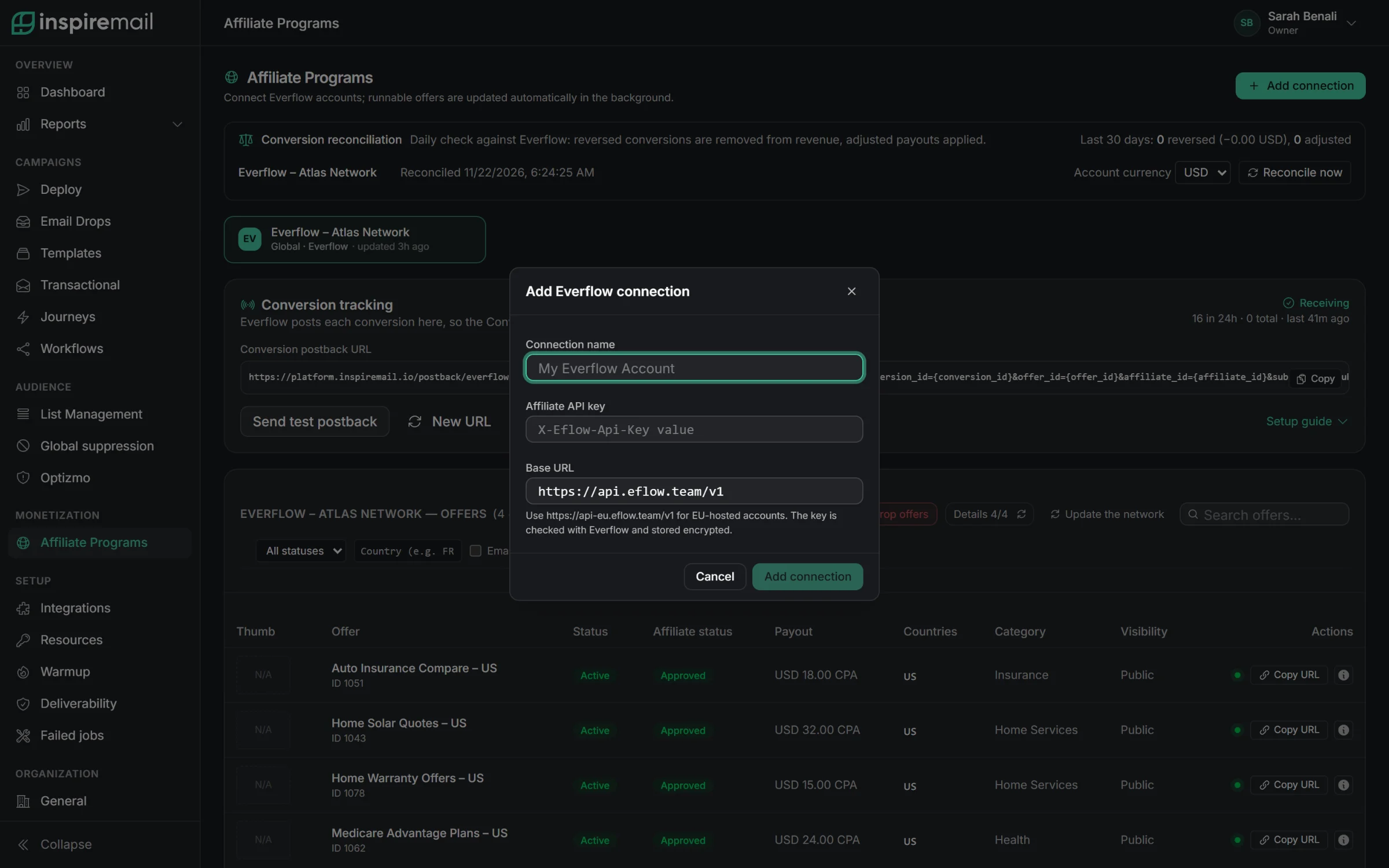
Adding an Everflow connection (fictitious demo data). The key is checked with Everflow before it's saved.
- Open Affiliate Programs and click Add connection.
- Connection name: something you'll recognize in Deploy, for example "Everflow – Atlas Network".
- Affiliate API key: paste the key from your Everflow partner account.
- Base URL: keep
https://api.eflow.team/v1, or usehttps://api-eu.eflow.team/v1for an EU-hosted account. - Click Add connection. The first update starts; "Offers appear here as soon as Everflow has answered — you can leave this page."
Step 2: let the offers arrive
Offers are fetched in the background, never while you wait on a page. A full listing comes first, then offer details (from and subject lines, the opt-out link, the creative bundle, the suppression file link) for new and changed offers. After that:
- an update runs about every hour per connection, and a full refresh of details once a night;
- Update the network queues one now; it has a short cooldown so it can't hammer Everflow's API;
- an offer that disappears from Everflow isn't deleted. It's marked unavailable, so old drops and reports keep their history.
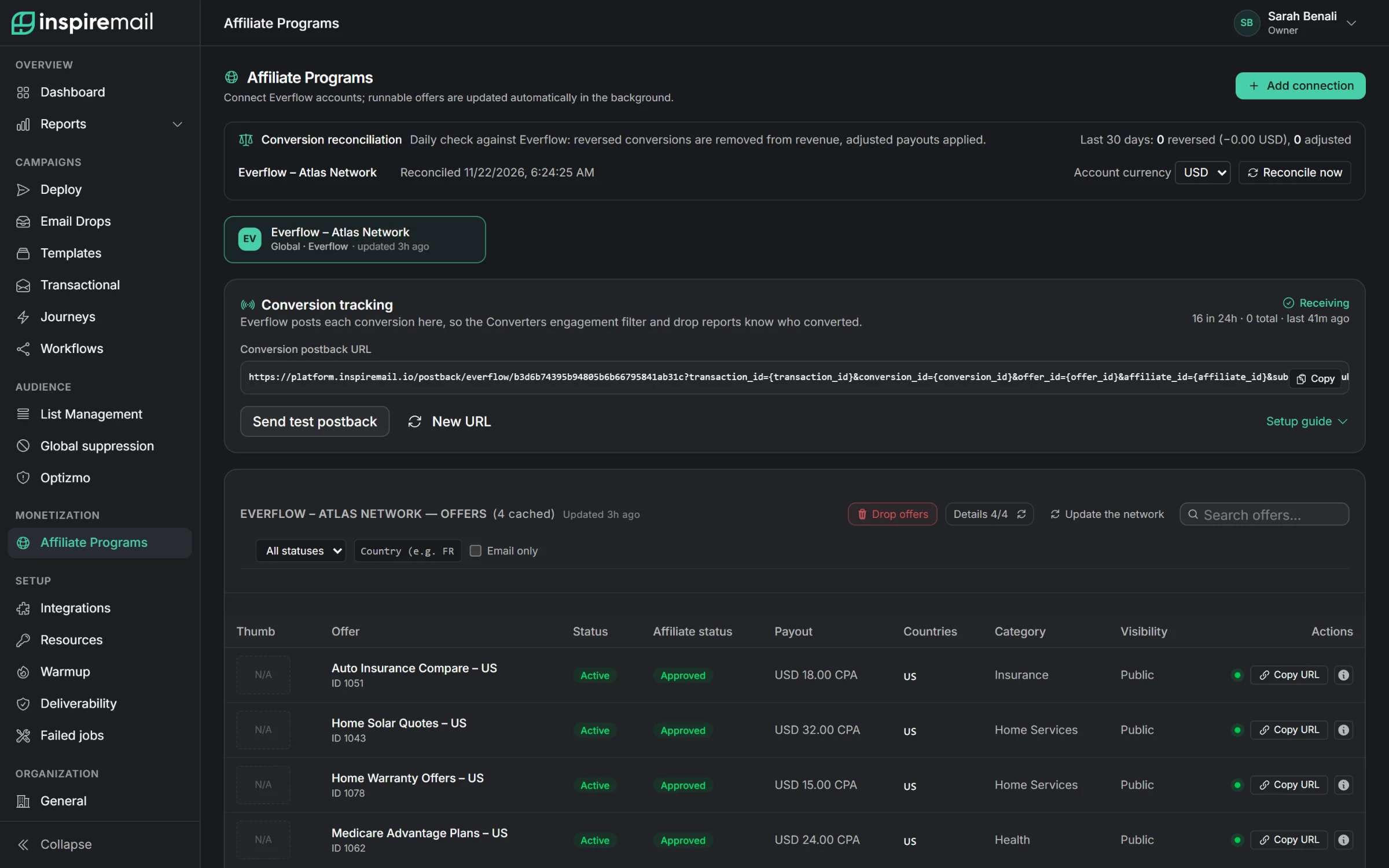
A synced connection: reconciliation, conversion tracking and the offer list in one place.
Click an offer to see its details: caps, payouts and restrictions, countries, the Optizmo Mailer Access Key and the unsubscribe URL. The Optizmo key flows straight into suppression; see the Optizmo integration guide.
Step 3: add the postback in Everflow
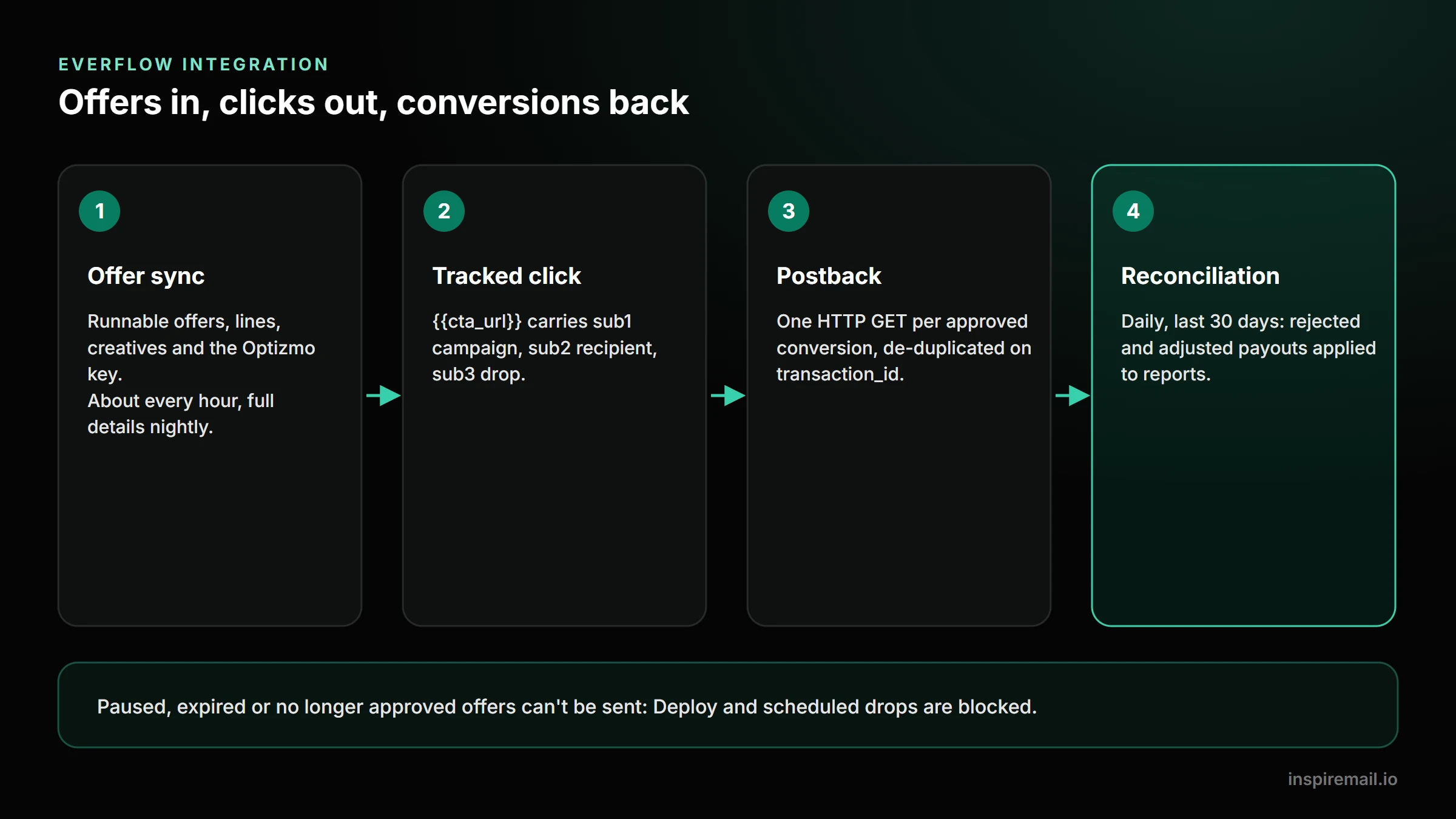 Offers in, clicks out with sub IDs, conversions back by postback, corrections by reconciliation.
- On the Conversion tracking card, copy the Conversion postback URL. It's unique to your organization; treat it like a password.
- In Everflow (your partner account), open Postbacks and click + Postback.
- Type Conversion, scope Global (all offers) or Specific (one offer), method Postback (server to server).
- Paste the URL and keep the macros as they are:
{transaction_id}for de-duplication,{sub1}campaign,{sub2}recipient,{sub3}drop,{payout_amount}your payout, plus{offer_currency},{offer_id},{conversion_id},{event_id}and{datetime}. - Optional: for offers with extra events (upsells, deposits), add a second postback of type Event with the event URL. Events add revenue without counting as new conversions.
- Save, then click Send test postback in Inspiremail. "Test postback received ✓" means the path works.
Everflow's guide to parameters and macros lists which macros work in partner postbacks. One trap worth knowing: there is no {payout} macro. The partner payout is {payout_amount}; a URL with {payout} arrives with a literal string and the conversion falls back to the offer's default payout.
Step 4: use the offer in a drop
On Deploy, pick the offer. Load its creative from Content › Load offer creative: offer links become {{cta_url}}, opt-out links {{offer_unsubscribe_url}}, third-party pixels are removed, and images are copied to your own storage and served from the sender's tracking domain. When the drop sends, every {{cta_url}} carries sub1, sub2 and sub3, which is what lets the postback credit the right drop and recipient.
Offers that are paused, expired, removed or no longer approved can't be sent. Deploy blocks them, a scheduled drop for one doesn't go out, and an Offer of a drop paused or expired alert tells you why.
What reconciliation does
Everflow sends one postback per approved conversion. Conversions on hold aren't sent, and nothing more is sent if a conversion is later rejected or its payout adjusted. So each day Inspiremail pulls the Everflow conversion report for the last 30 days: rejected conversions drop to zero revenue (the original payout is kept for reference), adjusted ones take the new payout, and drop reports are recalculated. The reconciliation card shows the totals and when it last ran; Reconcile now runs it on demand.
Troubleshooting
- "Everflow did not answer" when saving: check the base URL (US or EU) and that the key is the affiliate API key, not an advertiser or network key.
- "This Everflow account has no runnable offers right now": you aren't approved on any offer yet, or they're all paused. It's checked again every hour.
- Test postback fails: the URL was edited, or you generated a new URL and Everflow still has the old one. Generating a new URL disables the previous one.
- Conversions show the default payout: the postback still uses
{payout}. Replace it with the URL shown on the card.
How we checked this guide
We tested each step in a demo organization with fictitious data on 22 November 2026 and compared it with Everflow's documentation linked above and the Everflow server IP list. Screens, button labels, limits and error messages are taken from the product as it works today. If something here no longer matches what you see, contact us and we'll correct it, as our editorial policy describes. Read more about us.
Related guides
Mail the offers responsibly with CAN-SPAM footer requirements and Optizmo suppression. Overview: Everflow integration and affiliate marketers. The FTC's CAN-SPAM compliance guide explains why advertiser and affiliate share responsibility for each message.
Frequently asked questions
Which Everflow key does Inspiremail need?
The affiliate (partner) API key, sent in the X-Eflow-API-Key header. Your network issues it; it then appears under Company Settings › My Account › API in the Everflow partner platform. Inspiremail checks it with Everflow when you save the connection and stores it encrypted.
How often are Everflow offers updated?
Automatically about every hour, with a full refresh of offer details once a night. Update the network queues an update straight away; it runs in the background, so you can leave the page.
What do sub1, sub2 and sub3 mean in the postback?
Inspiremail adds them to the offer tracking link: sub1 is the campaign, sub2 the recipient and sub3 the drop. Everflow sends them back in the postback, so each conversion is credited to the right drop and contact.
What happens when Everflow rejects or adjusts a conversion?
Everflow doesn't send a second postback for that. A daily reconciliation pulls the Everflow conversion report for the last 30 days, removes rejected conversions from revenue and applies adjusted payouts.
Does Inspiremail send drops for paused or expired offers?
No. An offer that is paused, expired, removed or no longer approved for you blocks sending, both for Deploy and for scheduled drops, and raises an alert.
- Everflow integration
- everflow
- affiliate offers
- postback
- integration guide